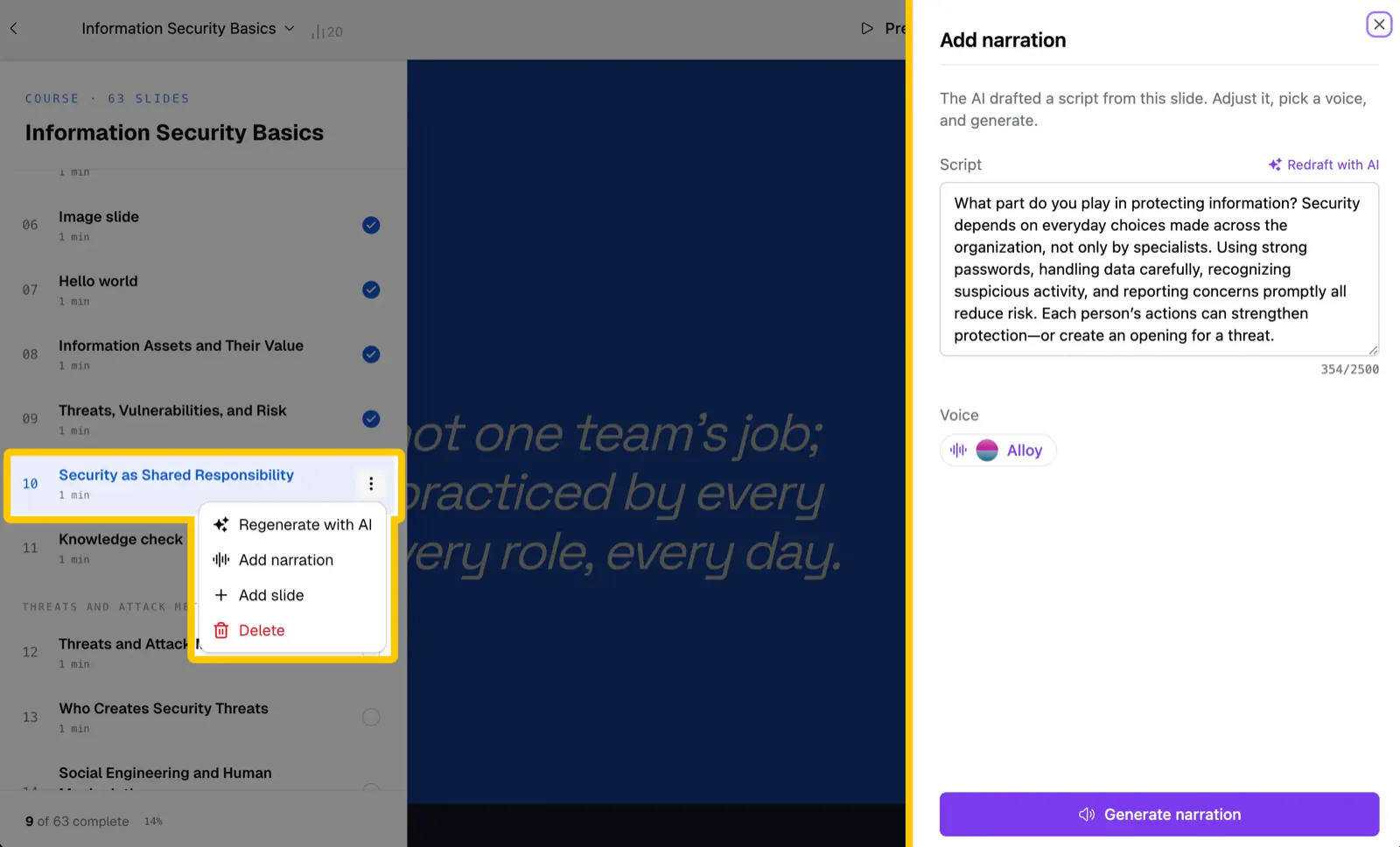
Narration can now be added, replaced, or removed one section at a time. Open the "..." menu on any lesson or slide and choose Add narration, or click the pencil on an existing audio player to edit it.
- AI drafts the script: the narration is written from the section's own content, and you can edit every word before generating
- Pick the voice: keep the course voice or choose a different one for this section
- Preview before applying: listen to the generated clip inside the panel, generate again, and only then add or replace the narration in your course
- Remove a clip: take the narration off a single section without touching the rest of the course