# LearningStudioAI
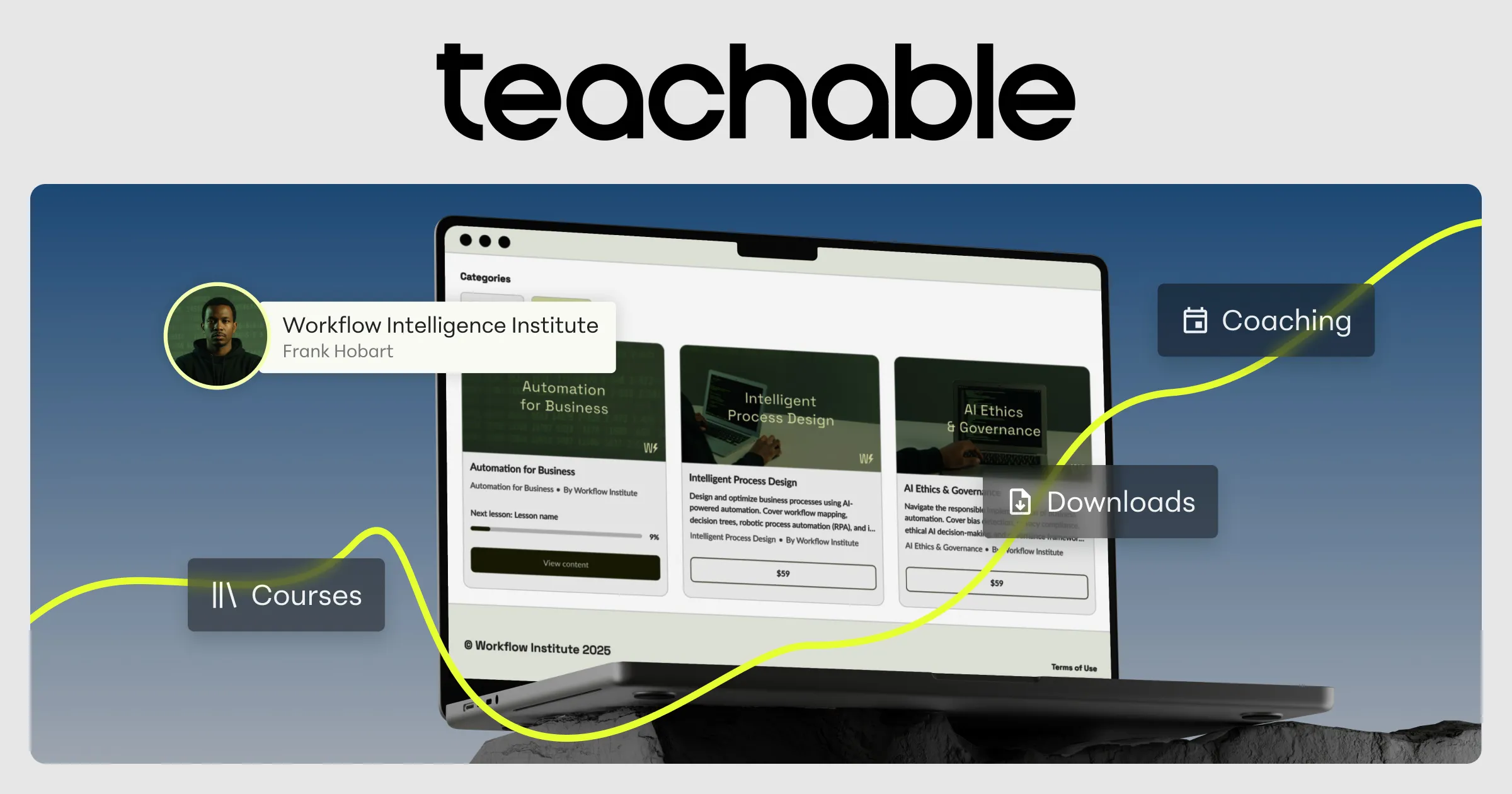
> LearningStudioAI is an AI course creator and eLearning authoring tool. It turns a topic, a PDF, or a document into a complete online course with lessons, quizzes, images, and text-to-speech narration, then publishes it as a shareable link that tracks each learner's completion and quiz scores without an LMS, or exports it as a SCORM package for any LMS.
Built for L&D and corporate training teams, educators, coaches, and course creators who need finished, publishable courses quickly rather than a blank-page editor.
Learner analytics is built in and needs no LMS: the share link reports who opened the course, how far each learner got, active time spent, completion, and quiz scores per learner. A course setting can require learners to sign in before the course starts, so the owner knows exactly who finished.
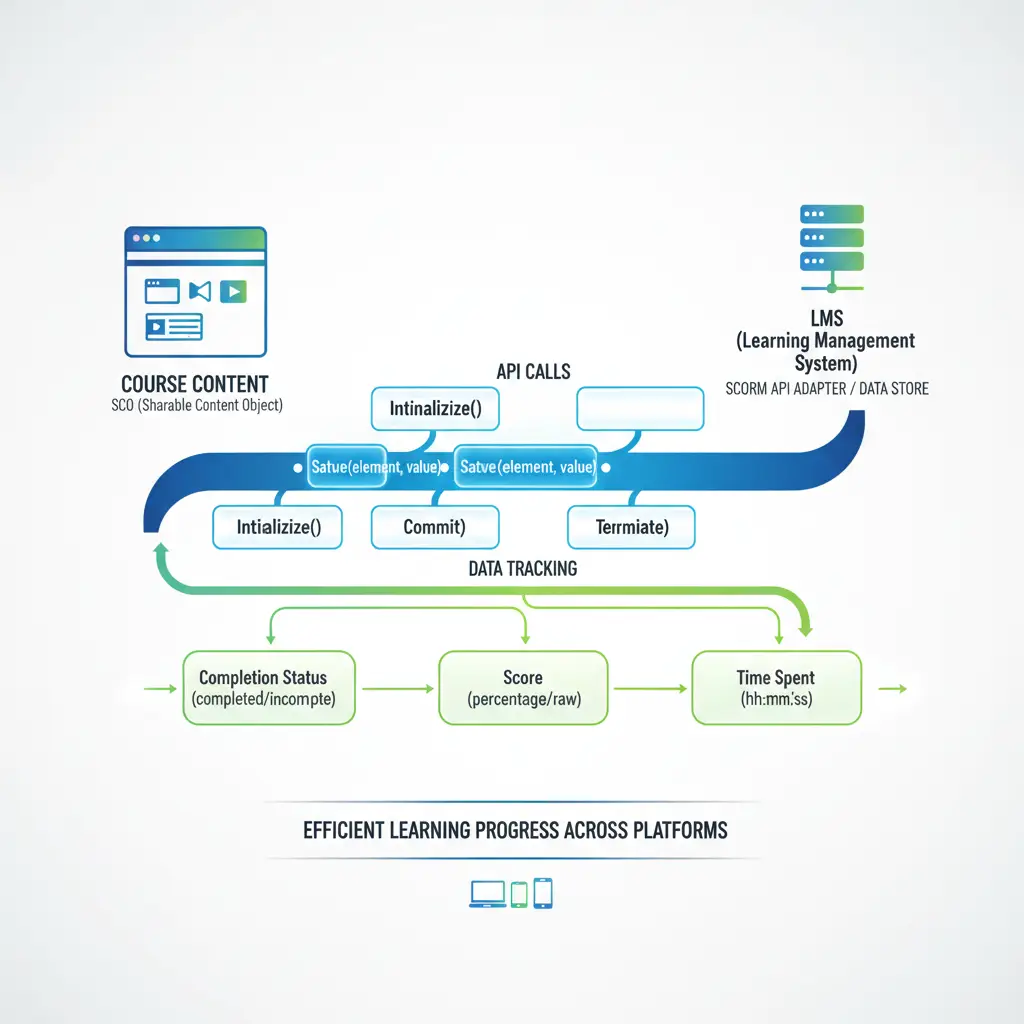
Every course can be shared as a link, exported as SCORM 1.2 or SCORM 2004 for any LMS, or downloaded as a PDF. There is no HTML or xAPI export. Courses stay editable in a block-based editor after generation.
Courses can be generated in 20 languages, including English, Spanish, Portuguese, French, German, Italian, Dutch, Polish, Japanese, Chinese and Arabic. Text-to-speech narration is available in 9 of them, with male and female voices.
Authors sign in with Google or with email and password. Plans are per account, not per seat; there is no team workspace, SSO or SAML. Learners never need an account unless the author turns on the sign-in gate.
Free to sign up and try the editor. AI course generation and the public API require a paid plan, starting at $39/month. Current plans are listed at https://learningstudioai.com/pricing.
A REST API creates and exports courses programmatically, with webhooks and a Zapier integration. Documentation is at https://learningstudioai.com/docs and every docs page is also available as markdown at the same path with a `.md` suffix.
## Product
- [AI Course Creator & eLearning Authoring Tool](https://learningstudioai.com/): Create professional online courses in minutes with AI. The all-in-one eLearning authoring tool with SCORM export, quizzes, learner analytics, text-to-speech & more. Turn any topic, PDF, or document into a course.
- [AI Course Creation Software — Every Feature Explained](https://learningstudioai.com/features): See what our AI course creation software can do: generate courses from any topic or document, add quizzes and narration, track learner completion, export SCORM to any LMS. Free to try.
- [Pricing](https://learningstudioai.com/pricing): Simple, transparent pricing for LearningStudioAI. Choose the plan that fits your needs. Cancel anytime, no questions asked.
- [Frequently Asked Questions](https://learningstudioai.com/faq): Frequently asked questions about LearningStudioAI and creating online courses with our AI-powered authoring tool
## Tools
- [AI Course Generator — Create Online Courses in Minutes](https://learningstudioai.com/ai-course-generator): Generate complete online courses with AI — lessons, quizzes, images, and audio from any topic or document. Export as SCORM or share a link.
- [AI Course Builder — A Visual Editor for Online Courses](https://learningstudioai.com/ai-course-builder): Build complete online courses with AI — lessons, quizzes, images, and narration from any topic or document. Export as SCORM, share a link, or download as PDF.
- [SCORM Course Creator — Create SCORM Courses with AI](https://learningstudioai.com/scorm-course-creator): Create SCORM courses with AI — generate lessons, quizzes, images, and narration, then export as SCORM 1.2 or SCORM 2004 for any LMS.
- [PDF to Course — Convert PDF to Online Course with AI](https://learningstudioai.com/pdf-to-course): Upload a PDF, PowerPoint, or Word file and convert it into an interactive online course with AI — lessons, quizzes, images, and narration. Export as SCORM or share a link.
- [AI Quiz Generator — Create Course Quizzes with AI](https://learningstudioai.com/ai-quiz-generator): Generate quiz questions automatically from your course content using AI. Supports multiple choice, fill in the blanks, matching, and ordering. Export as SCORM with quiz tracking.
- [AI Text-to-Speech for Courses — Add Audio Narration](https://learningstudioai.com/ai-text-to-speech-courses): Add natural-sounding audio narration to your online courses using AI text-to-speech. Voices in 9 languages. Upload audio or record in your browser.
- [AI Course Outline Generator — Plan Your Course in Seconds](https://learningstudioai.com/ai-course-outline-generator): Generate a structured course outline with AI. Enter a topic, review and edit the suggested outline, then generate a complete course with lessons, quizzes, and audio.
- [Online Course Builder — Build Courses in Your Browser](https://learningstudioai.com/online-course-builder): Build interactive online courses in your browser — no software to install. Add quizzes, narration, and your branding, then share with a link or export as SCORM.
## Use cases
- [AI Course Creator for Corporate Training](https://learningstudioai.com/use-cases/corporate-training): Turn policies, decks, and process docs into interactive corporate training with AI — branded for your company, with completion and quiz scores tracked per learner from a shared link or as SCORM in your LMS.
## Comparisons
- [Coursebox Alternative — AI Course Creator with SCORM Export](https://learningstudioai.com/alternatives/coursebox): Looking for a Coursebox alternative? LearningStudioAI offers guided AI course creation, a professional block-based editor, built-in text-to-speech, voice & webcam recording, and full SCORM export — with transparent pricing.
- [MiniCourseGenerator Alternative — Full AI Courses with Offline SCORM](https://learningstudioai.com/alternatives/minicoursegenerator): Looking for a MiniCourseGenerator alternative? LearningStudioAI creates full-length structured courses — not just micro-courses — with guided AI, a professional editor, offline SCORM export on all plans from $39/mo, and built-in text-to-speech.
- [CourseAI Alternative — Professional AI Course Creator with SCORM & PDF Export](https://learningstudioai.com/alternatives/courseai): Looking for a CourseAI alternative? LearningStudioAI offers guided AI course creation, a professional block-based editor, built-in text-to-speech, voice & webcam recording, and full SCORM & PDF export — trusted by 830,000+ authors.
- [Coassemble Alternative — AI Course Authoring with TTS & PDF Export](https://learningstudioai.com/alternatives/coassemble): Looking for a Coassemble alternative? LearningStudioAI offers guided AI course creation, built-in text-to-speech, voice & webcam recording, PDF export, and a professional block-based editor — plus learner analytics on every shared link, no LMS required. Trusted by 830,000+ authors.
- [Mindsmith Alternative — AI Course Creator with TTS, Voice & PDF Export](https://learningstudioai.com/alternatives/mindsmith): Looking for a Mindsmith alternative? LearningStudioAI offers guided AI course creation, built-in text-to-speech, voice & webcam recording, and full PDF export — without paying $39–$65 per author per month. Trusted by 830,000+ authors.
- [Coursify Alternative — AI Course Creator with SCORM, TTS & PDF Export](https://learningstudioai.com/alternatives/coursify): Looking for a Coursify alternative? LearningStudioAI goes beyond hosting — create professional courses with guided AI, built-in text-to-speech, voice & webcam recording, SCORM export, and PDF export. Trusted by 830,000+ authors.
## API documentation
- [Introduction](https://learningstudioai.com/docs/index.md): Generate full courses programmatically and deliver them to any LMS as SCORM packages with the LearningStudioAI public API.
- [Authentication](https://learningstudioai.com/docs/authentication.md): How to generate and use a Bearer API key for the LearningStudioAI public API. Paid plan required.
- [Quickstart](https://learningstudioai.com/docs/quickstart.md): End-to-end walkthrough: create a course via the API, poll for completion, and export to SCORM. cURL and Node examples.
- [Create a course](https://learningstudioai.com/docs/api/create-course.md): POST /api/v1/courses — async course creation endpoint reference. Request body, response shape, and error codes.
- [Get job status](https://learningstudioai.com/docs/api/get-job.md): GET /api/v1/courses/jobs/:jobId — poll the status of a course-generation job. Status enum and response shape.
- [Export to SCORM](https://learningstudioai.com/docs/api/export-course.md): POST /api/v1/courses/:id/export — sync SCORM export endpoint. Supported versions (1.2, 2004, 2004 4th edition) and response shape.
- [Webhooks](https://learningstudioai.com/docs/api/webhooks.md): Receive course.created, course.failed, and course.exported events on a per-request callbackUrl. Payload shapes and security model.
- [Errors](https://learningstudioai.com/docs/api/errors.md): HTTP status codes and machine-readable error codes returned by the LearningStudioAI public API.
- [Zapier](https://learningstudioai.com/docs/integrations/zapier.md): Connect LearningStudioAI to 8,000+ apps via Zapier. Generate AI courses from Google Sheets rows, Typeform submissions, Slack messages, or any other Zapier trigger — no code required.
## Blog
- [The 6 Best AI Course Creators in 2026 (Compared)](https://learningstudioai.com/blog/best-ai-course-creators): Compare the best AI course creators in 2026: LearningStudioAI, Coursebox, Mindsmith, MiniCourseGenerator, Coassemble and CourseAI on output, SCORM and price.
- [Learner Analytics: See Who Finished Your Course and What They Scored](https://learningstudioai.com/blog/learner-analytics-see-who-finished-your-course): Track course completion and quiz scores per learner on LearningStudioAI. Share a link, see who finished, and require identification when you need names.
- [Nano Banana Is Now Available on LearningStudioAI](https://learningstudioai.com/blog/ai-image-generation-editing-inside-course-editor): Google's Nano Banana is now available on LearningStudioAI. Generate and edit course images with AI, four visual styles, and smart prompts.
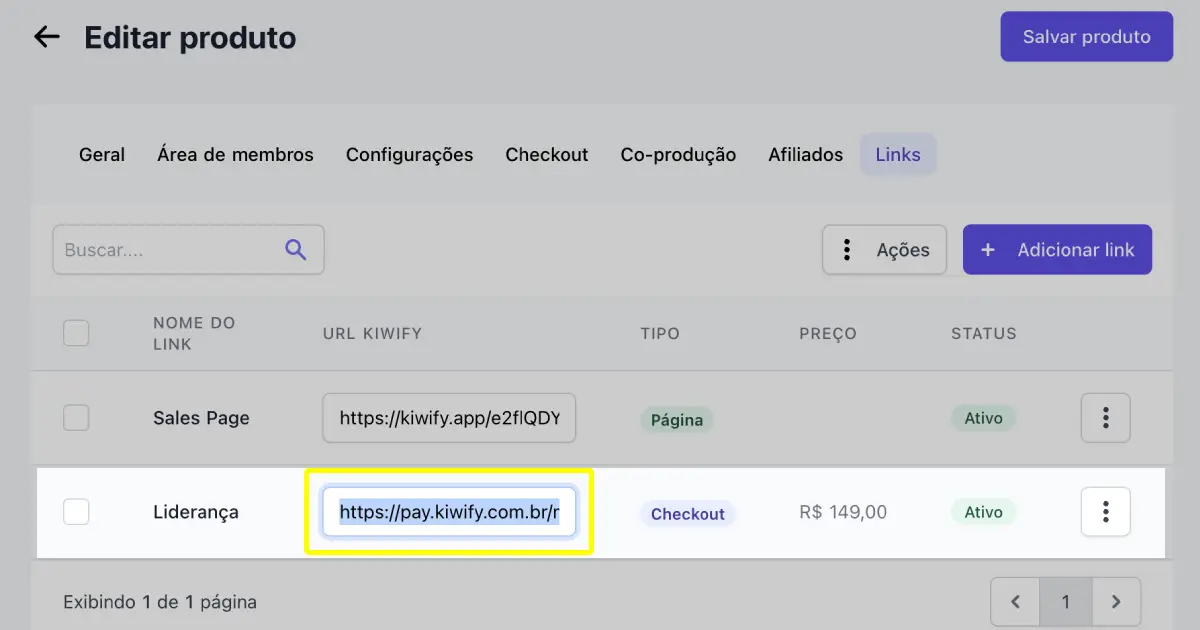
- [How to Sell Courses Online: Gumroad, Kiwify, Teachable & More](https://learningstudioai.com/blog/how-to-sell-courses-online-gumroad-kiwify-teachable): Learn how to sell your online course on Gumroad, Kiwify, or Teachable. Step-by-step guide to export, publish, and start earning.
- [How to Turn Your PDF or PowerPoint into an Online Course](https://learningstudioai.com/blog/turn-pdf-powerpoint-into-online-course): Convert PDFs, PowerPoints, and Word docs into online courses. Step-by-step guide to repurposing existing training materials into interactive eLearning.
- [How to Create an Online Course with AI (Step-by-Step Guide)](https://learningstudioai.com/blog/how-to-create-online-course-with-ai): Step-by-step guide to creating online courses with AI. Plan structure, generate content, add quizzes and media, then export to SCORM or share directly.
- [Maximizing Engagement: Innovative Quizzes and Assessments for Online Learning](https://learningstudioai.com/blog/maximizing-engagement-innovative-quizzes-online-learning): Discover how to create engaging and interactive quizzes for online courses, enhancing learner retention and satisfaction with innovative design and technology.
- [What Is SCORM? A Plain-English Guide for eLearning (2026)](https://learningstudioai.com/blog/understanding-scorm-beginners-guide-elearning-standards): What SCORM is, how SCORM 1.2 and 2004 differ, why your LMS requires it, and how to create SCORM-compliant courses — explained in plain English for beginners.
- [Como Publicar e Vender Curso na Kiwify em 2026 (Guia Passo a Passo)](https://learningstudioai.com/blog/como-publicar-curso-no-kiwify-passo-a-passo) (Portuguese): Guia completo e atualizado: crie seu produto na Kiwify, configure a área de membros, incorpore seu curso e gere o link de checkout para vender no automático.
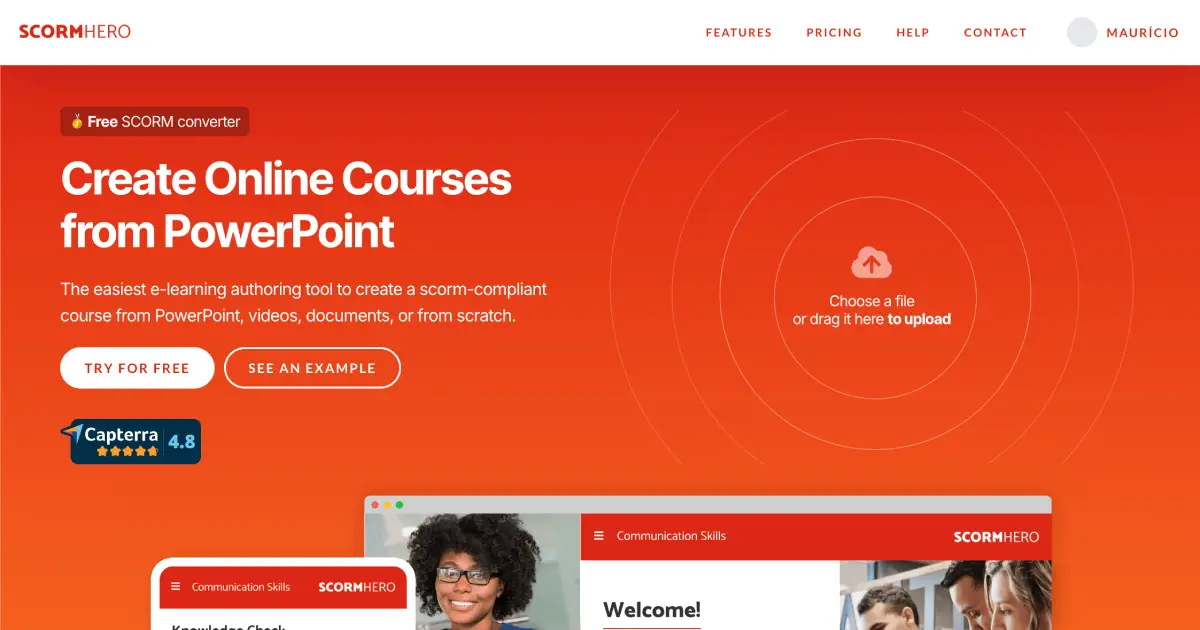
- [How to Convert PowerPoint to SCORM for Free](https://learningstudioai.com/blog/convert-powerpoint-to-scorm-for-free): Learn how to convert PowerPoint to SCORM for free using simple online tools like ScormHero. Turn your slides into LMS-ready eLearning packages that track learner progress and performance.
- [How to Generate High-Quality AI Images for eLearning Content and Course Promotion](https://learningstudioai.com/blog/generate-ai-images-for-elearning-content-and-course-promotion): Learn how to generate high-quality AI images for eLearning content and course promotion using top tools, prompts, and best practices.
- [How to Create Training Videos for Online Courses (and Boost Learner Engagement)](https://learningstudioai.com/blog/how-to-create-training-videos-for-online-courses): Step-by-step guide for university educators and L&D professionals to create engaging training videos, integrate them into courses, and track learning impact using AI-assisted tools and modern platforms.
- [How to Turn Your Expertise Into an Online Course (and Income) with AI](https://learningstudioai.com/blog/turn-expertise-into-online-course-with-ai): A step-by-step guide to validate your topic, build interactive lessons, publish via LMS or web, and monetize—using an AI-first course builder like LearningStudioAI.
- [How AI Is Transforming Employee Training in 2025 (and What L&D Teams Can Do Now)](https://learningstudioai.com/blog/how-ai-is-transforming-employee-training-in-2025): See how AI is transforming employee training in 2025. Learn how to use personalized learning, AI-powered authoring, SCORM/LMS integration, and data-driven analytics to modernize your L&D program.
- [From Lesson Plan to Online Course: How AI Is Empowering University Educators](https://learningstudioai.com/blog/ai-in-classroom-lesson-plan-online-course): Discover how AI helps university educators turn lesson plans into interactive online courses. Includes step-by-step guidance, assessment ideas, multimedia integration, and SCORM/LMS publishing strategies.
- [10 Common Mistakes in Online Course Design and How University Educators Can Avoid Them](https://learningstudioai.com/blog/10-common-mistakes-in-online-course-design-how-to-avoid-them): Explore 10 common online course design mistakes and how university instructors and instructional designers can avoid them. Includes guidance on objectives, engagement, assessments, accessibility, and LMS/SCORM integration.
## Optional
- [Contact Us](https://learningstudioai.com/contact): Get in touch with the LearningStudioAI team. We're here to help with questions, feedback, or support for your AI-powered course creation.
- [Changelog](https://learningstudioai.com/changelog): See what's new in LearningStudioAI. Latest features, improvements, and fixes for our AI-powered course creation platform.
- [AI Course Creation Insights & Tips](https://learningstudioai.com/blog): Insights, tips, and updates on AI-powered course creation, online learning, educational content authoring, and course design best practices
---
# API documentation (full text)
Source: https://learningstudioai.com/docs
# Introduction
> Generate full courses programmatically and deliver them to any LMS as SCORM packages with the LearningStudioAI public API.
**v1 just launched.** Endpoints are stable and we're committed to
backwards compatibility within v1; we're actively iterating on the
surface based on early-access feedback. [Contact us](/contact) for
support or to share what you'd like to see next.
The LearningStudioAI API lets you generate full courses programmatically
and deliver them to any LMS as SCORM packages. It is designed for
integrators embedding LearningStudioAI into their own product — internal
tools, white-label LMSs, content pipelines, Zapier-style automations.
## What you can do
- **Create courses** from a subject line and optional outline. Generation
is asynchronous and typically completes in 60–120 seconds.
- **Poll job status** while a course generates, or get notified via a
webhook when it finishes.
- **Export as SCORM** (1.2, 2004, or 2004 4th edition) and hand the
download URL to your LMS for ingestion.
## When to use the API
Use the API when courses need to be created **on behalf of someone
else**, in volume, or as part of a larger workflow — for example:
- An LMS lets its admins generate courses without leaving the LMS UI.
- A bot turns a Slack thread into a SCORM package automatically.
- A content team generates a course per row in a spreadsheet.
If you only need to create courses for yourself, the web app is faster.
## Base URL
```
https://learningstudioai.com/api/v1
```
All endpoints accept and return `application/json`. Dates are returned
as ISO 8601 strings.
## Next steps
Start with [Authentication](/docs/authentication) to generate your API
key, then walk through the [Quickstart](/docs/quickstart) to create your
first course end-to-end.
Source: https://learningstudioai.com/docs/authentication
# Authentication
> How to generate and use a Bearer API key for the LearningStudioAI public API. Paid plan required.
The LearningStudioAI API authenticates every request with a per-user
API key sent as a bearer token. Keys are tied to a single user account
and require an active paid plan.
## Generating a key
1. Sign in to your LearningStudioAI account.
2. Open [**Account → API key**](/account).
3. Click **Generate**.
4. Copy the `ls_...` value immediately — we only display it once.
The key is hashed at rest (sha256). Once you close the dialog, the raw
value is gone. If you lose it, regenerate.
## Using your key
Send the key in the `Authorization` header on every request, prefixed
with `Bearer`:
```bash
curl https://learningstudioai.com/api/v1/courses \
-H "Authorization: Bearer ls_your_key_here" \
-H "Content-Type: application/json" \
-d '{ "subject": "Onboarding for new hires" }'
```
```js
const response = await fetch(
'https://learningstudioai.com/api/v1/courses',
{
method: 'POST',
headers: {
Authorization: 'Bearer ls_your_key_here',
'Content-Type': 'application/json',
},
body: JSON.stringify({ subject: 'Onboarding for new hires' }),
},
);
```
That's the only auth header. The Bearer token is the sole credential.
## Plan requirements
API access requires an active paid plan.
Requests from accounts on the free plan return:
```json
{ "message": "API access requires a paid plan", "code": "PAID_PLAN_REQUIRED" }
```
with HTTP `403`. The plan check runs on every request, so a key stops
working the moment the account is downgraded and starts working again
the moment it's upgraded.
## Rotating a key
Each user has a single active key. Clicking **Regenerate** mints a new
key and atomically revokes the previous one.
To rotate without downtime:
1. Generate the new key in a staging environment.
2. Verify your integration works against it.
3. Deploy the new key to production.
4. Regenerate in the dashboard (the previous key stops working at this
point).
## Revoking a key
Click **Revoke** on the API key card. The key stops working immediately.
## Key format
API keys look like `ls_`. The `ls_` prefix is stable and useful
for secret-scanning tools (GitHub, Gitleaks, etc.) — configure them to
flag committed `ls_` strings.
## Security notes
- **Treat keys like passwords.** Never commit them to source control or
expose them in client-side code.
- **Use environment variables.** `LEARNINGSTUDIO_API_KEY` is a sensible
name.
- **Store hashed copies, not raw.** If your platform persists keys for
multiple tenants, store the sha256 hash.
- **Revoke on suspicion.** Faster than investigating.
Source: https://learningstudioai.com/docs/quickstart
# Quickstart
> End-to-end walkthrough: create a course via the API, poll for completion, and export to SCORM. cURL and Node examples.
Generate a course end-to-end: create the job, wait for completion,
export to SCORM.
## Prerequisites
- An [API key](/docs/authentication) on a paid plan.
Set your key as an env var:
```bash
export LS_API_KEY="ls_your_key_here"
```
## 1. Create a course
`POST /api/v1/courses` returns immediately with a `jobId`. Generation
runs in the background.
```bash
curl -s https://learningstudioai.com/api/v1/courses \
-H "Authorization: Bearer $LS_API_KEY" \
-H "Content-Type: application/json" \
-d '{ "subject": "Workplace safety basics" }'
```
```js
const response = await fetch(
'https://learningstudioai.com/api/v1/courses',
{
method: 'POST',
headers: {
Authorization: `Bearer ${process.env.LS_API_KEY}`,
'Content-Type': 'application/json',
},
body: JSON.stringify({ subject: 'Workplace safety basics' }),
},
);
const job = await response.json();
console.log(job.jobId);
```
Response (`202 Accepted`):
```json
{
"jobId": "8aF2k...Xq",
"status": "pending",
"pollUrl": "/api/v1/courses/jobs/8aF2k...Xq"
}
```
See [Create a course](/docs/api/create-course) for the full body
schema (`outline`, `addOns`, `format`, `languageId`, `callbackUrl`).
## 2. Poll until completion
`GET /api/v1/courses/jobs/:jobId` returns the current state. Status
moves `pending → running → completed` (or `failed`). Generation
typically completes in 60–120 seconds.
```bash
curl -s https://learningstudioai.com/api/v1/courses/jobs/$JOB_ID \
-H "Authorization: Bearer $LS_API_KEY"
```
```js
const response = await fetch(
`https://learningstudioai.com/api/v1/courses/jobs/${jobId}`,
{ headers: { Authorization: `Bearer ${process.env.LS_API_KEY}` } },
);
const job = await response.json();
```
Final response on success:
```json
{
"jobId": "8aF2k...Xq",
"status": "completed",
"progress": 100,
"course": {
"id": "cou_abc123",
"name": "Workplace Safety Basics",
"shareUrl": "https://learningstudioai.com/go/cou_abc123",
"createdAt": "2026-04-29T17:14:08.000Z"
}
}
```
Prefer not to poll? Pass `callbackUrl` on the create request and
we'll POST a `course.created` event when the job finishes — see
[Webhooks](/docs/api/webhooks).
## 3. Export to SCORM
`POST /api/v1/courses/:id/export` is synchronous and typically
returns in under 30 seconds.
```bash
curl -s https://learningstudioai.com/api/v1/courses/$COURSE_ID/export \
-H "Authorization: Bearer $LS_API_KEY" \
-H "Content-Type: application/json" \
-d '{ "format": "scorm12" }'
```
```js
const response = await fetch(
`https://learningstudioai.com/api/v1/courses/${courseId}/export`,
{
method: 'POST',
headers: {
Authorization: `Bearer ${process.env.LS_API_KEY}`,
'Content-Type': 'application/json',
},
body: JSON.stringify({ format: 'scorm12' }),
},
);
const { downloadUrl } = await response.json();
```
Response:
```json
{
"courseId": "cou_abc123",
"format": "scorm12",
"downloadUrl": "https://storage.googleapis.com/.../course.zip",
"shareUrl": "https://learningstudioai.com/go/cou_abc123",
"exportedAt": "2026-04-29T17:15:42.000Z"
}
```
Hand `downloadUrl` to your LMS. Supported `format` values:
`scorm12`, `scorm2004`, `scorm2004_4`.
## Next steps
- [Wire a webhook receiver](/docs/api/webhooks) so you don't have to poll.
- Browse the [API reference](/docs/api/create-course) for full
parameter and response details on each endpoint.
- Check the [Errors](/docs/api/errors) page for status codes and
machine-readable error codes.
Source: https://learningstudioai.com/docs/api/create-course
# Create a course
> POST /api/v1/courses — async course creation endpoint reference. Request body, response shape, and error codes.
```http
POST /api/v1/courses
```
Submit a course for generation. Returns immediately with a `jobId`; the
worker generates the course in the background (typically 60–120 seconds).
To get notified on completion without polling, pass a `callbackUrl`.
## Request
### Body parameters
| Field | Type | Required | Description |
|---|---|---|---|
| `subject` | string (1–200) | yes | Topic of the course. |
| `format` | `"onepage"` \| `"classic"` | no | Layout. Default `"onepage"`. |
| `languageId` | enum | no | Locale code (e.g. `"en-US"`, `"pt-BR"`). Default `"en-US"`. |
| `outline` | string[] (≤ 9) | no | Optional chapter titles. Auto-generated if omitted. |
| `addOns` | string[] | no | Extra content blocks (see below). Default `[]`. |
| `callbackUrl` | string (URL) | no | HTTPS webhook fired when the job finishes. See [Webhooks](/docs/api/webhooks). |
### addOns values
- `practical-exercises` — hands-on exercises after each lesson.
- `wrapup` — closing summary block.
- `assessment` — final assessment quiz.
- `articles` — auto-generated supporting articles.
- `videos` — embedded YouTube videos relevant to each lesson.
- `agreement` — sign-off agreement block (compliance use cases).
## Example request
```bash
curl -s https://learningstudioai.com/api/v1/courses \
-H "Authorization: Bearer $LS_API_KEY" \
-H "Content-Type: application/json" \
-d '{
"subject": "Workplace safety basics",
"format": "classic",
"outline": ["Hazards", "PPE", "Emergency procedures"],
"addOns": ["assessment"],
"callbackUrl": "https://yourapp.com/hooks/learningstudio"
}'
```
```js
const response = await fetch(
'https://learningstudioai.com/api/v1/courses',
{
method: 'POST',
headers: {
Authorization: `Bearer ${process.env.LS_API_KEY}`,
'Content-Type': 'application/json',
},
body: JSON.stringify({
subject: 'Workplace safety basics',
format: 'classic',
outline: ['Hazards', 'PPE', 'Emergency procedures'],
addOns: ['assessment'],
callbackUrl: 'https://yourapp.com/hooks/learningstudio',
}),
},
);
const job = await response.json();
console.log(job.jobId);
```
## Response
`202 Accepted`
```json
{
"jobId": "8aF2k...Xq",
"status": "pending",
"pollUrl": "/api/v1/courses/jobs/8aF2k...Xq"
}
```
| Field | Description |
|---|---|
| `jobId` | Stable identifier for the job. Use it to [poll status](/docs/api/get-job). |
| `status` | Always `"pending"` immediately after creation. |
| `pollUrl` | Convenience path to GET. Relative to the API base URL. |
The actual course object arrives later — either via
[GET job status](/docs/api/get-job) once it reaches `"completed"`, or via
the [`course.created` webhook](/docs/api/webhooks) if you supplied a
`callbackUrl`.
## Errors
This endpoint may return:
- `400` [`VALIDATION_ERROR`](/docs/api/errors#status-codes)
- `401` [`INVALID_API_KEY`](/docs/api/errors#status-codes)
- `403` [`PAID_PLAN_REQUIRED`](/docs/api/errors#paid_plan_required)
- `403` [`USAGE_LIMIT_EXCEEDED_PLAN`](/docs/api/errors#usage_limit_exceeded_plan)
- `429` [`RATE_LIMIT_EXCEEDED`](/docs/api/errors#rate-limits) — 30 requests / minute / key.
Quota and rate-limit checks run **before** the job is queued, so an
over-quota request returns `403` immediately without consuming credits
or producing a job. See [Errors](/docs/api/errors) for response shape
and full code definitions.
Source: https://learningstudioai.com/docs/api/get-job
# Get job status
> GET /api/v1/courses/jobs/:jobId — poll the status of a course-generation job. Status enum and response shape.
```http
GET /api/v1/courses/jobs/:jobId
```
Poll the status of a course-generation job. Returns the current
`status`, progress percentage, and once `completed`, the full course
object.
## Request
### Path parameters
| Field | Type | Description |
|---|---|---|
| `jobId` | string | Returned from [`POST /api/v1/courses`](/docs/api/create-course). |
No body or query parameters.
## Example request
```bash
curl -s https://learningstudioai.com/api/v1/courses/jobs/$JOB_ID \
-H "Authorization: Bearer $LS_API_KEY"
```
```js
const response = await fetch(
`https://learningstudioai.com/api/v1/courses/jobs/${jobId}`,
{
headers: {
Authorization: `Bearer ${process.env.LS_API_KEY}`,
},
},
);
const job = await response.json();
console.log(job.status, job.progress);
```
## Response
`200 OK`
While the job is running:
```json
{
"jobId": "8aF2k...Xq",
"status": "running",
"progress": 42,
"course": null
}
```
When the job completes:
```json
{
"jobId": "8aF2k...Xq",
"status": "completed",
"progress": 100,
"course": {
"id": "cou_abc123",
"name": "Workplace Safety Basics",
"headline": "A practical guide for new hires",
"format": "classic",
"languageId": "en-US",
"shareUrl": "https://learningstudioai.com/go/cou_abc123",
"createdAt": "2026-04-28T17:14:08.000Z"
}
}
```
When the job fails:
```json
{
"jobId": "8aF2k...Xq",
"status": "failed",
"progress": 0,
"course": null,
"error": {
"message": "Course outline could not be generated for this subject.",
"code": "GENERATION_FAILED"
}
}
```
| Field | Type | Description |
|---|---|---|
| `jobId` | string | Echoed back from the URL. |
| `status` | enum | `"pending"`, `"running"`, `"completed"`, or `"failed"`. |
| `progress` | number (0–100) | Percentage progress. `0` while pending; `100` once completed. |
| `course` | object \| null | Full [course object](#course-object) once `completed`; otherwise `null`. |
| `error` | object \| undefined | Present only when `status` is `"failed"`. |
### Course object
| Field | Type | Description |
|---|---|---|
| `id` | string | Stable course identifier. Pass to [`POST /api/v1/courses/:id/export`](/docs/api/export-course). |
| `name` | string | Course title. |
| `headline` | string | One-line course description. |
| `format` | string | `"onepage"` or `"classic"` — echoes the format passed at creation. |
| `languageId` | string | Locale code (e.g. `"en-US"`). |
| `shareUrl` | string | Public preview page (`/go/:id`). Hand to learners as a quick preview. |
| `createdAt` | string (ISO 8601) | When the course was created. |
### Polling cadence
- Poll at most once every **5 seconds**. The rate limit is 120 requests / minute / key.
- Generation typically completes in **60–120 seconds**.
- For zero-poll integrations, pass `callbackUrl` on the create request and use the [`course.created` webhook](/docs/api/webhooks) instead.
## Errors
This endpoint may return:
- `401` [`INVALID_API_KEY`](/docs/api/errors#status-codes)
- `403` [`PAID_PLAN_REQUIRED`](/docs/api/errors#paid_plan_required)
- `404` [`NOT_FOUND`](/docs/api/errors#status-codes) — job not found, or doesn't belong to this key.
- `429` [`RATE_LIMIT_EXCEEDED`](/docs/api/errors#rate-limits) — 120 requests / minute / key.
See [Errors](/docs/api/errors) for response shape and full code
definitions.
Source: https://learningstudioai.com/docs/api/export-course
# Export to SCORM
> POST /api/v1/courses/:id/export — sync SCORM export endpoint. Supported versions (1.2, 2004, 2004 4th edition) and response shape.
```http
POST /api/v1/courses/:id/export
```
Generate a SCORM package for a completed course. Synchronous — typically
returns in under 30 seconds. The response includes a permanent
`downloadUrl` that you can hand to your LMS.
## Request
### Path parameters
| Field | Type | Description |
|---|---|---|
| `id` | string | Course ID, returned by [`GET /api/v1/courses/jobs/:jobId`](/docs/api/get-job) when the job completes. |
### Body parameters
| Field | Type | Required | Description |
|---|---|---|---|
| `format` | enum | no | SCORM version. One of `"scorm12"`, `"scorm2004"`, `"scorm2004_4"`. Default `"scorm12"`. |
| `callbackUrl` | string (URL) | no | HTTPS webhook fired after export completes. See [Webhooks](/docs/api/webhooks). |
## Example request
```bash
curl -s https://learningstudioai.com/api/v1/courses/$COURSE_ID/export \
-H "Authorization: Bearer $LS_API_KEY" \
-H "Content-Type: application/json" \
-d '{ "format": "scorm12" }'
```
```js
const response = await fetch(
`https://learningstudioai.com/api/v1/courses/${courseId}/export`,
{
method: 'POST',
headers: {
Authorization: `Bearer ${process.env.LS_API_KEY}`,
'Content-Type': 'application/json',
},
body: JSON.stringify({ format: 'scorm12' }),
},
);
const { downloadUrl } = await response.json();
console.log(downloadUrl);
```
## Response
`200 OK`
```json
{
"courseId": "cou_abc123",
"format": "scorm12",
"downloadUrl": "https://storage.googleapis.com/.../course.zip",
"shareUrl": "https://learningstudioai.com/go/cou_abc123",
"exportedAt": "2026-04-28T17:15:42.000Z"
}
```
| Field | Type | Description |
|---|---|---|
| `courseId` | string | Echoed back from the URL. |
| `format` | string | Echoed back from the request body. |
| `downloadUrl` | string | Direct URL to the SCORM zip on Firebase Storage. Permanent — re-host from your own infrastructure if you need URLs you fully control. |
| `shareUrl` | string | Public preview page (`/go/:id`). Useful as a fallback for learners without LMS access. |
| `exportedAt` | string (ISO 8601) | When the export completed. |
### SCORM versions
- `"scorm12"` — most widely compatible. **Default.**
- `"scorm2004"` — SCORM 2004 3rd edition.
- `"scorm2004_4"` — SCORM 2004 4th edition.
If your LMS supports both, pick `"scorm2004_4"` for richer sequencing and
objective tracking. If you don't know what your LMS supports, stick with
the default — every LMS we've tested ingests `"scorm12"` correctly.
## Errors
This endpoint may return:
- `400` [`VALIDATION_ERROR`](/docs/api/errors#status-codes) — e.g. unknown `format`.
- `401` [`INVALID_API_KEY`](/docs/api/errors#status-codes)
- `403` [`PAID_PLAN_REQUIRED`](/docs/api/errors#paid_plan_required)
- `404` [`NOT_FOUND`](/docs/api/errors#status-codes) — course not found, or doesn't belong to this key.
- `429` [`RATE_LIMIT_EXCEEDED`](/docs/api/errors#rate-limits) — 30 requests / minute / key.
See [Errors](/docs/api/errors) for response shape and full code
definitions.
## Webhooks
Pass `callbackUrl` on the export request to receive a
[`course.exported` event](/docs/api/webhooks) on completion. Useful when
chaining export → LMS upload pipelines: your webhook handler can pick up
the `downloadUrl` and POST it straight into the LMS API without keeping
the originating request open.
Source: https://learningstudioai.com/docs/api/webhooks
# Webhooks
> Receive course.created, course.failed, and course.exported events on a per-request callbackUrl. Payload shapes and security model.
Webhooks let you skip polling. When you supply `callbackUrl` on a
[`POST /api/v1/courses`](/docs/api/create-course) or
[`POST /api/v1/courses/:id/export`](/docs/api/export-course) request,
we POST a typed event to your URL when the job completes.
## How it works
- **Per-request, not per-account.** Pass `callbackUrl` on each request
to control delivery. Every customer brings their own URL on every
call.
- **Single delivery.** Each event is delivered once with a 10-second
timeout. Build idempotency into your handler — keying off `jobId`
(for `course.created` / `course.failed`) or `courseId` +
`exportedAt` (for `course.exported`) is enough.
- **Typed payloads.** Three event types: `course.created`,
`course.failed`, `course.exported`. Each has a stable shape (below).
Dates are ISO 8601 strings; `Content-Type` is `application/json`.
## Receiver requirements
- **Public, HTTPS endpoint.** Your `callbackUrl` must resolve to a
public IP. HTTPS is recommended.
- **Direct response.** The endpoint must terminate at the URL you
provide; redirects aren't followed.
- **Return 2xx on success.** Anything else counts as a delivery
failure.
## Events
### `course.created`
Fired when a course-generation job reaches `completed`.
```json
{
"event": "course.created",
"jobId": "8aF2k...Xq",
"course": {
"id": "cou_abc123",
"name": "Workplace Safety Basics",
"headline": "A practical guide for new hires",
"shareUrl": "https://learningstudioai.com/go/cou_abc123",
"createdAt": "2026-04-28T17:14:08.000Z"
}
}
```
The `course` object matches the [GET job status response](/docs/api/get-job#course-object).
### `course.failed`
Fired when a job reaches `failed` instead of `completed`.
```json
{
"event": "course.failed",
"jobId": "8aF2k...Xq",
"error": {
"message": "Course outline could not be generated for this subject.",
"code": "GENERATION_FAILED"
}
}
```
`error.code` is best-effort — present for known failure modes,
omitted for unknown ones.
### `course.exported`
Fired when [`POST /api/v1/courses/:id/export`](/docs/api/export-course)
completes and a `callbackUrl` was supplied.
```json
{
"event": "course.exported",
"courseId": "cou_abc123",
"format": "scorm12",
"downloadUrl": "https://storage.googleapis.com/.../course.zip",
"shareUrl": "https://learningstudioai.com/go/cou_abc123",
"exportedAt": "2026-04-28T17:15:42.000Z"
}
```
## Receiving webhooks
A minimal Node receiver:
```js
import express from 'express';
const app = express();
app.use(express.json());
app.post('/hooks/learningstudio', async (req, res) => {
const event = req.body;
switch (event.event) {
case 'course.created':
await ingestNewCourse(event.course);
break;
case 'course.failed':
await alertOps(event.jobId, event.error);
break;
case 'course.exported':
await uploadToLms(event.courseId, event.downloadUrl);
break;
default:
// Forward-compat: unknown events should still 200.
console.log('unknown event', event);
}
res.sendStatus(200);
});
app.listen(3000);
```
### Best practices
- **Respond quickly.** If your handler does heavy work (e.g. download
the SCORM zip and upload to an LMS), enqueue a background job and
return `200` immediately. The 10-second timeout is enforced on our
side.
- **Be idempotent.** Build your handler to safely process the same
event twice — network blips can cause occasional duplicates.
- **Forward-compat.** Future events may be added. Fall through unknown
event types with a `200` — never reject with a 4xx.
## Security
Authenticate the webhook by URL secrecy: include a hard-to-guess token
as a path segment or query parameter on your `callbackUrl` (e.g.
`/hooks/learningstudio/`). Reject requests on
any other path.
Source: https://learningstudioai.com/docs/api/errors
# Errors
> HTTP status codes and machine-readable error codes returned by the LearningStudioAI public API.
The LearningStudioAI API uses standard HTTP status codes and a single
JSON response shape. Every error response carries a machine-readable
`code` for programmatic handling.
## Response shape
All error responses are JSON with the same two fields:
```json
{
"message": "Human-readable description",
"code": "MACHINE_READABLE_CODE"
}
```
Switch on `code` for programmatic handling. Surface `message` to your
end users when appropriate — it's safe to display.
## Status codes
| Status | When | `code` |
| ------ | ------------------------------------------------------------------------ | --------------------------- |
| `400` | Body or query validation failed (e.g. `subject` missing or too long). | `VALIDATION_ERROR` |
| `401` | Missing `Authorization` header, malformed Bearer prefix, or unknown key. | `INVALID_API_KEY` |
| `403` | API key valid, but the account isn't on a paid plan. | `PAID_PLAN_REQUIRED` |
| `403` | Out of monthly course credits on the current plan. | `USAGE_LIMIT_EXCEEDED_PLAN` |
| `404` | Job or course not found, **or** belongs to a different key. | `NOT_FOUND` |
| `429` | Rate limit exceeded for this endpoint. | `RATE_LIMIT_EXCEEDED` |
| `500` | Internal error. Report to support if it persists. | `INTERNAL_ERROR` |
## Machine-readable codes
#### `PAID_PLAN_REQUIRED`
Returned with `403` when the requesting account isn't on a paid plan.
```json
{ "code": "PAID_PLAN_REQUIRED", "message": "API access requires a paid plan" }
```
The plan check runs on every request — a key stops working the moment
the account is downgraded, and starts working again the moment it's
upgraded.
To resolve: [upgrade your plan](/pricing). The existing key becomes
valid on the next request after the plan change is processed.
#### `USAGE_LIMIT_EXCEEDED_PLAN`
Returned with `403` on [`POST /api/v1/courses`](/docs/api/create-course)
when the plan's monthly course-credit allowance is exhausted.
```json
{
"code": "USAGE_LIMIT_EXCEEDED_PLAN",
"message": "Usage limit exceeded for your plan (Pro)"
}
```
The check runs before the job is queued, so an over-quota request
returns `403` immediately without consuming credits or producing a job.
The `message` includes the plan name to help surface the right upgrade
prompt to your end users.
To resolve: wait for the next billing-period reset, upgrade to a higher
tier, or contact support.
## Rate limits
Limits are per-key, sliding-window over 60 seconds.
| Endpoint | Limit |
| --------------------------------- | --------- |
| `POST /api/v1/courses` | 30 / min |
| `POST /api/v1/courses/:id/export` | 30 / min |
| `GET /api/v1/courses/jobs/:jobId` | 120 / min |
When you exceed a limit, the request returns `429` with body:
```json
{ "message": "Too many requests", "code": "RATE_LIMIT_EXCEEDED" }
```
Standard rate-limit headers are included on every response:
| Header | Meaning |
| --------------------- | --------------------------------------------- |
| `RateLimit-Limit` | Total requests allowed in the current window. |
| `RateLimit-Remaining` | Requests left in the current window. |
| `RateLimit-Reset` | Seconds until the window resets. |
## Network errors
Errors not produced by the API itself — TLS failures, connection
resets, DNS issues — surface in your HTTP client as transport errors,
not as JSON bodies. Treat them as transient.
When retrying [`POST /api/v1/courses`](/docs/api/create-course) after a
transport error, the original request may have succeeded — you'll see
a `course.created` webhook for the duplicate as well. Deduplicate on
your side using `jobId`.
Source: https://learningstudioai.com/docs/integrations/zapier
# Zapier
> Connect LearningStudioAI to 8,000+ apps via Zapier. Generate AI courses from Google Sheets rows, Typeform submissions, Slack messages, or any other Zapier trigger — no code required.
**Invite-only.** The LearningStudioAI Zapier integration is currently
available by invite. [Request an invite](/contact) to start using it today.
Use Zapier to connect LearningStudioAI to 8,000+ apps without writing
code. This guide walks through building a Zap that generates a course
for every new row in a Google Sheet and writes the SCORM download URL
back to the same row — ready to upload to any LMS.
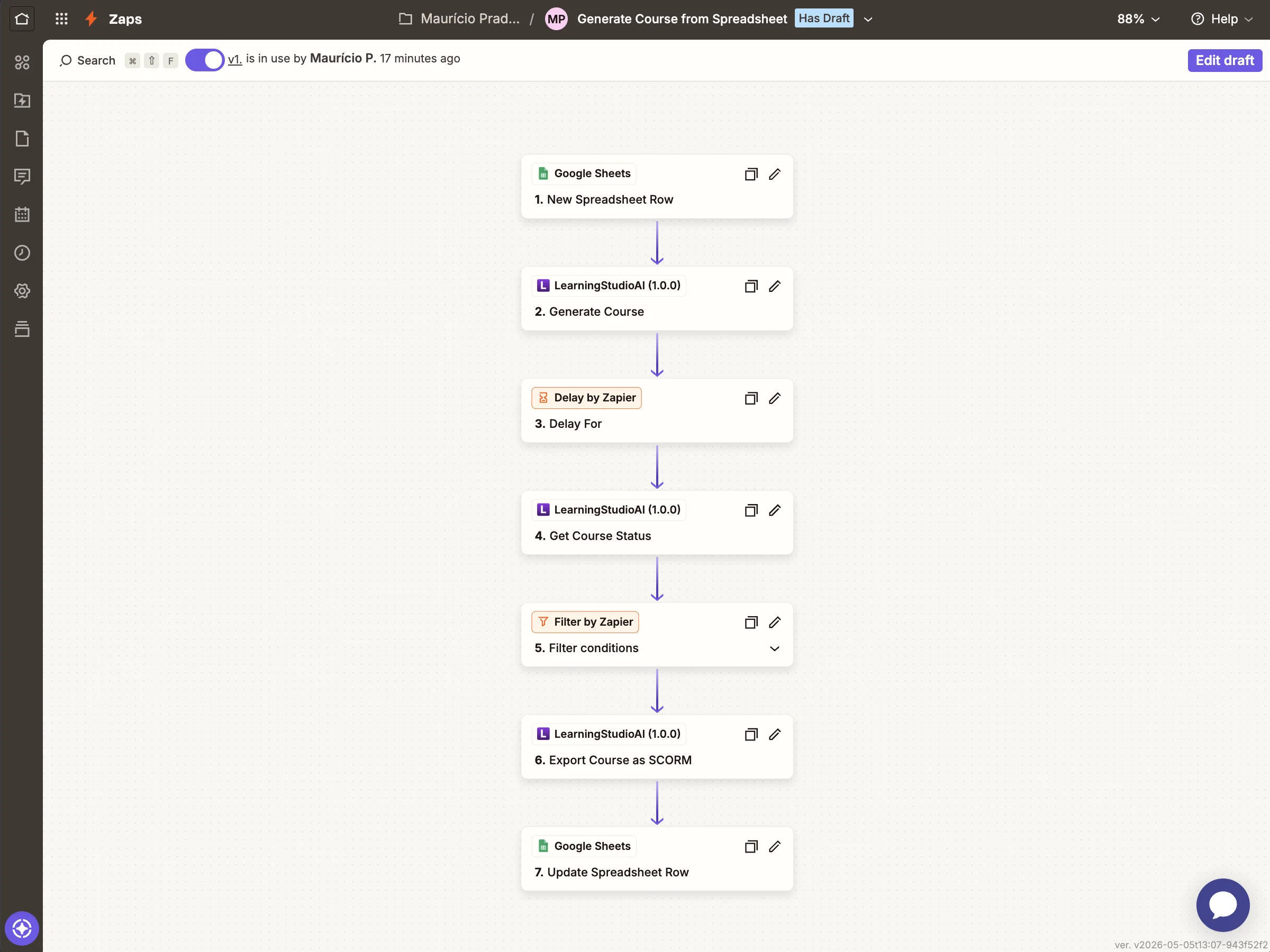
## What you'll build
A 7-step Zap that:
- **Watches a Google Sheet** for new rows
- **Creates an AI course** from the row's `Subject` column
- **Waits for generation to finish** (~2 minutes) and confirms the
status is `completed`
- **Creates a SCORM package** from the finished course
- **Writes the share URL and SCORM download URL back to the same row**
The same pattern works with any other Zapier trigger — Typeform,
Slack messages, Notion database items, webhooks. Google Sheets is the
most universal and easiest to demo.
## Before you start
You'll need:
- A [Zapier account](https://zapier.com) (free plan is fine)
- A LearningStudioAI account on a paid plan (see [Pricing](/pricing))
- An API key — see [Authentication](/docs/authentication) for how to
generate one
- A Google Sheet with at least one column named `Subject`
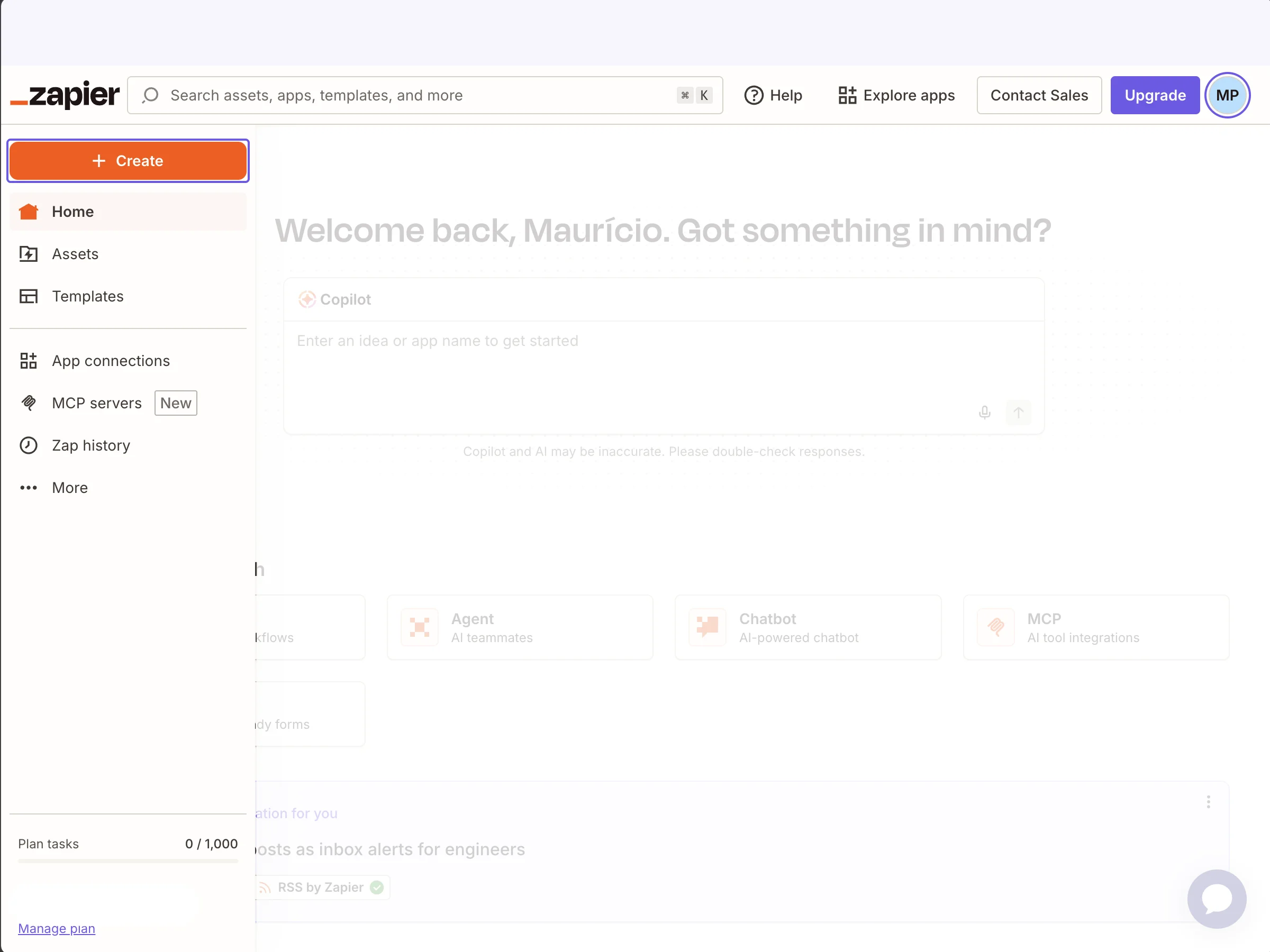
## Step 1: Create a new Zap
In Zapier, click **+ Create → Zap** in the top-left navigation.
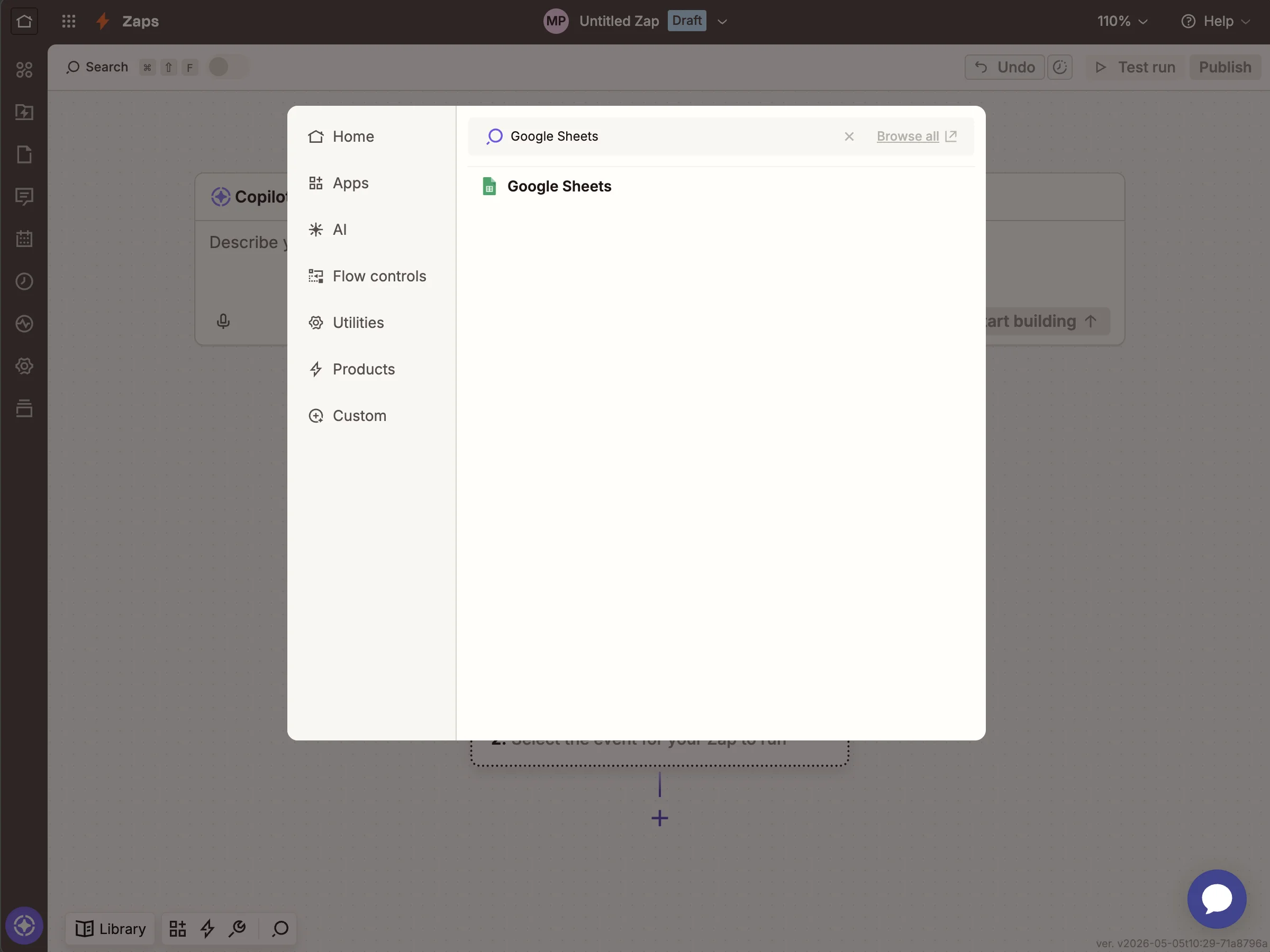
## Step 2: Pick Google Sheets as the trigger
Search for `Google Sheets` and select it.
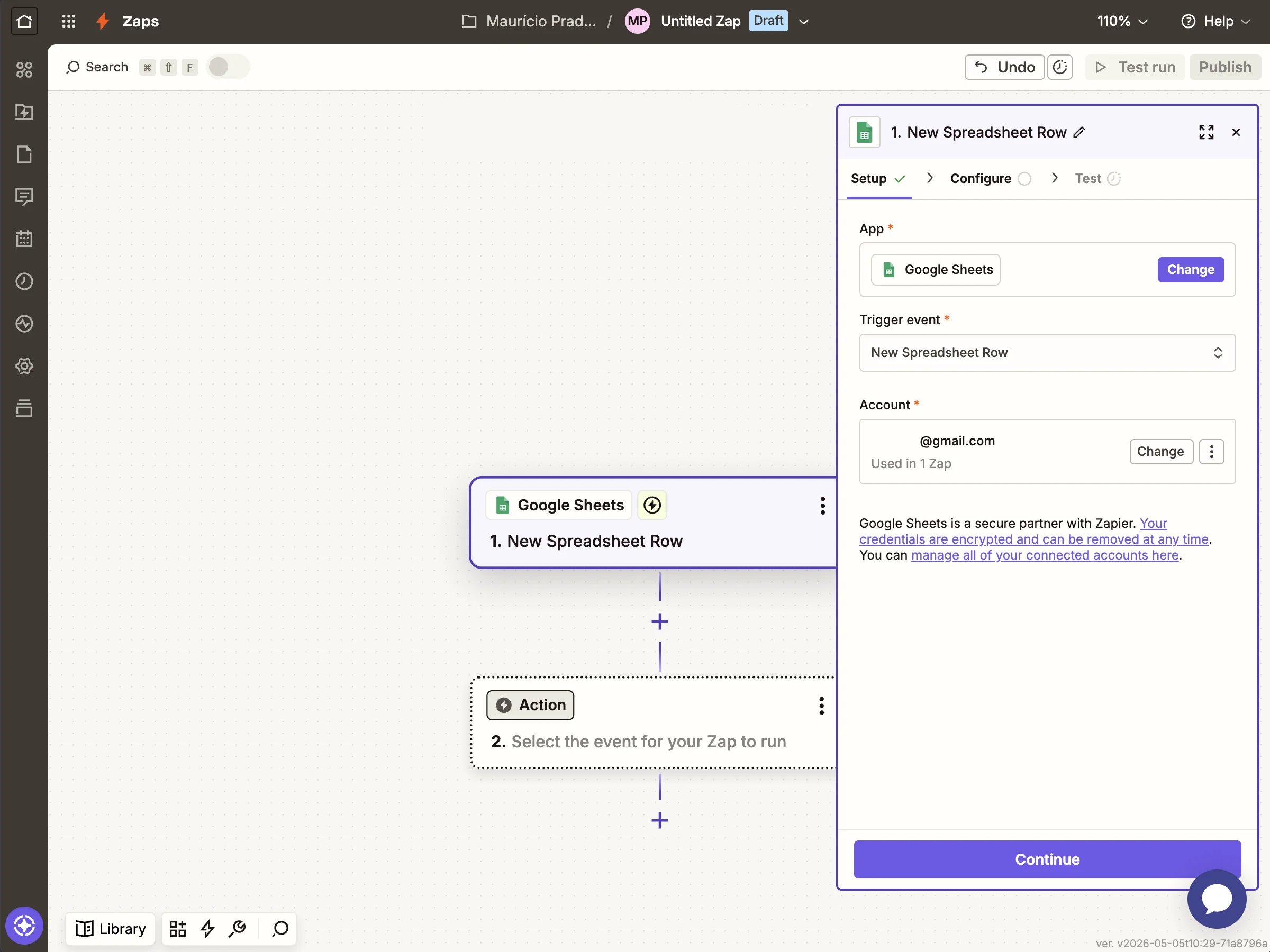
## Step 3: Configure the trigger event
Choose **New Spreadsheet Row** as the event, connect your Google
account, and pick the sheet you set up earlier.
## Step 4: Add the Create Course action
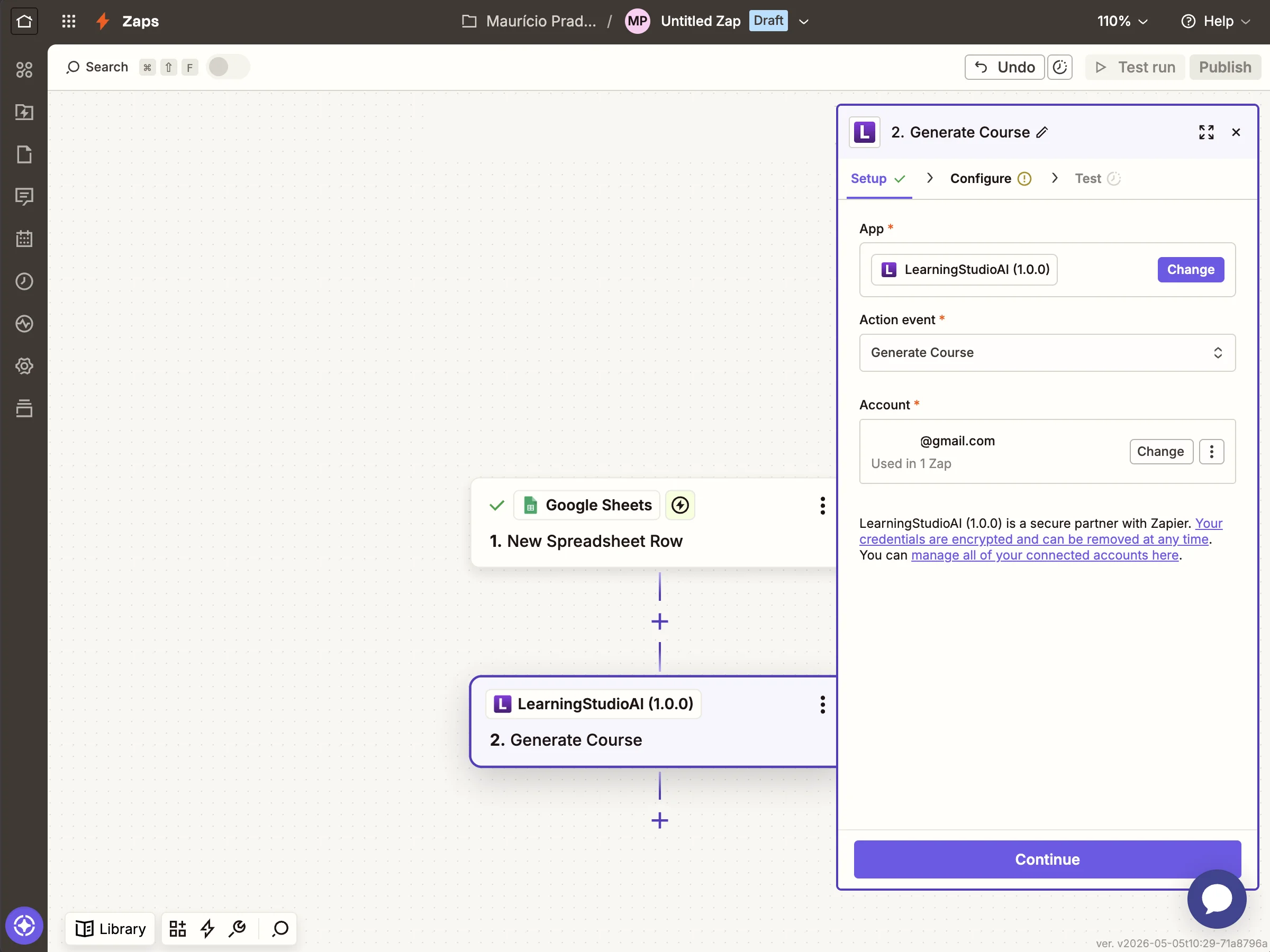
Click `+` to add the next step. Search `LearningStudioAI` and pick
**Create Course**. Connect your LearningStudioAI account using the
API key from your account settings.
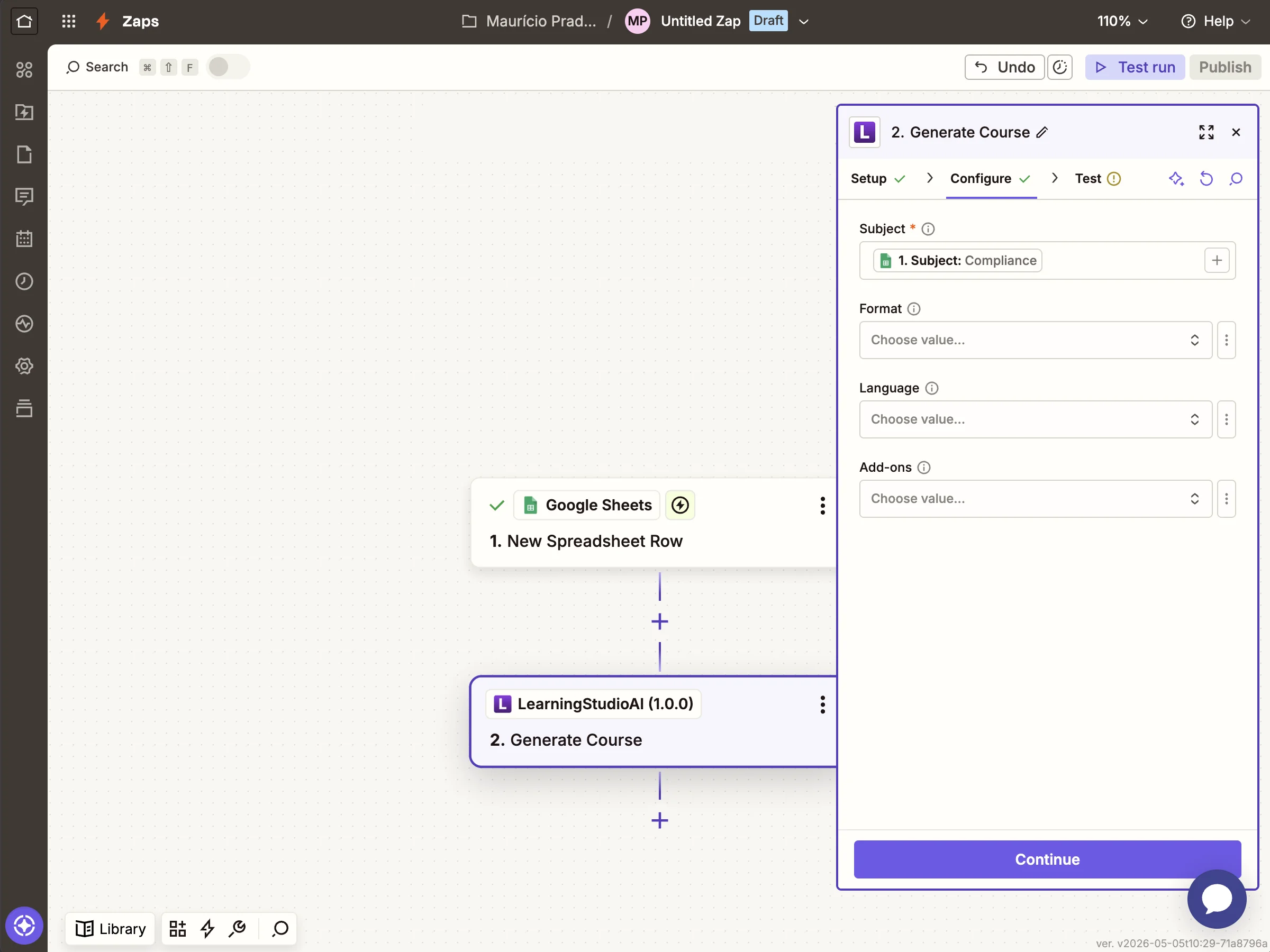
## Step 5: Map the subject from your sheet
Click into the **Subject** field and pick the column from your Google
Sheets trigger. Leave Format, Language, and Add-ons empty — the API
applies sensible defaults (One Page format, English, no add-ons).
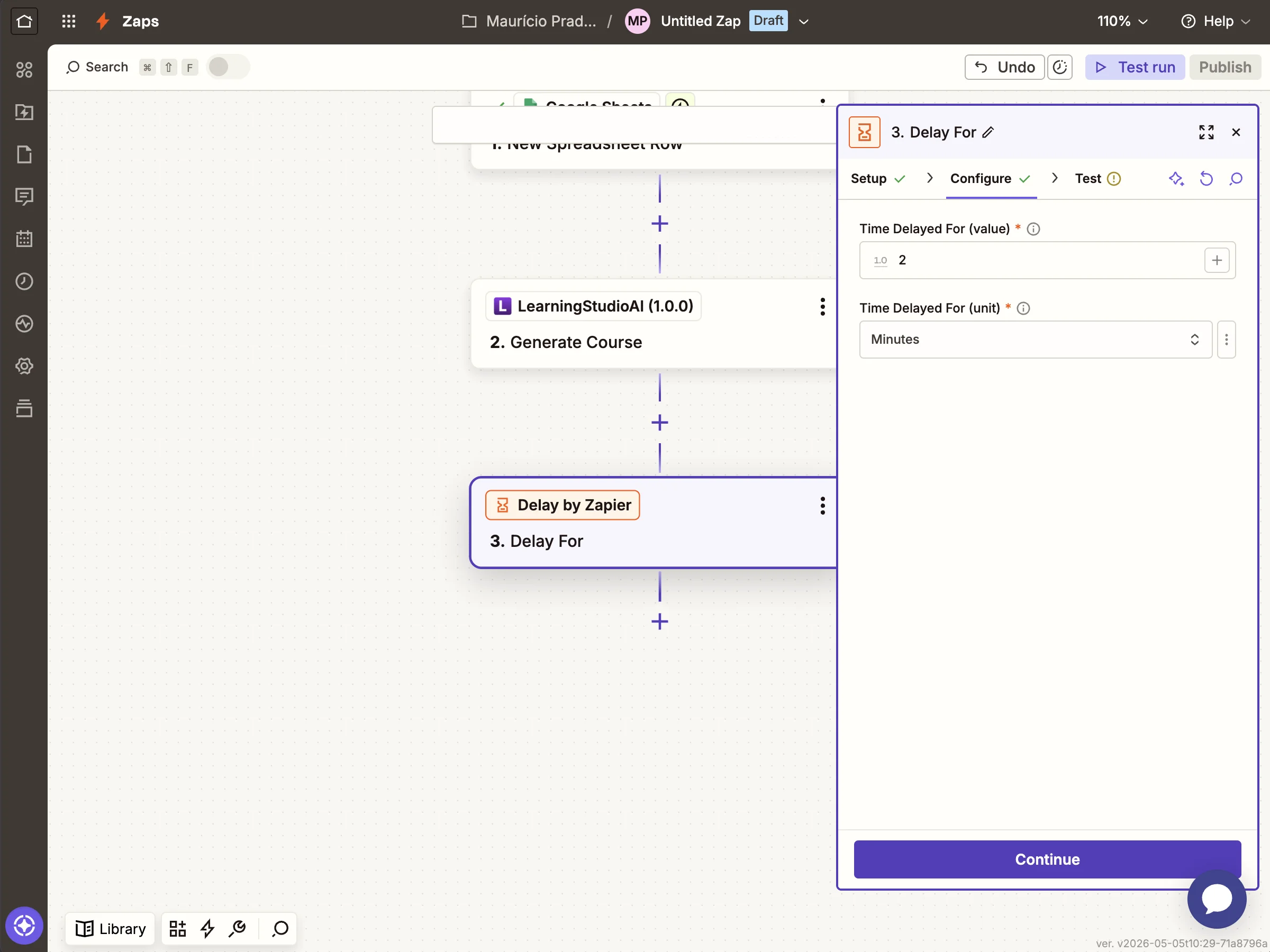
## Step 6: Wait 2 minutes for generation
Course generation typically completes in 60–120 seconds. Add a
**Delay by Zapier → Delay For** step set to 2 minutes.
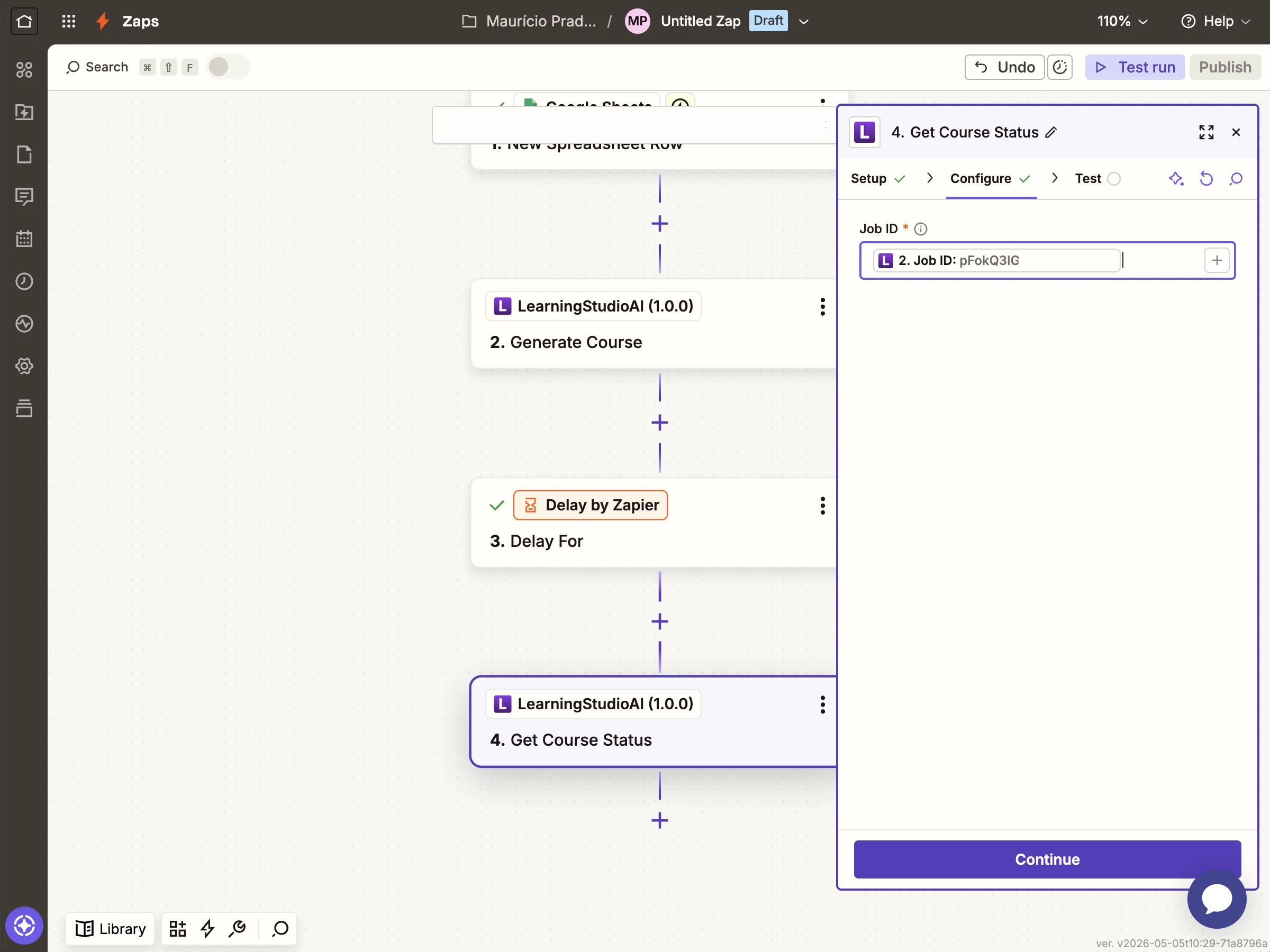
## Step 7: Find the course
Add another LearningStudioAI step: **Find Course** (a Search-type
action). Map the **Job ID** field from the previous Create Course
step's output.
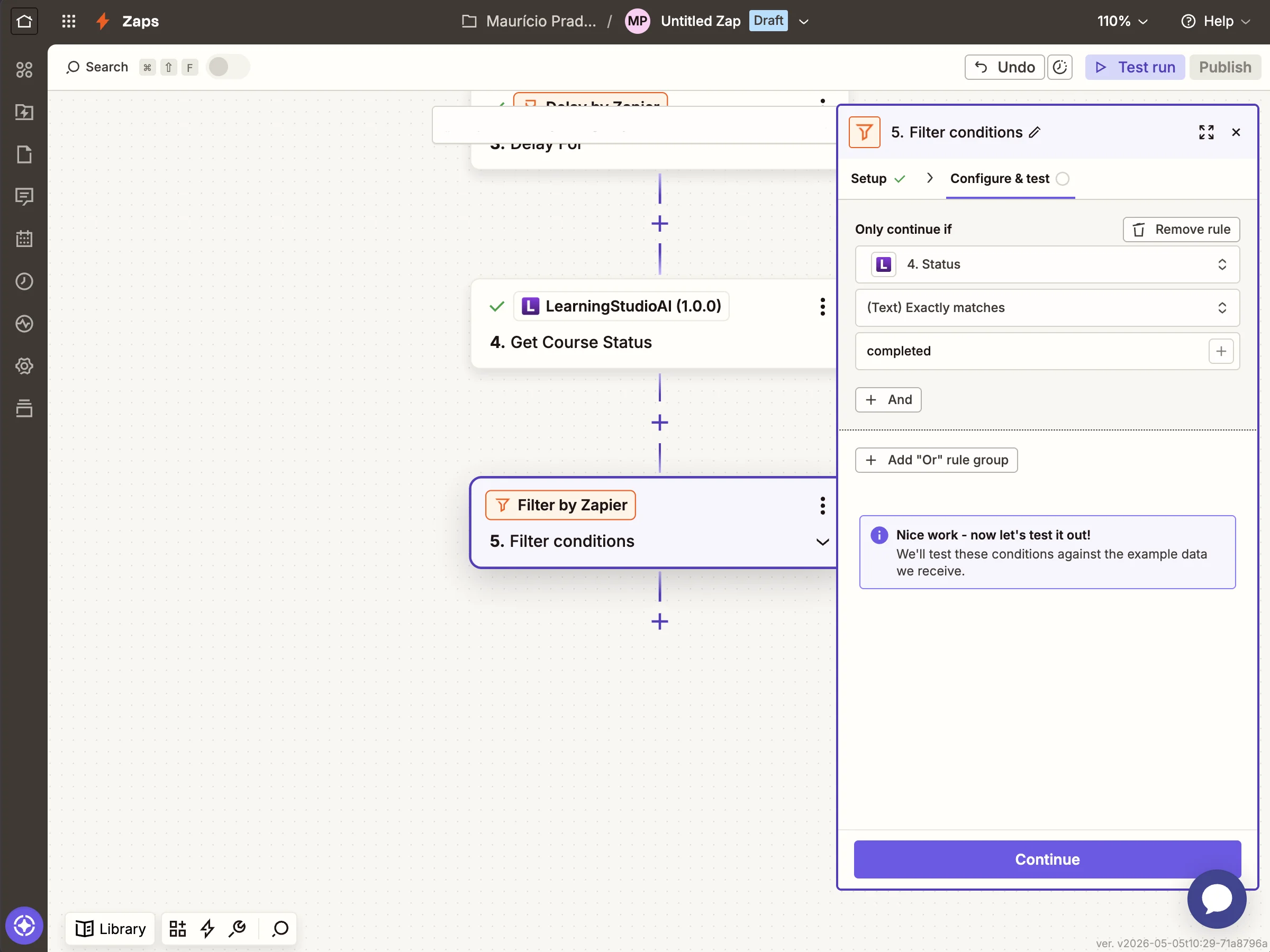
## Step 8: Filter to only continue when complete
Add a **Filter by Zapier** step with the condition
`Status (Text) Exactly matches completed`. This stops the Zap when
the course is still pending or generation failed, so the next steps
never run with an unfinished course.
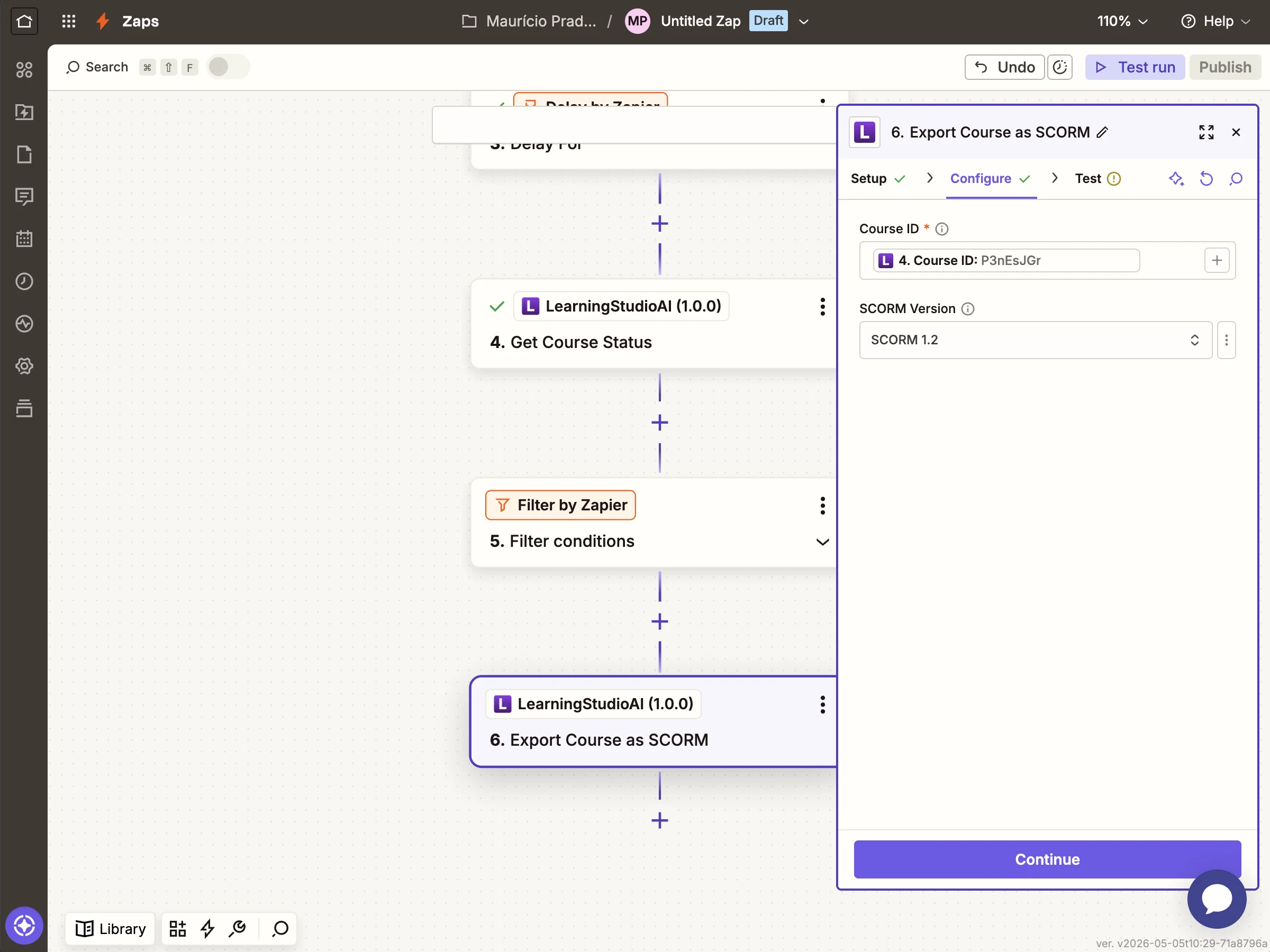
## Step 9: Create the SCORM package
Add **Create SCORM Package**. Map **Course ID** from the Find Course
step. Leave **SCORM Version** at the default (SCORM 1.2 — the most
widely supported format across LMSs).
## Step 10: Write the SCORM URL back to the sheet
Add a **Google Sheets → Update Spreadsheet Row** step. Pick the same
spreadsheet, then map:
- **Row** → `Row Number` from the trigger (this targets the row that
triggered the Zap, not a hardcoded row number)
- **Share URL** column → `Share URL` from the Create SCORM Package step
- **Download URL** column → `Download URL` from the Create SCORM Package step
- **Completed At** column → `Exported At` from the Create SCORM Package step
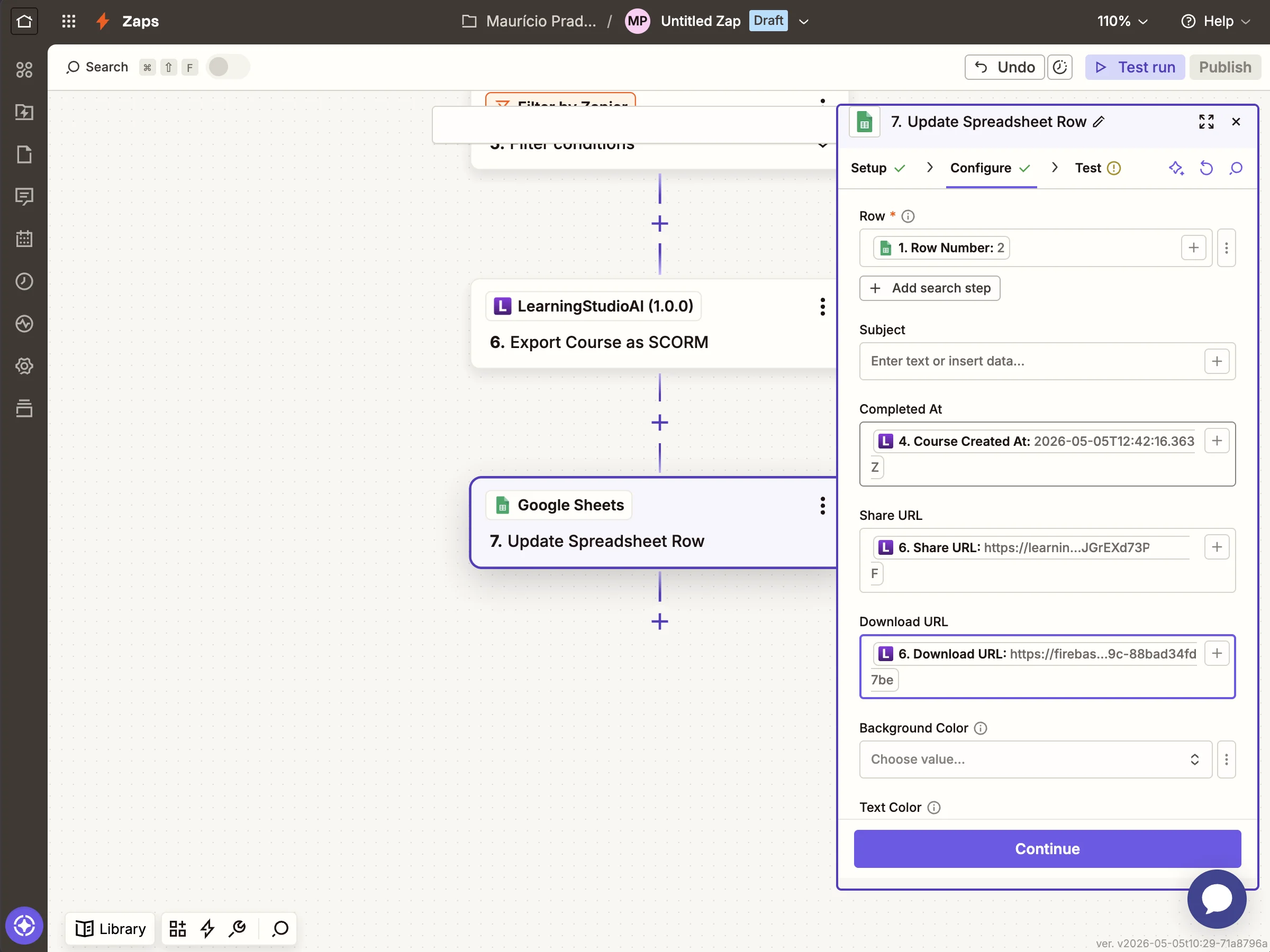
Zapier may flag a _"Possible Zap loop detected"_ warning here. It's
safe to ignore: the trigger is `New Spreadsheet Row` (not `New or
Updated Row`), so updating an existing row never re-fires the Zap.
## Step 11: Review the complete workflow
Your Zap now has 7 steps from trigger to row update.
## Test and publish
Click **Test run** to fire the Zap end-to-end against your sheet.
Each step should return a green checkmark. Once the test passes,
click **Publish** to turn the Zap on. New rows added to the sheet
trigger course generation automatically.
## Variations
Swap the trigger for any other Zapier app to fit your workflow:
- **Typeform / Google Forms** — generate a course when an employee
submits a training request
- **Slack** — turn `@LearningStudioAI generate a course on X`
mentions into SCORM packages
- **Notion** — generate a course for each new database item in your
L&D pipeline
- **Webhooks by Zapier** — receive a webhook from your HRIS or LMS
and generate courses programmatically
## Troubleshooting
- **`401 INVALID_API_KEY`** — the API key is wrong or has been
rotated. Generate a new one in your account settings and reconnect
the LearningStudioAI account inside the Zapier action.
- **`403 PAID_PLAN_REQUIRED`** — the account behind the API key is on
the free plan. See [Pricing](/pricing) to upgrade.
- **`status: pending` after the delay** — generation took longer than
2 minutes. Increase the Delay step to 3 minutes, or build a
poll-and-retry pattern with Zapier's Paths feature.
For full API-level error semantics, see
[Errors](/docs/api/errors).
---
# Blog (full text)
Source: https://learningstudioai.com/blog/best-ai-course-creators
Published: 2026-09-19
# The 6 Best AI Course Creators in 2026 (Compared)
> Compare the best AI course creators in 2026: LearningStudioAI, Coursebox, Mindsmith, MiniCourseGenerator, Coassemble and CourseAI on output, SCORM and price.
Every authoring tool now says it has AI. Most of them mean a text box that writes a paragraph. A handful will actually take a topic or a PDF and hand you a finished course with lessons, quizzes and narration. This guide is about the second kind.
We compared six AI course creators on the three things that decide whether a tool is usable in practice: **what it produces**, **how you deliver it** (share link, SCORM, PDF), and **what it costs** once you need the features that matter. Prices were checked in September 2026 and change often, so confirm on each vendor's site before you decide.
One disclosure up front: we build [LearningStudioAI](/), so we are not neutral. We have tried to be fair, and every claim about a competitor links to a page where you can check it.
## The short version
| Tool | Best for | Full course from a topic or document | SCORM export | PDF export | Text-to-speech | Paid plans start at |
|---|---|---|---|---|---|---|
| **LearningStudioAI** | Solo creators and L&D teams that need a SCORM course from a document, without per-seat pricing | Yes, guided wizard | 1.2 and 2004, all paid plans | Yes | Yes, all paid plans | $39/month (5 AI courses/month) |
| **Coursebox** | Teams that want an LMS bundled in | Yes, prompt-based | Yes | Not listed | Yes | $30/month, credit-based |
| **Mindsmith** | Enterprise buyers who need SSO and per-author billing | Yes | All tiers | Reports only | Yes (ElevenLabs voices from Professional) | $39/author/month |
| **MiniCourseGenerator** | Bite-sized, card-style micro-courses | Micro-courses only | Pro plan | Yes | AI voiceover | $39.49/month |
| **Coassemble** | Organisations that want authoring, LMS and API in one workspace | Partial | Yes | Not listed | Yes, AI narration | $250/month, billed yearly |
| **CourseAI** | Quick prompt-to-course drafts | Yes, prompt-based | No | No | No | $19/month |
If you need a SCORM package in an LMS this week, the choice narrows to LearningStudioAI, Coursebox, Mindsmith, Coassemble and MiniCourseGenerator on its Pro plan. If you sell courses and never touch an LMS, the field is wider and the sections below will matter more than the table.
## How we evaluated
Three questions, in order of how much they cost you when a tool gets them wrong.
1. **Does it produce a finished course, or a draft?** Prompt-based generators give you text you then arrange, illustrate and quiz yourself. Guided generators ask about the audience, depth and format first, then produce lessons, quizzes, images and audio together. The difference is hours per course.
2. **Can you deliver it where your learners are?** A share link is enough for a coach. A corporate L&D team needs SCORM 1.2 or 2004 for the LMS, and often a PDF for the people who will not log in. Check which formats are included and on which plan.
3. **What does the plan you actually need cost?** Headline prices hide per-seat pricing, AI credit limits and features locked to a higher tier. We looked at the tier that includes SCORM and narration, not the cheapest one.
We did not score marketplaces, LMS platforms without generation, or general-purpose AI writers.
## 1. LearningStudioAI
**Best for:** a solo creator or a small L&D team that needs a complete, SCORM-ready course from a topic or a document, and does not want to pay per seat.
[LearningStudioAI](/) is an [AI course creator](/) built around a guided wizard. You state the topic or upload a document, answer a few questions about audience and depth, review the generated outline, and the tool produces the full course: sections, lessons, quizzes, AI images, recaps and text-to-speech narration. A block-based editor lets you rewrite, expand, reorder and add your own voice or webcam recordings afterwards. Over 830,000 authors have created more than 1.3 million courses with it.
**Delivery:** share link with per-learner analytics (who opened it, how far they got, active time, quiz scores), [SCORM 1.2 and 2004 export](/scorm-course-creator) on every paid plan, and PDF export of the full course with layout options. An optional sign-in gate identifies learners on the share link, so you get named completion data without an LMS. None of the other five gives you that on a plain link.
**Pricing:** free to sign up and use the editor; AI generation needs a paid plan. Starter is $39/month for 5 AI course creations a month, 30 courses in the workspace and document imports up to 20 pages. Pro is $69/month for 15 creations, unlimited courses and 80-page imports. Enterprise is $149/month for 50 creations and 160-page imports. Every paid tier includes SCORM, PDF, narration, AI images and learner analytics. Prices are flat, not per author, and there are no separate AI credits to buy: the monthly creation count is the only cap. See [plans](/pricing).
**Against Mindsmith at the same $39:** Mindsmith bills per author and meters AI with credits on top of the seat; LearningStudioAI bills per account with a fixed creation count. Mindsmith gives you SCORM on its free tier, which we do not. LearningStudioAI gives you PDF export of the course itself, in-editor voice and webcam recording, and per-learner analytics on a share link, which Mindsmith does not. For one author who exports SCORM occasionally, Mindsmith's free tier may be enough. For an author who produces several courses a month and needs PDF or named completion data, the flat plan is cheaper and more complete.
**Watch out for:** the monthly creation cap is real. Five courses a month on Starter suits a creator, not a content team; budget for Pro if you generate weekly. Imports are capped by page count per plan. There is no team workspace or collaborative editing, so a multi-author team shares one account or buys several. Narration voices cover 9 languages, and the learner sign-in gate is English only. It is an authoring tool, not an LMS: enrollment, reminders and certificate management live in whatever you export to. Video generation is not a feature.
## 2. Coursebox
**Best for:** teams that want AI authoring and a lightweight LMS from one vendor.
Coursebox generates course content from prompts and bundles hosting, learner management and an AI tutor. The generation is prompt-driven, so the first output tends to need more rewriting than a guided flow, but the platform side is broader than a pure authoring tool.
**Delivery:** hosted courses inside Coursebox and SCORM export. PDF export is not listed on the pricing page; the Creator plan mentions course downloads, so confirm the format if PDF matters to you.
**Pricing:** a free plan with core AI features and unlimited learners. Creator is $30/month; an optional add-on at $70/month gives ten times the AI credits. Pro is $300/month (discounted to $150 for the first month) and adds a branded platform and custom domain. Business is $700/month with ten admin licences. Every tier is credit-limited, so heavy generation either buys the add-on or moves up a tier.
**Watch out for:** credit ceilings, the jump from $30 to $300 between Creator and Pro, and the amount of editing after generation. We wrote a fuller [Coursebox alternative](/alternatives/coursebox) comparison.
## 3. Mindsmith
**Best for:** enterprise L&D teams that need SSO, SOC 2 and branching scenarios, and have a per-seat budget.
Mindsmith describes itself as AI-native and it shows: generation, editing suggestions and branching scenarios are all in the core product. Enterprise controls are strong.
**Delivery:** link, embed and SCORM on every tier, including free. Its SCORM package stays linked to the live course, so edits flow to the LMS without re-uploading. PDF export covers analytics reports and certificates, not course content.
**Pricing:** per author. Professional is $39 per author per month, Business is $65 per author per month, Enterprise is custom. The free tier gives 450 one-time AI credits with unlimited content and sharing, and shows a Mindsmith badge. ElevenLabs voices start on Professional; live collaboration and version history need Business; SSO is Enterprise only. A team of ten on Business is $650 per month before any extra AI credits ($1 buys 50).
**Watch out for:** per-author math, and a credit system on top of the seat price. Details in our [Mindsmith alternative](/alternatives/mindsmith) page.
## 4. MiniCourseGenerator
**Best for:** short, swipeable micro-courses for social selling, onboarding tips and lead magnets.
MiniCourseGenerator does one format very well: card-based micro-courses you scroll through on a phone. Generation is fast and the output looks polished for that format.
**Delivery:** hosted mini-courses and embeds, PDF export on both creator plans, and SCORM upload on the Pro plan only.
**Pricing:** Plus is $39.49/month and Pro is $79.99/month, with an Enterprise tier on request. SCORM, invitation-only access, certificates and webhooks are all Pro features.
**Watch out for:** it is not built for multi-section courses with assessments. If your content is longer than a few cards per idea, you will fight the format. See the [MiniCourseGenerator alternative](/alternatives/minicoursegenerator) comparison.
## 5. Coassemble
**Best for:** organisations that want authoring, an LMS, embeddables and an API in one workspace, and can commit to an annual contract.
Coassemble has moved upmarket. It is an LMS and course builder with an API and embeddable player, sold per workspace rather than per creator. Learner analytics and team management are solid.
**Delivery:** hosted courses, embeds and SCORM export on every paid plan. AI narration is included, metered by monthly token allowance. PDF export is not listed.
**Pricing:** flat per workspace and billed yearly. Build is $3,000/year (about $250/month), Scale starts at $6,000/year, Partner starts at $24,000/year. A free sandbox gives full platform access with validation-level usage limits.
**Watch out for:** the annual commitment and the entry price. It is a platform decision, not a tool you try for a month. Our [Coassemble alternative](/alternatives/coassemble) page has the full feature grid.
## 6. CourseAI
**Best for:** fast first drafts from a prompt when you will finish the course elsewhere.
CourseAI generates course text from prompts with a simple, product-focused interface. It is quick to try.
**Delivery:** hosted only. SCORM, PDF, narration and voice or webcam recording are not offered.
**Pricing:** Starter $19/month, Pro $49/month, Expert $249/month, tiered by course generations, hosted courses and AI image credits.
**Watch out for:** anything that has to reach an LMS. If SCORM is a requirement, this is not the tool. Comparison on the [CourseAI alternative](/alternatives/courseai) page. Note that CourseAI is a separate company from LearningStudioAI.
## What about Articulate, iSpring and the other classic authoring tools?
The established authoring suites have added AI writing assistants, and if your team already lives in one of them, those assistants are worth turning on. They are not course generators in the sense used here: you still build the course slide by slide and the AI helps with copy. They also start at a much higher price point and a much longer learning curve. For a team that does not already own one, an AI-first tool that exports SCORM gets you to the same LMS with far less setup.
## Which one should you pick?
- **You need a SCORM course from a document, plus PDF and named completion data, at a flat price:** LearningStudioAI. Budget for Pro if you generate more than five courses a month.
- **You need enterprise controls and have a per-author budget:** Mindsmith on the Business or Enterprise tier.
- **You want an LMS and authoring from one vendor:** Coursebox to start small, Coassemble if you are buying a platform on an annual contract.
- **You publish micro-courses to phones and never touch an LMS:** MiniCourseGenerator.
- **You just want a text draft to finish elsewhere:** CourseAI.
## Frequently asked questions
**What is the best free AI course generator?**
None of the six offers unlimited free AI generation. Coursebox's free plan includes core AI features with a credit cap, Mindsmith gives 450 one-time credits, Coassemble's free sandbox has validation-level limits, and LearningStudioAI lets you sign up free and use the editor, with AI generation on paid plans. If free generation is the requirement, expect strict caps.
**Which AI course creators export SCORM?**
LearningStudioAI (all paid plans), Coursebox, Mindsmith (every tier), Coassemble (all paid plans) and MiniCourseGenerator on its Pro plan. CourseAI does not export SCORM.
**Can AI turn a PDF into a course?**
Yes. LearningStudioAI [converts PDF, PowerPoint and Word files into courses](/pdf-to-course) with lessons and quizzes; Coursebox and Mindsmith also accept documents. Check whether the tool lets you choose between staying close to the source and expanding on it.
**Do I still need to edit AI-generated courses?**
Always, but the amount varies. Guided generators that ask about audience and depth first produce content that needs light editing. Prompt-based generators produce text you will restructure. Budget review time either way, especially for compliance content.
**How did you choose these six?**
They are the AI course creators our readers most often compare against each other, and the ones that appear together in search results for "AI course creator". We excluded LMS platforms without generation and general AI writing tools.
---
*Prices and features checked against each vendor's pricing page on 19 September 2026. If you spot something out of date, [tell us](/contact) and we will fix it.*
Source: https://learningstudioai.com/blog/learner-analytics-see-who-finished-your-course
Published: 2026-09-14
# Learner Analytics: See Who Finished Your Course and What They Scored
> Track course completion and quiz scores per learner on LearningStudioAI. Share a link, see who finished, and require identification when you need names.
You build a course, you share the link, and then... nothing. Someone opened it, probably. Did they finish? Did they pass the quiz? Did they even get past the first section? Until now the honest answer on LearningStudioAI was "no idea."
That changes today. Every course now has an **Analytics** view that shows what happened after you hit share: how many people viewed it, how many finished, how long they spent, and what they scored. And when you need to know *who* those people are, one setting turns the share link into a light sign-in so learners show up by name.
No LMS required. No accounts to create for your learners in advance. The same link you already share, now with a report behind it.
## What you see
Open **Analytics** on any course and you get two things: the totals and the list.
The totals sit at the top in four cards:
- **Views**: how many times the course was opened
- **Learners**: how many distinct people opened it
- **Completion**: the share of learners who reached the end
- **Time played**: total active time across everyone, so a course that was left open in a background tab does not inflate the number
Below the cards, one row per learner. Each row shows a progress bar, a quiz score badge when the course has a graded quiz, how many times that person opened the course, their time spent, and when they last opened it. Rows are ordered by most recent activity, so whoever touched the course last is at the top.
Learners who viewed the course without signing in appear as **Anonymous viewer**. Their progress is still tracked; you just do not know their name. If that is not enough for your use case, keep reading.
One thing to know up front: progress, completion, and quiz scores are tracked for the two Course Studio formats, **Longform** and **Presenter**. Classic and OnePage courses get views and time spent only. More on that below.
## Where to find it
Analytics is one click away from wherever you manage a course:
- On the **Courses** page, open the "..." menu on any course card and choose **Analytics**
- In the editor, click the **view counter** next to the course title
- In the **Share** dialog, click **View analytics** in the footer
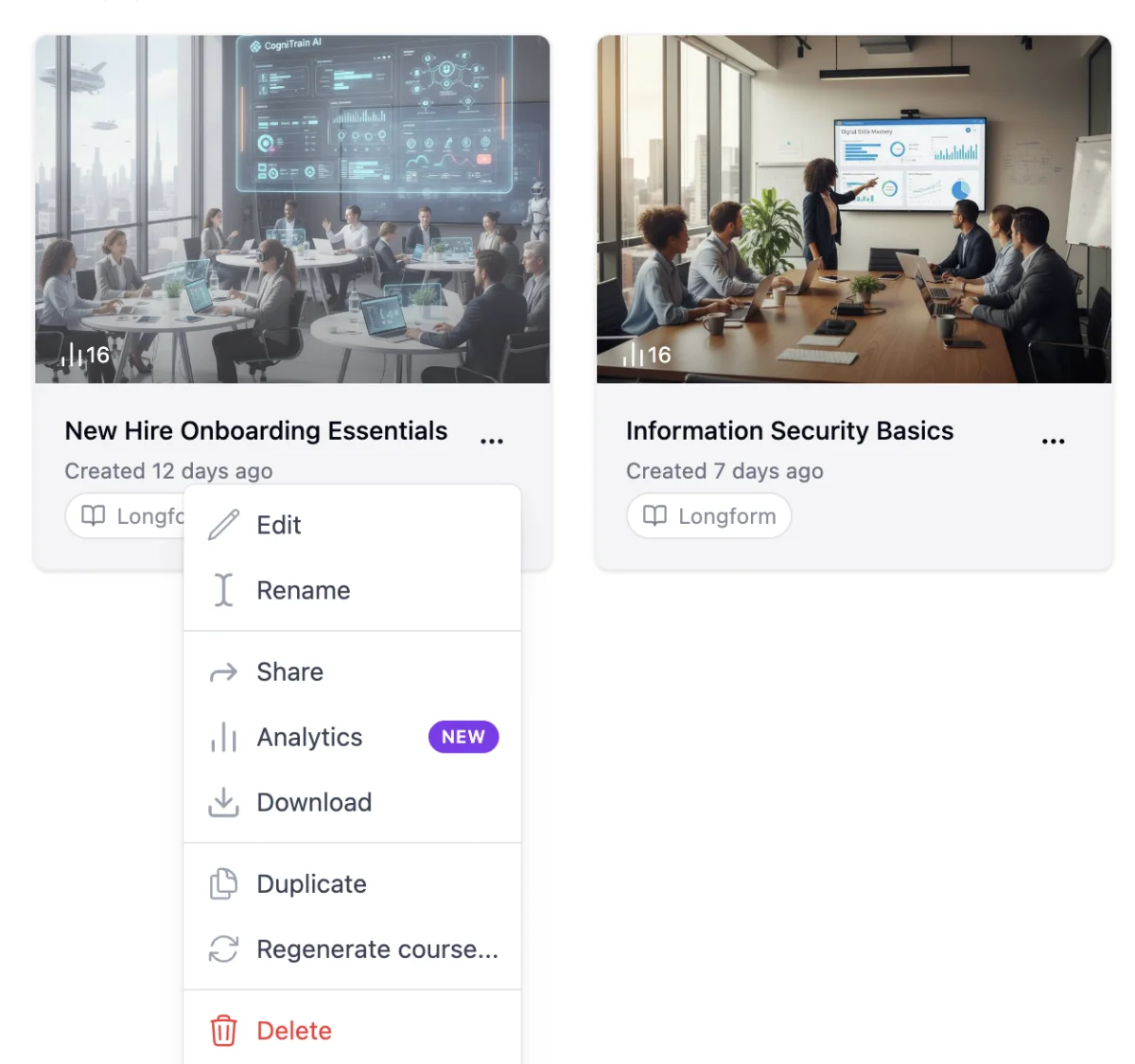
The Analytics item in the course card menu. The same view opens from the editor header and from the Share dialog.
## Know who finished: require identification
Anonymous tracking is fine when you are sharing a public lesson and only care about totals. It is not fine when you are onboarding new hires, running a compliance module, or delivering a paid course and need to confirm that a specific person completed it.
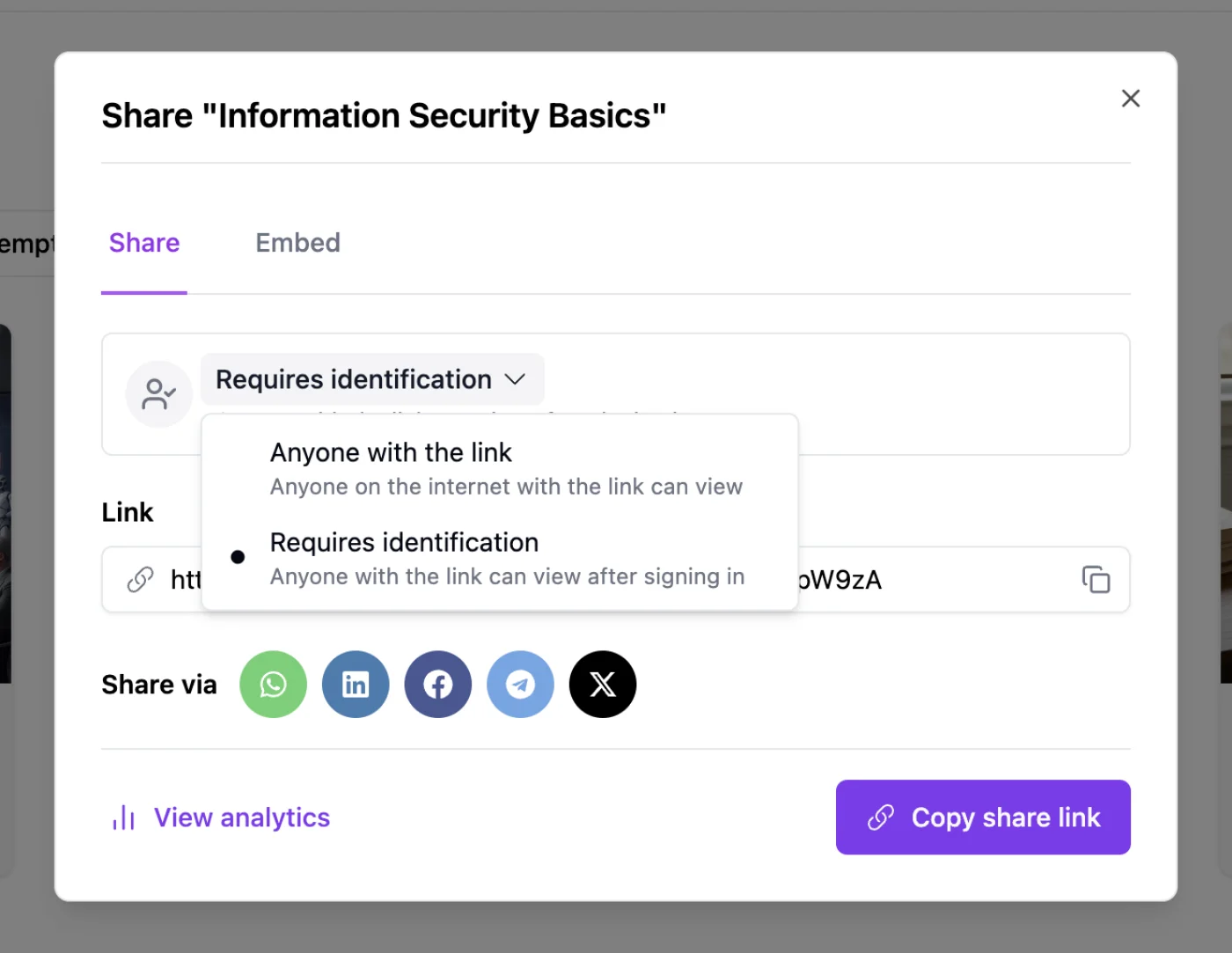
For that, open the Share dialog and change the access setting from **Anyone with the link** to **Requires identification**.
Two access modes per course. Switching is instant and applies to the link you already shared.
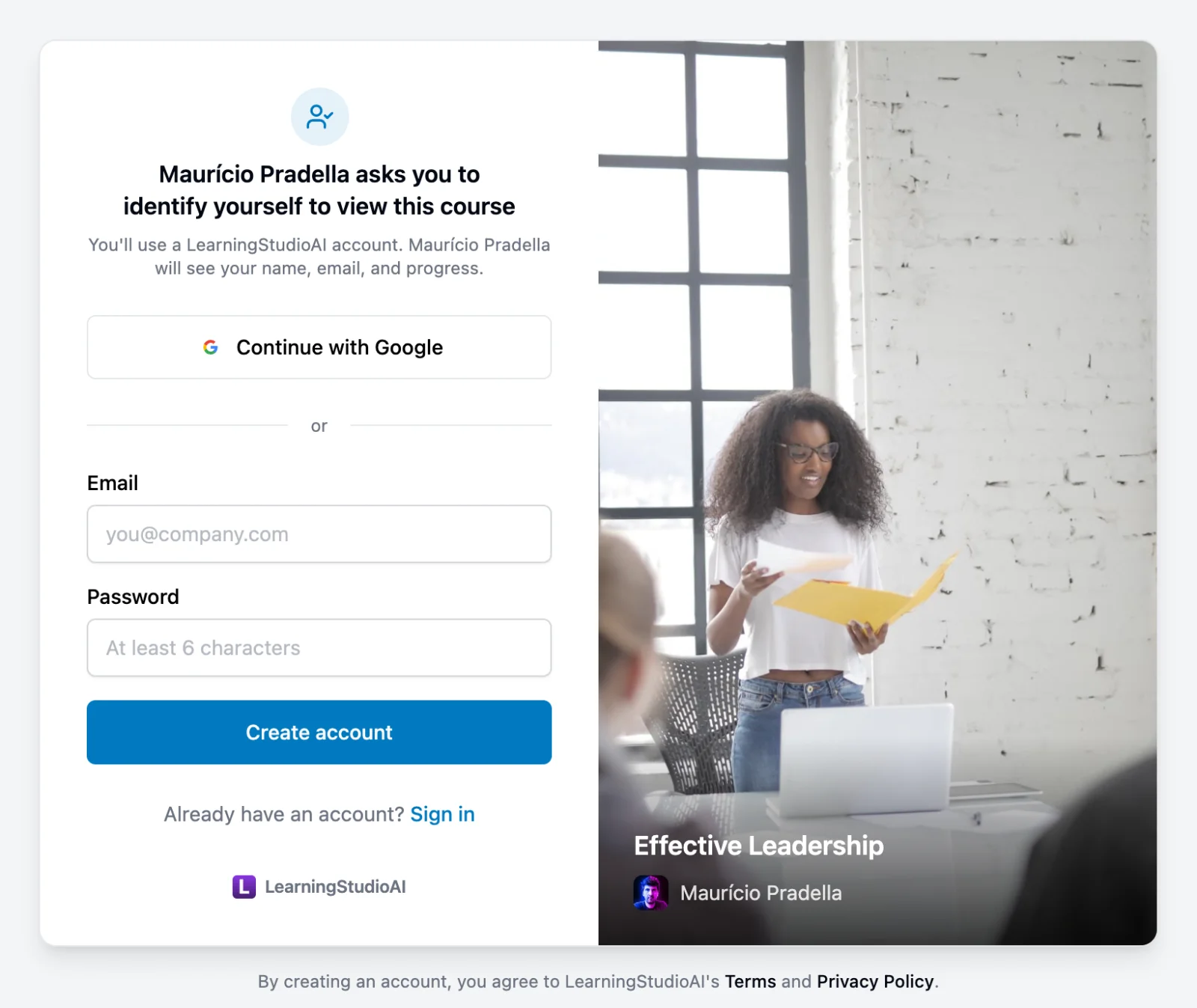
With identification on, anyone opening the link sees a short sign-in card before the course loads. They can continue with Google or create a free LearningStudioAI account with an email and password. The card says plainly who is asking and what they will see: your name, and the fact that you will see their name, email, and progress. No surprises on either side.
The sign-in card learners see. It carries your course cover and name, so it reads as part of the course rather than a login wall.
Once signed in, the learner gets the course as usual, with one addition: a thin bar above the player showing who they are signed in as and a sign-out link. That matters on shared computers in a classroom or a warehouse break room, where the next person should not inherit the previous one's progress.
Back in your Analytics view, those learners now appear with their name and email. Returning learners are recognized, so someone who opens the course three times across a week is one row with three views, not three strangers.
## Progress that survives a refresh
Tracking is not only for you. When a learner comes back to a course, the player picks up where they left off: the section they were on, what they completed, and their quiz results. This works for identified learners on any device they sign in from, and for anonymous learners on the same browser.
## What counts as complete
For Longform and Presenter courses, a learner is **complete** when they have gone through every content section. If the course has a graded quiz, the row also shows **passed** or **failed** against the passing score you set, along with the percentage.
Progress is measured against the course as it is today. If you delete a section after some learners already went through it, their progress recalculates against the new outline instead of showing a stale 110%.
Classic and OnePage courses use a lighter model: views and time are tracked, but section-level progress and quiz scores are not, so their Analytics view has no Completion card and no Progress column. If you want the full picture for an older course, regenerate it as Longform or Presenter from Course Studio.
## Views, then and now
Learner tracking started on **September 9, 2026**. Anything that happened on a share link from that day on is in the table.
If you shared a course before then, your lifetime view count is still there. The Analytics view shows it as the Views card, and any views that predate learner tracking appear on a single **Untracked views** row at the bottom of the table, so the column always adds up to the card. Nothing was lost; it just was not attributed to anyone yet. New courses start clean, with every view attributed from the first open.
## Privacy, briefly
Learners are told exactly what is collected before they sign in. You see the name, email, and progress of learners who identified themselves on *your* courses, and nothing else about them. Anonymous learners are tracked with a browser fingerprint that cannot be linked to a person. When you delete a course, its learner records are deleted with it.
## Tracking without the LMS overhead
The usual way to know whether someone finished a course is to run it through an LMS. That means exporting a package, importing it, creating learner accounts, enrolling people, and sending them login instructions before anyone has seen a single slide. For a team of twelve, that setup often takes longer than the course.
Here it is one link. You share it the way you already do, over WhatsApp, Slack, or email. A learner opens it, and if you asked for identification, signs in with Google or an email in about ten seconds. No import, no enrollment, no seat to provision, no password reset tickets. They read, they finish, and your Analytics view already has the answer.
That covers most of the reasons people reach for tracking in the first place: a client wants proof that their staff took the training, a manager wants to know who has not started, a course creator wants to see whether learners drop off at section three. None of those need a platform, they need a report.
If you do run an LMS, nothing changes for you. Export SCORM as before, and the package reports completion and scores to your LMS exactly as it always did. Link tracking and SCORM tracking live side by side, so you can share a link for a quick pilot and export SCORM for the formal rollout.
## Available now
Learner analytics is live for every course on every plan. Open any course you have already shared and click **Analytics** to see what has been happening. To start collecting names, flip the access setting in the Share dialog to **Requires identification**. The link stays the same, so there is nothing to resend.
Source: https://learningstudioai.com/blog/ai-image-generation-editing-inside-course-editor
Published: 2026-04-15
# Nano Banana Is Now Available on LearningStudioAI
> Google's Nano Banana is now available on LearningStudioAI. Generate and edit course images with AI, four visual styles, and smart prompts.
Every course creator has been there. You're building a lesson, the content is flowing, and then you need an image. So you open a new tab, search through stock libraries, download something that's "close enough," upload it, resize it, and try to remember where you left off.
That friction adds up. What should be a creative decision becomes a chore.
Starting today, you can generate and edit images with AI directly inside the LearningStudioAI course editor. No tab-switching and no design skills required.
## What's new
The image modal now has two new tabs alongside Search and Upload: **Generate** and **Edit**.
**Generate** lets you describe what you want and get an image in seconds. You type a prompt, pick a visual style, and hit generate. The result appears right there in the editor, ready to drop into your course.
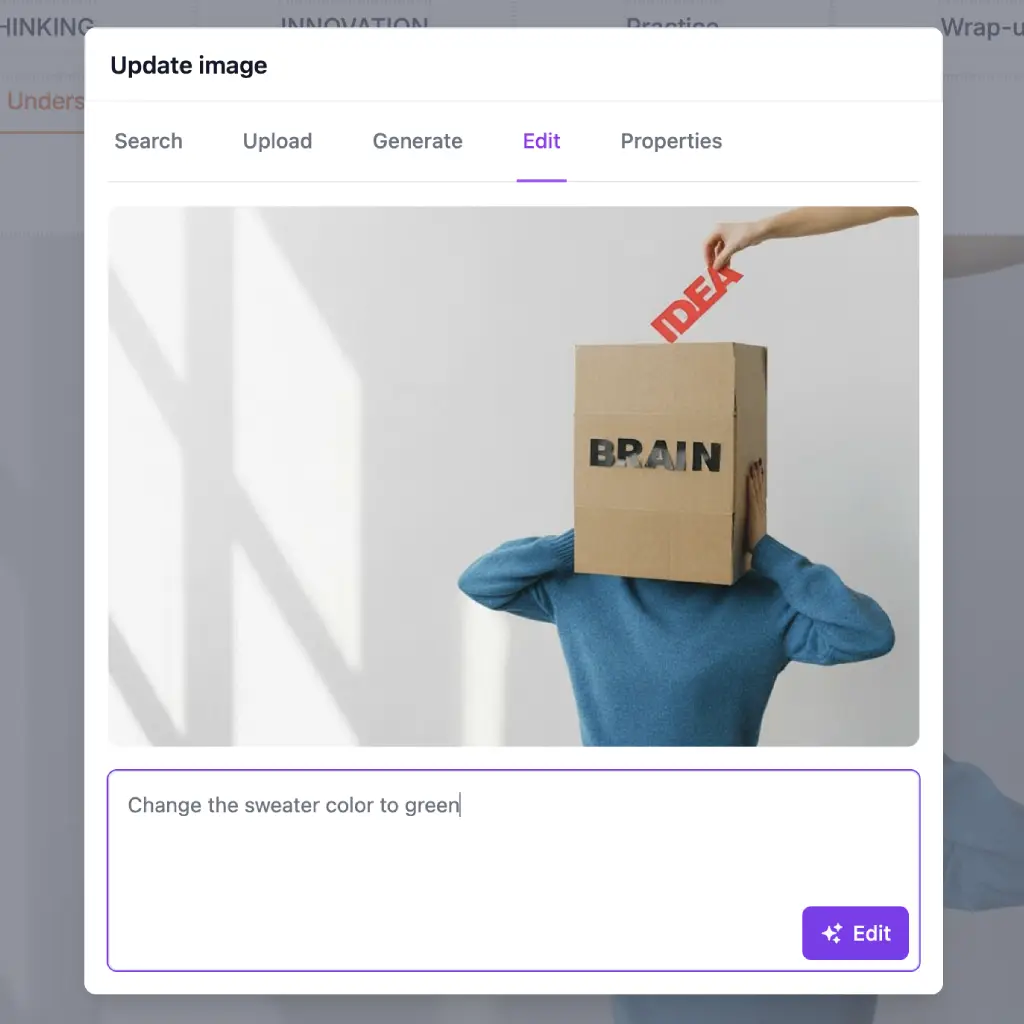
**Edit** works on any image you already have, whether you generated it, uploaded it, or found it through search. Describe what you'd like to change ("make the background darker," "add a laptop to the desk," "remove the text") and the AI modifies the image while keeping the rest intact.
Both work everywhere images appear in your course: cover images, section backgrounds, and content blocks.
## Four visual styles
Not every course calls for the same aesthetic. A corporate compliance training doesn't need the same look as a creative writing workshop. That's why we built four style presets you can choose from before generating:
**Narrative** creates detailed, cinematic illustrations with warm tones and atmospheric lighting. Good for storytelling-heavy courses, history, or any topic where you want to set a scene.
**Editorial** produces clean, minimalist photography with studio lighting and neutral tones. This is the default, and it works well for business, technology, and professional development courses.
**Flat** generates bold vector illustrations with thick outlines and solid colors on a white background. Works great for explainer content, step-by-step guides, and anything that benefits from visual simplicity.
**3D** renders low-poly, clay-style miniatures with soft shadows and pastel colors. A good fit for playful topics, introductory courses, or when you want a more approachable look.
Each style automatically appends the right visual instructions to your prompt, so you only need to describe *what* you want — not *how* it should look.
The same concept rendered in four different styles. Pick one and the AI handles the rest.
## Smart prompt suggestions
Staring at a blank prompt field isn't much better than staring at a stock photo search bar. So we added AI-powered prompt suggestions.
When you open the Generate tab, the AI looks at your course title and the style you've selected, then suggests a prompt. Use it as-is, tweak it, or write your own from scratch.
This is especially useful when you're creating images for multiple sections and need variety without having to brainstorm every prompt from scratch.
## The editing loop
Image generation is useful on its own, but the real time-saver is being able to iterate on what you already have.
Say you generate an image and it's 80% right. The composition is good but the colors feel off, or there's an element you didn't ask for. Instead of regenerating from scratch and hoping for better luck, you describe the change you want. The AI edits the existing image, keeping what works and changing what doesn't.
You can stack multiple edits. If one goes in the wrong direction, there's undo/redo support, so you can click back to a previous version and try a different instruction.
Generate an image, then refine it with follow-up instructions. Each edit builds on the previous result.
## Powered by Nano Banana
Image generation runs on Google's Nano Banana model. It's fast, with most images ready in under 10 seconds, and it produces clean results across all four styles, whether photorealistic or illustrated.
## Where it works
AI image generation and editing work everywhere you can place an image in your course:
- **Cover images**: generate a custom cover that matches your course topic instead of settling for a generic stock photo
- **Section backgrounds**: create consistent visual themes across your course sections
- **Content blocks**: add illustrations, diagrams, or decorative images inline with your lesson content
The generated image appears as a preview first. You can keep editing, regenerate, or accept it. Once accepted, it's uploaded and saved to your course like any other image.
## Available now in beta
AI Images is live today for all paid plans. It's in beta and free to use during this period. Usage limits may apply in the future as we learn how people use it and adjust accordingly.
You'll find the Generate and Edit tabs inside the image modal, wherever you see the option to add an image in your course. Give it a try next time you're building a lesson and need a visual that doesn't exist in any stock library.
Source: https://learningstudioai.com/blog/how-to-sell-courses-online-gumroad-kiwify-teachable
Published: 2026-03-16
# How to Sell Courses Online: Gumroad, Kiwify, Teachable & More
> Learn how to sell your online course on Gumroad, Kiwify, or Teachable. Step-by-step guide to export, publish, and start earning.
You finished building your course. Modules are done, quizzes are in place, content looks good. Now what?
You need a way to collect payments and deliver access to buyers. The platforms below handle both. Your job is picking the right one and connecting your course.
---
## What You Can Export
Before choosing a platform, know your export options:
**[Embed Code](/changelog/course-embedding)**
An HTML snippet you paste into any website or membership platform. The course loads in an iframe, so learners take it directly on that page. Works well with Kiwify, your own site, or any platform that accepts custom HTML.
**PDF**
A downloadable document version of your course. Buyers get a file they can read offline or print. Gumroad handles PDF delivery automatically.
**[SCORM Package](/changelog/download-as-scorm)**
A zip file that works with Learning Management Systems like Moodle, Canvas, or TalentLMS. The LMS tracks completion, quiz scores, and time spent. Good for selling to companies or universities.
Each platform works better with certain export types. The sections below explain which to use.
---
## Gumroad
Gumroad is a marketplace for digital products. No monthly fees. You create a product, set a price, and they handle payments. They take 10% of each sale.
### What works on Gumroad
**PDF courses** — Upload your exported PDF. Buyers download it after purchase.
**Course access via link** — Create a product that redirects buyers to your hosted course page (where you've embedded your course).
**Bundles** — Combine PDFs, videos, and course access into one product.
### Setup overview
1. Create a Gumroad account
2. Click "New Product" and choose "Digital Product"
3. For PDF: upload the file directly
4. For course access: add a "Content" section with the link to your embedded course page
5. Set your price
6. Publish and share your Gumroad link
Gumroad: a marketplace for digital products with no monthly fees.
### Fee math
- $29 course = $2.90 fee (you keep $26.10)
- $99 course = $9.90 fee (you keep $89.10)
- $199 course = $19.90 fee (you keep $179.10)
Gumroad works well for courses under $200. Above that, the 10% starts adding up.
### Why Gumroad
- No upfront cost
- Built-in audience through Gumroad Discover
- Clean checkout
- Supports subscriptions
- Embed your store on any website
---
## Kiwify
Kiwify is a Brazilian platform with high conversion rates. Millions of buyers already have payment methods saved, so checkout is fast. If you're selling to Brazilian audiences, this is probably your best option.
### What works on Kiwify
**Embedded courses** — Paste your embed code directly into Kiwify's membership area. Buyers get access after purchase.
**Memberships** — Charge monthly or one-time.
### Setup overview
1. Create an account at Kiwify
2. Create a product and set up a membership area
3. In LearningStudioAI, go to [Share → Embed](/changelog/course-embedding) and copy the HTML code
4. In Kiwify's editor, add an HTML block and paste
5. Configure pricing
6. Publish
We have a complete walkthrough in Portuguese: [Como Publicar e Vender Seu Curso no Kiwify](/blog/como-publicar-curso-no-kiwify-passo-a-passo).
### Why Kiwify
- 1-click checkout
- PIX and boleto support
- Built-in affiliate program
- Mobile app for students
- Strong in the Brazilian market
Kiwify: Brazilian platform with 1-click checkout and high conversion rates.
---
## Teachable
Teachable is a full course platform. Unlike Gumroad (a marketplace) or Kiwify (a checkout system), Teachable provides everything: course hosting, student accounts, progress tracking, and certificates.
### What works on Teachable
**Embedded content** — Use Teachable's text blocks to embed your course via iframe.
**SCORM packages** — Teachable supports SCORM imports on higher-tier plans.
**Native courses** — Build your course directly in Teachable using your existing content.
### Setup overview (embedding)
1. Create a Teachable school and add a new course
2. Add a "Text" block in a lesson
3. Switch to HTML mode and paste your embed code
4. Students see your course embedded within Teachable
### Pricing
- Free plan: $0/month + 10% + $1 per transaction
- Basic plan: $59/month + 5% transaction fee
- Pro plan: $159/month + 0% transaction fee
For multiple courses or higher prices, the Pro plan often pays for itself.
### Why Teachable
- Course player with progress tracking
- Built-in email marketing
- Student accounts and certificates
- Upsells and order bumps
- Custom domain
Teachable: full course platform with student management and certificates.
---
## Your Own Website
If you already have a website (WordPress, Squarespace, Webflow, etc.), you can embed your course directly and handle payments separately.
### Setup
1. [Export the embed code](/changelog/course-embedding) from LearningStudioAI
2. Add an HTML block to your page
3. Paste the code
### Payment options
You'll need something to handle purchases:
- **Stripe** — Add a payment button that unlocks the course page
- **PayPal** — Similar approach
- **MemberPress** (WordPress) — Membership site functionality
- **Memberstack** (Webflow) — Paywall pages behind login
More setup work, but you keep full control over branding and customer experience.
---
## LMS Platforms (SCORM)
Companies and universities often have existing Learning Management Systems. They want content that integrates with what they already use.
### What to deliver
[Export your course as SCORM](/changelog/download-as-scorm). Version 1.2 works with the most systems. Version 2004 offers more tracking features.
### How it works
1. [Export SCORM](/changelog/download-as-scorm) from LearningStudioAI
2. Deliver the zip file to your client
3. They upload to their LMS
4. The LMS handles tracking
### Pricing SCORM sales
Corporate sales work differently than consumer sales:
- **Per-seat licensing** — Charge per learner (e.g., $15/person for 500 employees)
- **Flat fee** — One price for unlimited use within an organization
- **Annual licensing** — Recurring revenue
Corporate buyers expect invoices, not a checkout link. Use direct invoicing or tools like Stripe invoicing.
Export as SCORM 1.2 for maximum compatibility with LMS platforms.
---
## Comparison Table
| Platform | Best For | Export Type | Fees |
|----------|----------|-------------|------|
| Gumroad | Simple sales, global audience | PDF, links | 10% per sale |
| Kiwify | Brazilian market | Embed | Varies |
| Teachable | Course business | Embed, SCORM | $0-159/mo + fees |
| Your website | Full control | Embed | Payment processor fees |
| SCORM/LMS | Corporate, education | SCORM | Custom pricing |
---
## Which One Should You Use?
**Starting out?** Gumroad. No risk, no upfront cost. See if anyone buys before investing in a platform.
**Brazilian audience?** Kiwify. The 1-click checkout makes a measurable difference in conversions.
**Building a course business?** Teachable. Worth the monthly fee for the professional experience and student management.
**Have existing traffic?** Your own website with Stripe. Keep everything under your brand.
**Selling to companies?** SCORM with custom pricing. Larger deals, longer sales cycles, but higher revenue per sale.
---
## Pricing Your Course
Platform fees matter more at certain price points:
**Under $50** — Gumroad's 10% is fine. A $29 course means about $3 in fees.
**$50-$200** — Compare Gumroad vs Teachable Basic. Run the math based on how many you expect to sell.
**Over $200** — Consider Teachable Pro or your own site. Higher prices justify platform investment.
**$1,000+** — Direct sales process. Personal outreach, demos, custom proposals.
Don't underprice. A course that solves a real problem can command real money. Test different price points.
---
## Getting Started
Pick one platform based on your audience:
1. Export your course (PDF for Gumroad, embed for Kiwify/Teachable)
2. Create your product on the platform
3. Set a price and write a description
4. Share the link
Your first sale might come from posting on social media, emailing your list, or sharing in communities where your learners spend time.
Start with one platform. Add others later if it makes sense. The important thing is getting your course in front of buyers.
---
## Frequently Asked Questions
### Which platform is best for selling courses?
It depends on your audience. Gumroad works well for global audiences and simple digital products. Kiwify is best for Brazilian markets with its 1-click checkout. Teachable suits creators building a course business who need student management and certificates.
### Can I sell my course on multiple platforms?
Yes. You can export your course in different formats (PDF, embed, SCORM) and sell on multiple platforms simultaneously. Many creators sell PDFs on Gumroad while also offering embedded access through their own website.
### How much should I charge for my online course?
Price based on the value you provide, not the length. Short courses solving specific problems often sell for $29-99. Comprehensive courses with ongoing support can command $200-500 or more. Test different price points to find what works for your audience.
Source: https://learningstudioai.com/blog/turn-pdf-powerpoint-into-online-course
Published: 2026-03-10
# How to Turn Your PDF or PowerPoint into an Online Course
> Convert PDFs, PowerPoints, and Word docs into online courses. Step-by-step guide to repurposing existing training materials into interactive eLearning.
Most organizations already have training content. It lives in PDF manuals, PowerPoint decks, Word documents, and forgotten folders on shared drives. The problem is not a lack of material. The problem is format.
A 40-page PDF is not a course. Neither is a 60-slide deck that someone reads verbatim in a meeting. Learners skim these materials, retain little, and forget most of it within a week.
But the knowledge inside those documents is valuable. Converting them into structured, interactive courses makes that knowledge stick. This guide shows you how to do it.
## Why Repurposing Beats Starting Fresh
Writing a course from scratch takes time. You need to research, outline, draft, and revise. If you already have training materials that cover the topic, you are duplicating effort.
Repurposing existing content gives you three advantages:
- **Speed.** You skip the research phase because the information already exists.
- **Consistency.** The course matches your existing documentation, reducing conflicts between what employees read and what they learn.
- **Buy-in.** Subject matter experts who created the original documents see their work transformed, not replaced.
The goal is not to copy-paste your PDF into a course platform. That just creates a worse reading experience. The goal is to restructure the content for learning.
## What Makes a Document Course-Ready
Not every document is worth converting. Before you start, evaluate your source material:
**Good candidates for conversion:**
- Process documentation with clear steps
- Training manuals with defined learning objectives
- Onboarding guides that new hires must complete
- Compliance materials that require acknowledgment or testing
- Product guides with feature explanations
**Poor candidates:**
- Reference documents meant for occasional lookup (glossaries, specifications)
- Highly technical documents requiring hands-on lab environments
- Outdated materials that need a full rewrite anyway
If your document is a good candidate, the next step is breaking it down.
## Step 1: Extract the Structure
Open your document and identify its natural sections. Most training materials already have headings, chapters, or numbered sections. These become your course modules.
For a 30-page PDF on customer service procedures, your structure might look like:
| Document Section | Course Module |
|-----------------|---------------|
| Introduction (pages 1-3) | Module 1: Overview |
| Handling Inquiries (pages 4-12) | Module 2: Customer Inquiries |
| Escalation Process (pages 13-18) | Module 3: Escalations |
| Common Scenarios (pages 19-28) | Module 4: Practice Scenarios |
| Appendix (pages 29-30) | Reference Materials (downloadable) |
Each module should take 5-15 minutes to complete. If a section is longer, split it. If it is shorter, consider combining it with related content.
Breaking down a document into course modules
## Step 2: Identify What to Keep, Cut, and Add
Not everything in your document belongs in a course. Go through each section and sort the content:
**Keep:**
- Core concepts and explanations
- Step-by-step procedures
- Examples and case studies
- Diagrams and visuals that aid understanding
**Cut:**
- Repeated information across sections
- Legal boilerplate (move to a reference section)
- Excessive detail that only experts need
- Background information that does not affect performance
**Add:**
- Knowledge checks after each module
- Scenario-based questions that test application
- Summaries to reinforce key points
- Multimedia where text alone falls short
A 40-page document might become a 20-minute course. That is not a loss. You are removing friction, not information.
## Step 3: Convert the Content
This is where most people get stuck. Manually reformatting a document into a course authoring tool takes hours. You paste text, adjust formatting, create slides, and repeat for every section.
AI-powered tools eliminate this bottleneck. Instead of copy-pasting, you upload your document and let the system analyze its structure.
Here is how it works in LearningStudioAI:
1. Click "Create Course" and select "From Document"
2. Upload your PDF, PowerPoint, or Word file
3. The AI extracts headings, paragraphs, and lists
4. Review the suggested course structure
5. Adjust modules, rename sections, or merge content as needed
The AI preserves your original text while reorganizing it into a learning format. Bullet points become interactive elements. Long paragraphs get broken into digestible sections. Tables and images transfer automatically.
A PowerPoint presentation converted into structured course lessons
## Step 4: Add Interactivity
A course is not a slideshow. Learners need to engage with the material, not just read it. After importing your content, enhance it with:
**Knowledge checks.** Add a quiz after each module. These do not need to be complex. Three to five multiple choice questions confirm the learner understood the key points.
**Scenario questions.** Instead of asking "What is the first step in the escalation process?", present a situation: "A customer is upset about a delayed shipment. What should you do first?" This tests application, not memorization.
**Reflection prompts.** For soft skills content, ask learners to consider how they would apply the concept. "Think of a recent customer interaction. How would this approach have changed the outcome?"
**Summaries.** At the end of each module, include a brief recap. Learners often skip back to summaries during their actual work.
If your original document lacked these elements, this is where AI helps again. You can generate quiz questions based on the module content, then review and adjust them for accuracy.
## Step 5: Add Media (When It Helps)
Text-heavy courses cause fatigue. Visual breaks and varied media keep learners engaged. Consider adding:
- **Images** to illustrate concepts or break up long sections
- **Short videos** for complex procedures or demonstrations
- **Audio narration** for accessibility or mobile learners
- **Downloadable resources** for reference materials
You do not need to produce Hollywood-quality video. A screen recording showing a software process or a simple talking-head explanation adds value without major production effort.
For audio, text-to-speech tools can narrate your course content. This makes the course accessible to learners who prefer listening and those with visual impairments.
## Step 6: Review and Test
Before publishing, go through the course as a learner would:
1. Complete every module from start to finish
2. Answer every quiz question
3. Check that all links and downloads work
4. Verify the content matches your source document
5. Time yourself to confirm the course length is reasonable
Have someone unfamiliar with the material test it too. They will catch confusing explanations or missing context that you overlooked because you already know the subject.
## Step 7: Publish and Distribute
Once your course is ready, decide how learners will access it:
**Direct sharing.** Send a link via email, Slack, or your internal communication tool. Learners click the link and take the course in their browser.
**LMS upload.** Export the course as a SCORM package and upload it to your Learning Management System. This enables tracking, completion certificates, and integration with existing training programs.
**Embed on your site.** Place the course directly in your knowledge base, intranet, or customer portal using an embed code.
**PDF download.** For compliance or offline access, export a PDF version alongside the interactive course.
## Common Mistakes to Avoid
**Copying everything verbatim.** A course is not a document. Edit the content for a learning context.
**Skipping the quiz questions.** Without assessments, you have no way to verify learners understood the material.
**Overloading modules.** If a module takes more than 15 minutes, split it. Learner attention drops after that.
**Ignoring mobile users.** Test your course on a phone. If the text is unreadable or buttons are too small, fix it.
**Forgetting to update.** When your source document changes, update the course. Outdated training is worse than no training.
## How Long Does This Take?
With manual methods: a 30-page document might take a full workday to convert into a basic course, plus additional time for quizzes and formatting.
With AI-assisted tools: the same document takes 30-60 minutes. You spend your time reviewing and enhancing rather than copying and formatting.
The efficiency gain compounds with each additional document you convert. Once you learn the workflow, converting a new document becomes a routine task rather than a project.
## Start With Your Most-Used Document
Pick the document that comes up most often. The onboarding guide everyone reads. The process manual that gets emailed weekly. The training deck that has not been updated in two years because no one wants to touch those 80 slides.
Upload it, structure it into modules, add a few quiz questions, and publish it. That first conversion teaches you the workflow and gives you an immediate result to show stakeholders.
Your existing content is already valuable. Converting it into a course makes it useful.
Source: https://learningstudioai.com/blog/how-to-create-online-course-with-ai
Published: 2026-03-06
# How to Create an Online Course with AI (Step-by-Step Guide)
> Step-by-step guide to creating online courses with AI. Plan structure, generate content, add quizzes and media, then export to SCORM or share directly.
Creating an online course used to take weeks. You had to outline everything manually, write each lesson, design slides, record videos, and piece it all together in an authoring tool. Most people gave up somewhere in the middle.
AI changes that. With the right tools, you can go from a rough idea to a published course in a single afternoon. This guide shows you exactly how to do it.
---
## What You Need Before Starting
You don't need much:
- **A topic you know well.** This could be a professional skill, a hobby, compliance training, or academic content. If you can explain it to someone, you can turn it into a course.
- **Existing materials (optional).** PowerPoints, PDFs, Word docs, or even rough notes. AI can transform these into structured lessons.
- **An AI course creation tool.** We'll use LearningStudioAI for this guide, but the principles apply to any AI-powered course builder.
That's it. No design skills required. No video production experience needed.
---
## Step 1: Define Your Course Topic and Audience
Before generating anything, get clear on two questions:
1. **What will learners be able to do after completing this course?** Be specific. "Understand Excel" is vague. "Create pivot tables and VLOOKUP formulas in Excel" is actionable.
2. **Who is taking this course?** Beginners need more context and simpler language. Experts want depth and can skip fundamentals.
Write a one-sentence course goal. For example:
> "By the end of this course, HR managers will be able to conduct compliant performance reviews using our company's new framework."
This sentence guides everything the AI generates. The clearer you are, the better your output.
---
## Step 2: Generate Your Course Structure
This is where AI saves the most time. Instead of staring at a blank outline, describe your course and let AI propose a structure.
Describe your course topic and the AI proposes a complete module and lesson structure.
In LearningStudioAI, you start by telling the AI assistant what your course is about. It asks clarifying questions (target audience, depth, format preferences) and then generates a full outline with modules and lessons.
**Tips for better structures:**
- Start with 3-5 modules for a typical course. More than 7 modules often means you're covering too much.
- Each module should have 3-6 lessons. Shorter is usually better for engagement.
- Include a mix of content types: explanations, examples, practice activities, and assessments.
If the structure isn't quite right, tell the AI what to change. "Add a module on troubleshooting common errors" or "Combine modules 2 and 3" works fine.
---
## Step 3: Generate Lesson Content
With your structure set, it's time to fill in the lessons. You have two options:
### Option A: Generate from scratch
For each lesson, the AI writes explanatory text based on the topic. You can guide the tone (conversational vs. formal), depth (overview vs. detailed), and format (paragraphs, bullet points, numbered steps).
### Option B: Transform existing materials
Upload your PowerPoint, PDF, or Word document. The AI extracts the content and restructures it into proper lessons with clear explanations, not just bullet points on slides.
This second option is powerful for corporate trainers and educators who already have materials but need to convert them into a proper course format.
**Editing as you go:**
AI-generated content is a starting point, not a final draft. Read through each lesson and:
- Add your own examples and anecdotes
- Remove anything that doesn't fit your style
- Expand sections that need more detail
- Use the "Edit with AI" feature to rewrite unclear passages
The goal is a course that sounds like you, not a generic AI output.
---
## Step 4: Add Quizzes and Knowledge Checks
Courses without assessments are just reading material. Quizzes serve two purposes:
1. **Reinforce learning.** Retrieving information strengthens memory.
2. **Track progress.** For compliance or certification courses, you need proof that learners engaged with the material.
AI can generate quiz questions automatically based on lesson content. In LearningStudioAI, you click "Add Quiz" and the AI proposes multiple-choice, true/false, or open-ended questions.
**Quiz best practices:**
- Add a short quiz after each module (3-5 questions)
- Mix question types to keep it interesting
- Include at least one question that requires applying knowledge, not just recalling facts
- Provide feedback for wrong answers that explains the correct response
Review each AI-generated question. Sometimes the AI creates questions that are too easy or have ambiguous answer choices. A quick edit fixes this.
---
## Step 5: Add Media (Images, Video, Audio)
Text-heavy courses lose attention. Break up content with:
### Images
- Search for royalty-free images directly in the editor
- Use screenshots for software tutorials
- Add diagrams for complex processes
### Video
- Embed videos from YouTube or Vimeo
- Upload your own recordings
- Mix talking-head videos with screen recordings
### Audio
- Add narration using text-to-speech (the AI reads your lesson content aloud)
- Upload recorded audio files
- Let learners listen instead of read for accessibility
Add videos, images, and audio narration to make lessons more engaging.
Text-to-speech is particularly useful for quick course creation. You don't need to record anything. The AI generates natural-sounding narration from your written content.
---
## Step 6: Review and Polish
Before publishing, go through the entire course as a learner would:
**Content review:**
- Does each lesson flow logically to the next?
- Are there gaps where learners might get confused?
- Is the language appropriate for your audience?
**Technical review:**
- Do all images display correctly?
- Do embedded videos play?
- Are quiz questions clear and answers correct?
**Length check:**
- Most learners prefer lessons under 10 minutes
- If a lesson feels too long, split it into two
Ask a colleague to take the course and give feedback. Fresh eyes catch issues you've become blind to.
---
## Step 7: Export or Publish
You have several options for distributing your course:
### Share directly
Get a link and share it via email, WhatsApp, Slack, or social media. Learners access the course in their browser. No LMS required.
### Export as SCORM
SCORM packages work with any Learning Management System: Moodle, Canvas, Blackboard, TalentLMS, and dozens of others. Upload the SCORM file and your LMS tracks completion, quiz scores, and time spent.
### Export as PDF
Some learners want a printable version. Export the course as a formatted PDF document they can reference offline.
### Embed on your website
Get an embed code and place the course directly on your site or members area. Works with WordPress, Wix, Squarespace, Kajabi, and membership platforms like Kiwify or Hotmart.
Choose the format that matches how your learners will access the content.
---
## Real Examples: What You Can Create
Here's what different people build with AI course creation:
**Corporate trainer:**
- 30-minute compliance course on data privacy
- Uploaded existing PowerPoint deck
- AI restructured into 4 modules with quizzes
- Exported to SCORM for company LMS
**Online educator:**
- 2-hour photography basics course
- Generated structure and content from scratch
- Added video demonstrations and image examples
- Shared via direct link for free access
**University professor:**
- Converted semester lecture notes into 8-module course
- Added recap sections and self-assessment quizzes
- Students access as supplementary material
**HR manager:**
- New employee onboarding course
- Combined company handbook PDFs with AI-generated explanations
- Embedded in company intranet
- Tracks who completed orientation
---
## Common Questions
**How long does it take to create a course?**
A simple 30-minute course can be done in 1-2 hours. A comprehensive multi-hour course might take a day or two, mostly spent reviewing and editing AI output.
**Will the course sound robotic?**
Not if you edit it. AI gives you a solid first draft. Your job is to add personality, examples, and adjust the tone. The final result should sound like you wrote it.
**Can I update the course later?**
Yes. Edit any lesson, add new modules, update quizzes. If you exported to SCORM, re-export and upload the new version to your LMS.
**What about copyright?**
Content you create with AI tools is yours. Use royalty-free images from the built-in search. For videos, either create your own or use properly licensed material.
---
## Getting Started
The fastest way to learn is to try it. Pick a topic you could teach in 30 minutes. Open LearningStudioAI and describe what the course should cover. Let the AI generate a structure, review it, generate the content, add a quiz, and export.
Your first course won't be perfect. Neither was anyone's. But you'll have a complete, functional course in a fraction of the time it would take to build manually.
The tools are ready. Your expertise is the missing piece. Start building.
Source: https://learningstudioai.com/blog/maximizing-engagement-innovative-quizzes-online-learning
Published: 2026-02-25
# Maximizing Engagement: Innovative Quizzes and Assessments for Online Learning
> Discover how to create engaging and interactive quizzes for online courses, enhancing learner retention and satisfaction with innovative design and technology.
High dropout rates. Skimmed lessons. Silent dashboards. If your online course feels more like a one-way broadcast than a two-way learning experience, the solution often starts with better quizzes — not more content. Thoughtfully designed, **innovative assessments** do more than check memory; they **drive behavior change**, **boost confidence**, and **turn passive viewing into active mastery**.
# Maximizing Engagement: Innovative Quizzes and Assessments for Online Learning
Learner completing an interactive scenario-based quiz on a laptop, with progress indicators and feedback panels visible
## Why Quizzes Matter More Than Ever
Modern learners are busy, mobile-first, and motivated by relevance. The **right assessment strategy** can:
- **Increase retention** by reinforcing concepts through **retrieval practice** and **spaced repetition**
- **Reveal knowledge gaps** early so instructors can adapt content before confusion compounds
- **Drive completion** by turning lessons into **bite-size challenges** with immediate feedback
- **Validate outcomes** with **SCORM-compliant** tracking and LMS reporting
When quizzes are treated as part of the learning journey — not a final hurdle — they become a **habit loop** that keeps people coming back.
## The Anatomy of an Engaging Quiz
Build every assessment around these four pillars:
- **Clear outcomes:** What should learners be able to do? Tie each item to a **specific, observable skill**.
- **Authentic context:** Use **real-world scenarios** instead of trivia. Make learners decide, diagnose, or design.
- **Actionable feedback:** Replace “Correct/Incorrect” with **why** an option is wrong and **what to do next**.
- **Data you can use:** Capture metrics that help you improve content, not just pass/fail.
Platforms like LearningStudioAI make this practical: you can **mix media**, **randomize items**, set **attempt limits**, add **congratulations pages**, and **publish to your LMS** as **SCORM packages** or **embed** the module on your site.
## 9 Innovative Quiz Formats That Keep Learners Hooked
- **Scenario Branching:** Learners navigate decisions in a **choose-your-path** sequence. Great for compliance, sales, and leadership.
- **Why it works:** Mimics consequences; reinforces **cause-and-effect**.
- **Pro tip:** **Score decisions** by impact, not just right/wrong.
- **Confidence-Based Scoring:** After each answer, learners **rate confidence**. Reward accurate high-confidence and penalize confident mistakes.
- **Why it works:** Surfaces **overconfidence** and calibrates judgment.
- **Pro tip:** Use **reflect prompts** after mismatched confidence.
- **Two-Stage Quizzes:** Stage 1 = individual attempt. Stage 2 = quick peer or reflective review, then **re-attempt** selected items.
- **Why it works:** Encourages **metacognition** and deeper encoding.
- **Pro tip:** Show **hint cards** between stages rather than answers.
- **Hotspot/Labeling:** Click or drag labels onto an image (e.g., a dashboard, machine, or anatomy).
- **Why it works:** Trains **visual recognition** and system literacy.
- **Pro tip:** Add **zoom regions** for mobile accessibility.
- **Interactive Case Files:** Reveal documents, charts, or emails, then answer multi-part questions.
- **Why it works:** Simulates **messy real-world data**.
- **Pro tip:** **Time-box** sections to maintain flow.
- **Error Hunt (Find the Flaw):** Show a process, code snippet, or policy. Learners **identify and correct** the mistake.
- **Why it works:** Builds **diagnostic thinking**; not just recall.
- **Pro tip:** Give **tiered hints** before revealing solutions.
- **Estimation & Ranges:** Ask for numeric ranges with **partial credit** for close estimates.
- **Why it works:** Reflects uncertainty of real decisions.
- **Pro tip:** Display **tolerance bands** in feedback.
- **Sequencing & Ordering:** Drag-and-drop the **right sequence** of steps or priorities.
- **Why it works:** Encodes **procedural memory**.
- **Pro tip:** Show **before/after animations** when revealing the answer.
- **Micro-Assessments:** **3–5 minute** pulse checks embedded after short videos or text blocks.
- **Why it works:** **Spacing effect** turns short efforts into long-term memory.
- **Pro tip:** Trigger **congratulation pages** for streaks to fuel motivation.
## Comparison: Choosing the Right Quiz for Your Goal
| Quiz Type | Best For | Engagement Highlight | Watch Out For | Platform Tips |
|---|---|---|---|---|
| Scenario Branching | Decision-making, ethics | **Narrative immersion** | Overly linear paths | Use **conditional navigation** and **scored branches** |
| Confidence-Based | Calibrating judgment | **Metacognitive push** | Confusing scoring | Provide a **scoring explainer** upfront |
| Hotspot/Labeling | Systems, anatomy | **Interactive visuals** | Accessibility gaps | Add **alt text** and **keyboard controls** |
| Case Files | Analysis, leadership | **Context-rich tasks** | Cognitive overload | Use **progress markers** and **document reveals** |
| Sequencing | SOPs, workflows | **Hands-on ordering** | Tricky on mobile | Enable **snap-to-place** and **larger targets** |
| Micro-Assessments | Spaced recall | **Quick wins** | Too many interrupts | Insert after **meaningful chunks**, not every slide |
## Writing Better Questions: A Practical Checklist
Use this quick scrub before publishing:
- **Align to outcomes:** Every item maps to a **specific skill or behavior**.
- **Pose real decisions:** Replace recall with **apply, choose, prioritize, evaluate**.
- **Craft realistic distractors:** Wrong options should mirror **common errors**.
- **Use plain language:** Prefer **concrete verbs** and short sentences.
- **Avoid cues:** No giveaways like “always/never,” mismatched lengths, or patterns.
- **One idea per item:** Multi-concept questions muddy feedback.
- **Visual where possible:** A diagram can assess **more authentically** than prose.
- **Feedback that teaches:** Explain **why** and link to **just-in-time resources**.
With LearningStudioAI, you can **insert media blocks between paragraphs**, **generate variations**, and **expand or rephrase** explanations to fine-tune clarity and tone.
## Feedback That Actually Changes Behavior
Move beyond “Correct.” Design feedback that closes the loop:
- **Immediate, specific, actionable:** “You prioritized cost over safety. In our policy, **safety outranks cost** when risks are high.”
- **Tiered hints:** Offer **Hint 1**, **Hint 2**, **Hint 3** before revealing answers to sustain effort.
- **Link to micro-content:** **30–60 second** clips or one-page explainers tied to the exact misconception.
- **Confidence nudges:** If confidence was high but wrong, suggest a **re-check strategy**.
- **Celebrate progress:** Use **streak counters**, **badges**, or a **congratulations page** to recognize effort.
## Make It Adaptive (Without Getting Complicated)
You don’t need a full psychometrics lab to feel adaptive. Try these **lightweight tactics**:
- **Smart pooling:** Build **question banks** by difficulty; draw **more challenging items** as learners perform well.
- **Branch on performance:** If a learner misses a core concept, **route to a targeted mini-lesson**, then re-try.
- **Confidence gates:** High-confidence errors trigger **deeper explanations** before moving on.
- **Time-on-item signals:** Long dwell time + wrong answer? Offer a **hint path** or **example**.
Most modern course tools, including LearningStudioAI, support **randomized draws**, **attempt limits**, and **conditional navigation** to enable this without heavy setup.
## Accessibility and Inclusivity: Non-Negotiables
Design for all learners from the start:
- **Keyboard operability:** All interactions, including **drag-and-drop alternatives**, must be keyboard-friendly.
- **Color contrast and states:** Clear focus outlines, **WCAG-compliant** contrasts, and labeled states.
- **Alt text and transcripts:** Provide **descriptive alt text** for images and **captions** for audio/video.
- **Plain language and pacing:** Short sentences, **predictable layouts**, and **adequate time**.
- **Mobile-first design:** Large tap targets, **responsive layouts**, and content that works offline as **PDF exports** if needed.
## Settings That Shape the Experience
Tweak these dials to match your goal:
- **Attempts:** For formative checks, allow **2–3 attempts** with formative feedback. For summative, **1–2 attempts** with review periods.
- **Passing thresholds:** Use **mastery thresholds** (e.g., **85%**) for critical skills; lower for exploratory content.
- **Timer use:** Prefer **soft timers** (progress bars) over hard countdowns unless timing is part of the skill.
- **Shuffle logic:** Shuffle options, but keep **“All of the above”** out of shuffled pools.
- **Review mode:** Allow **post-quiz review** with explanations to reinforce learning.
LearningStudioAI lets you **customize quiz settings**, and then **publish anywhere**: download as **SCORM** for Moodle or ScormCloud, **embed** in WordPress, Webflow, or Notion, or **host directly** — keeping your workflows flexible.
## Measuring What Matters: Analytics to Track
Look beyond pass rates. Monitor:
- **Item difficulty (p-value):** Are questions **too easy or too hard**?
- **Discrimination (point-biserial):** Do items **separate high and low performers**?
- **Distractor analysis:** Which wrong options **attract guesses**? Improve those.
- **Time-on-item:** Long times may flag **confusing phrasing** or **novelty**.
- **Attempts per item:** High attempts suggest **misalignment** with teaching content.
- **Completion and drop-off points:** Find the **exact slide or item** where engagement dips.
Export to your LMS via **SCORM**, or analyze in-platform to iterate fast. The goal is a **continuous improvement loop**, not a one-and-done exam.
## Blueprint: A High-Engagement Assessment Flow
Use this **ready-to-deploy sequence** for most courses:
1. **Pre-Assessment (5–7 items):** Gauge baseline; activate prior knowledge. Keep stakes low.
2. **Micro Checks (every 4–6 minutes):** **1–3 items** targeting the last chunk; immediate feedback.
3. **Scenario Sprint (10–12 minutes):** Branching case with **3 decision nodes**; reflective debrief.
4. **Mastery Quiz (10–15 items):** Mixed formats, **confidence rating**, partial credit, and review mode.
5. **Action Plan Prompt:** Ask learners to write **one next step**; capture via short form.
6. **Certificate or Badge:** Trigger on **threshold + key item mastery**; show a **congratulations page**.
## Real-World Use Cases
- **Corporate Onboarding:** Replace policy dumps with **scenario-based checks**. Publish as **SCORM** to your LMS to track time-on-task and mastery by theme.
- **K–12 and Higher Ed:** Mix **labeling**, **sequencing**, and **micro-assessments** to support diverse learners; export **PDF** study guides for offline review.
- **Creator-Led Courses:** Keep learners coming back with **weekly challenge quizzes**, streak badges, and embedded modules on **WordPress** or **Webflow** sites.
## Example Question Templates You Can Steal
- **Decision in Context:** “You’re handling a customer escalation. **Which action should you take first**, and why?”
- **Find the Flaw:** “Review the process below. **Which step introduces risk**, and how would you correct it?”
- **Prioritization:** “Given these **four tasks** and limited time, **rank them** in the order that best aligns with our policy.”
- **Interpret the Visual:** “Examine the dashboard. **Which metric signals a leading indicator** of churn?”
- **Estimate & Justify:** “What **range** best estimates the rollout time, and **what assumptions** drive your estimate?”
## Common Pitfalls (and How to Avoid Them)
- **Over-testing recall:** Shift from “What is X?” to “**What would you do** when X happens?”
- **Ambiguous stems:** If two answers feel right, **tighten the scenario** or break into two items.
- **No feedback strategy:** Draft **feedback first**, then write the question.
- **Ignoring accessibility:** Test with **keyboard-only** navigation and screen readers.
- **One-and-done publishing:** Use analytics to **retire weak items** and iterate monthly.
## Implementation: From Idea to Live in Days, Not Weeks
Here’s a pragmatic workflow to produce high-quality assessments quickly:
- **Define outcomes:** List **5–7 measurable behaviors** you must assess.
- **Draft a blueprint:** Choose **2–3 formats** that map to those behaviors.
- **Create item banks:** Start with **20–30 items** per module; tag by skill and difficulty.
- **Build and brand:** Add **images, audio, or short clips** to boost realism; align fonts and colors.
- **Set rules:** Attempts, shuffle logic, **congratulations pages**, and review settings.
- **Publish:** Export as **SCORM** for enterprise LMS tracking, **PDF** for offline packs, or **embed** directly on your site.
- **Iterate with data:** Run **item analysis** after the first **100 attempts** and refine.
LearningStudioAI supports this end-to-end: **question banks**, **multimedia**, **design customization**, **SCORM export**, and **flexible embeds** — all in one place.
## The Bottom Line
The **most important factor** isn’t the number of questions; it’s whether your assessments **mirror real decisions**, deliver **useful feedback**, and produce **data you can act on**. When you combine **innovative formats**, **thoughtful feedback**, and **smart publishing workflows**, quizzes transform from checkpoints into **engines of engagement**.
If you’re ready to reimagine assessments, start by upgrading just **one module** with a scenario sprint, confidence ratings, and micro-checks. Publish it, watch the data, and keep iterating. Your learners — and your outcomes — will feel the difference.
Source: https://learningstudioai.com/blog/understanding-scorm-beginners-guide-elearning-standards
Published: 2026-02-11
# What Is SCORM? A Plain-English Guide for eLearning (2026)
> What SCORM is, how SCORM 1.2 and 2004 differ, why your LMS requires it, and how to create SCORM-compliant courses — explained in plain English for beginners.
Unlocking SCORM can feel like learning a new language—until you see how it streamlines content delivery, tracking, and reporting across virtually any modern LMS. This beginner-friendly guide explains what SCORM is, why it matters, and how to build and publish SCORM-compliant courses with confidence.
Diagram of SCORM runtime communication between course content and an LMS, showing API calls and data tracking
## What Is SCORM—and Why Should You Care?
**SCORM** (Sharable Content Object Reference Model) is a set of **eLearning standards** that ensures your course content can **launch**, **communicate**, and **report learner progress** in any **SCORM-compliant Learning Management System (LMS)**. In practice, it solves a universal challenge: how to package and track online training consistently across different platforms.
- **Interoperability:** Build a course once and use it in **multiple LMSs** without rewriting it.
- **Tracking:** Capture **completion**, **scores**, **time spent**, and **quiz interactions**.
- **Portability:** Distribute a single **.zip file** (the SCORM package) that contains everything your LMS needs to run the course.
- **Scalability:** Standardized packages make it easier to maintain **large training catalogs** across departments, clients, or schools.
The **most important takeaway**: SCORM is the **language your content uses to talk to an LMS**. If your goal is reliable tracking and easy distribution, SCORM is often the simplest path to get there.
## The Building Blocks of SCORM
SCORM brings together three core ideas. Understanding these will help you troubleshoot issues and design content that tracks correctly.
- **Content Packaging:** Your course is zipped with an **imsmanifest.xml** file that lists all learning assets and how they’re organized.
- **Run-Time Communication (API):** When a learner launches your course, it connects to the LMS using a **JavaScript API** to send/receive data (**SetValue**, **GetValue**, **Commit**, etc.).
- **Sequencing & Navigation (SCORM 2004):** Defines **rules** for how learners move through content (e.g., must pass **Module 1** before unlocking **Module 2**).
### Key Terms You’ll See
- **SCO (Sharable Content Object):** The smallest unit of content that can communicate with the LMS (e.g., a module or lesson).
- **Asset:** Media or pages that don’t talk to the LMS directly.
- **Manifest:** The **imsmanifest.xml** configuration file that maps out your course.
- **Data Model Elements:** Standard fields like **cmi.core.lesson_status** (SCORM 1.2) or **cmi.completion_status** (SCORM 2004).
## SCORM 1.2 vs SCORM 2004: What’s the Difference?
Choosing the right version depends on the LMS you use and the complexity of your tracking needs.
| Feature | SCORM 1.2 | SCORM 2004 |
|---|---|---|
| **Status Tracking** | **cmi.core.lesson_status** (passed, failed, completed, incomplete, browsed, not attempted) | **cmi.completion_status** and **cmi.success_status** (separate completion vs pass/fail) |
| **Suspend Data Limit** | ~**4,096** characters | ~**64,000** characters |
| **Sequencing Rules** | Limited | Robust **sequencing & navigation** engine |
| **Score Reporting** | **cmi.core.score.raw** (+ min/max optional) | **cmi.score.raw**, **cmi.score.min**, **cmi.score.max** |
| **Adoption** | Very widespread | Common, especially in enterprise and government |
- **Quick guidance:** If your LMS supports both, choose **SCORM 2004** when you need **complex branching**, **separate completion/success tracking**, or **large saved state**. For straightforward compliance training, **SCORM 1.2** often suffices.
## How SCORM Communicates with the LMS (In Plain English)
When a learner opens a module, your content initializes the SCORM API and starts sending messages like: “The learner scored **85**,” “They completed page **5**,” or “Mark the course as **completed**.”
### Common Run-Time Calls
- **Initialize / LMSInitialize:** Start the communication session
- **SetValue:** Send data (e.g., set the score or location)
- **GetValue:** Read data (e.g., get the learner’s name or previous location)
- **Commit:** Save data to the LMS
- **Terminate / LMSFinish:** Close the session cleanly
Example (SCORM 2004-style pseudocode):
```javascript
API_1484_11.Initialize("");
API_1484_11.SetValue("cmi.location", "slide-3");
API_1484_11.SetValue("cmi.score.raw", "85");
API_1484_11.SetValue("cmi.completion_status", "completed");
API_1484_11.SetValue("cmi.success_status", "passed");
API_1484_11.Commit("");
API_1484_11.Terminate("");
```
## What’s Inside a SCORM Package?
Every SCORM package is a **.zip** containing your HTML/JS/CSS, media files, and a single **imsmanifest.xml**. The manifest describes the **organization**, **resources**, and **SCOs**.
Minimal manifest example:
```xml
Introduction
```
- **Important concept:** Only files listed in **** are guaranteed to be part of the package. Missing references lead to **404 errors** inside the LMS.
## SCORM vs xAPI vs cmi5: When to Use Which
- **SCORM (1.2/2004)**
- **Best for:** Traditional LMS delivery, compliance courses, clear completion/score tracking
- **Limitations:** Browser-based, online only, limited to the SCORM data model
- **xAPI (Tin Can API)**
- **Best for:** Tracking learning **outside** the LMS (mobile apps, VR, simulations), **offline** capture with later sync
- **Limitations:** Requires an **LRS** (Learning Record Store) and custom reporting setup
- **cmi5**
- **Best for:** A modern bridge between LMS launch workflows and xAPI tracking
If your organization relies on a SCORM-friendly LMS and standardized reporting, **SCORM remains the fastest path** to dependable training analytics.
## Step-by-Step: How to Implement SCORM in Your Courses
Follow these steps to move from raw content to reliable LMS tracking.
1) **Choose an authoring workflow**
- **Goal:** Use a tool that can export **SCORM 1.2 or 2004** consistently.
- **Tip:** If you produce courses for multiple clients or schools, standardize on **SCORM 1.2** unless advanced sequencing is required.
2) **Structure content into SCOs**
- **Key decision:** One SCO per course (simple) vs **multiple SCOs** (granular tracking). More SCOs = **more detailed analytics** but **more setup**.
3) **Define completion and success rules**
- **Examples:**
- **Completion:** View **100%** of slides or pass a quiz
- **Success:** Score **≥ 80%** on the final assessment
- **SCORM 2004 advantage:** Separate **completion** from **success** for richer reporting.
4) **Set data limits and resilience**
- **SCORM 1.2:** Keep **cmi.suspend_data** under about **4,096** characters
- **SCORM 2004:** Up to about **64,000** characters
- **Best practice:** **Commit** data periodically (e.g., on section completion) to prevent loss if the browser closes.
5) **Package and validate**
- **Action:** Export a **.zip** with a correct **imsmanifest.xml**. Double-check SCO references and file paths.
- **Tooling tip:** Use a **SCORM test LMS** (e.g., SCORM Cloud) to confirm your status, score, and suspend data behave as expected.
6) **Upload to your LMS and test roles**
- **Test with:** An **admin**, **instructor**, and **learner** account.
- **Verify:** Launch, resume, bookmarking, completion rules, and **reporting dashboards** (scores, attempts, time spent).
7) **Roll out and monitor**
- **Checklist:** Reporting accuracy, attempt resets, retake policies, and error logs.
- **Iterate:** Tweak **sequencing**, **weighting**, or **remediation** based on actual learner performance.
## Common Pitfalls—and How to Avoid Them
- **Pop-up blockers:** Many LMSs open SCORM courses in a new window. **Solution:** Display a clear “Allow pop-ups” prompt and offer an **in-tab** launch option when possible.
- **Cross-domain API issues:** If the course is hosted on a different domain, the SCORM API may not be found. **Solution:** Host the package inside the LMS or ensure a compatible **launch method**.
- **Broken file paths:** Relative paths in the manifest are case-sensitive. **Solution:** Keep **lowercase**, avoid spaces, and verify **** targets.
- **Not calling Commit:** Data can be lost if the learner closes the window unexpectedly. **Solution:** **Commit** regularly and on **quiz submission**.
- **Oversized suspend_data:** Hitting limits breaks bookmarking. **Solution:** Compress state or move heavy state to server-side storage (if your authoring tool supports it); otherwise simplify what you store.
- **Overcomplicated sequencing:** Advanced rules can be brittle. **Solution:** Start simple, test thoroughly, and document your **flow logic**.
## Best Practices for SCORM-Friendly Design
- **Chunk content into micro-lessons:** Shorter SCOs improve **resume behavior** and reduce data loss risk.
- **Design for accessibility:** Follow **WCAG 2.1** guidance (contrast, keyboard navigation, alt text, focus order).
- **Optimize media:** Compress videos and images; keep packages under **500 MB** where possible for smoother LMS uploads.
- **Use clear completion cues:** Show **progress bars**, “You’ve finished this section,” and **explicit pass/fail messages**.
- **Instrument quizzes thoughtfully:** Track **objectives**, provide **feedback**, and use **question-level interactions** when your LMS reports them.
- **Test on multiple LMSs (if you distribute externally):** A quick pass on **two or three** platforms catches edge cases early.
## Where an Authoring Platform Helps
Creating SCORM content by hand is possible—but time-consuming. A modern authoring platform streamlines the entire workflow:
- **Rapid structuring:** Generate outlines, then **edit lessons**, objectives, and assessments in one place.
- **Multimedia-first:** **Add video, audio, images**, and **text-to-speech narration** without extra tools.
- **Interactive learning:** **Build quizzes**, set **passing scores**, and configure **attempt limits**.
- **Design control:** Change **themes, layouts, navigation**, player language, and branding options.
- **Publish anywhere:** Export as **SCORM packages** for Moodle, SCORM Cloud, Teachfloor, and more; also **PDF** or **embedded players** for WordPress, Webflow, or Notion.
With LearningStudioAI, teams can design complete learning experiences—from content to quizzes to SCORM exports—in one environment. The platform is **SCORM & LMS ready**, giving you **reliable tracking** without wrestling with low-level SCORM code.
## Practical Use Cases for SCORM
- **Corporate training:**
- **Compliance at scale:** Track **completion** and **scores** for mandated learning (e.g., safety, privacy, ethics).
- **Role-based programs:** Use **sequencing** to unlock advanced modules after a **passing score**.
- **Schools and educators:**
- **Flipped classrooms:** Upload lessons to your LMS and track **time on task** and **quiz results**.
- **Standardized modules:** Reuse units across semesters and classes.
- **Creators and entrepreneurs:**
- **White-label courses:** Package once and deliver to clients who each use a different LMS.
- **Recurring revenue:** Offer updates as new SCORM packages to keep content fresh and valuable.
## Quick FAQ
- **Is SCORM a hosting solution?** No. **SCORM packages run inside your LMS**, which handles user access, enrollment, and reporting.
- **What’s a good package size?** Under **500 MB** is a practical target for most LMSs, but check your platform’s limits.
- **Do I need SCORM if my LMS has native authoring?** If you plan to **switch LMSs**, sell content externally, or need **standardized tracking**, SCORM is a safer long-term bet.
- **Can I track beyond scores and completion?** Yes—use **interactions** and **objectives** for granular analytics, or consider **xAPI** for experiences beyond the LMS.
- **What if my LMS doesn’t support SCORM?** Export your course as a **PDF** or **embedded player**, or host it directly on a platform that supports **web delivery**.
## Getting Started: A Simple Launch Plan
- **Week 1:** Identify target LMS, choose SCORM version (**1.2** or **2004**), list completion/success rules.
- **Week 2:** Build content with **quizzes**, **objectives**, and **progress cues**. Keep **suspend_data** needs in mind.
- **Week 3:** Export, test in a **sandbox LMS**, fix manifest and tracking issues, and finalize branding.
- **Week 4:** Upload to production, **monitor reports**, gather learner feedback, and schedule the next update.
The most important factor is consistency: define your **tracking rules**, **test early**, and **standardize** how you package and publish. With a platform like LearningStudioAI, you can produce **SCORM-ready courses** quickly and publish them to your LMS—or embed them on your site—while keeping full control over **design**, **interactivity**, and **reporting**.
Source: https://learningstudioai.com/blog/como-publicar-curso-no-kiwify-passo-a-passo
Published: 2025-12-26
# Como Publicar e Vender Curso na Kiwify em 2026 (Guia Passo a Passo)
> Guia completo e atualizado: crie seu produto na Kiwify, configure a área de membros, incorpore seu curso e gere o link de checkout para vender no automático.
Se você criou um curso no **LearningStudioAI** e quer começar a vender, a **Kiwify** é uma das melhores opções no Brasil para fazer isso rápido, com checkout pronto e entrega automática do conteúdo.
Neste artigo, você vai aprender **passo a passo** como incorporar seu curso do LearningStudioAI na Kiwify e configurar tudo para começar a vender.
> **Objetivo:** sair daqui com seu curso do LearningStudioAI pronto para ser vendido na Kiwify e um **link de checkout** funcionando.
---
## 📌 O que é a Kiwify e por que usar?
A Kiwify é uma plataforma brasileira que permite vender cursos, e-books, mentorias, PDFs e qualquer produto digital.
Ela oferece:
- Checkout pronto com Pix, boleto e cartão
- Área de membros integrada
- Entrega automática do conteúdo
- Possibilidade de vender para fora do Brasil
Se você já criou seu curso no LearningStudioAI, **é só incorporá-lo na Kiwify e começar a vender**.
---
## 🚀 Passo a passo: como publicar seu curso no Kiwify
### 1. Crie sua conta na Kiwify
Acesse o link abaixo e crie sua conta gratuita:
👉 https://dashboard.kiwify.com/signup
⚠️ **Importante:** após o cadastro, a Kiwify pode solicitar **validação da conta** e dados obrigatórios para garantir que seus pagamentos serão recebidos corretamente. Siga as instruções na tela.
Tela de cadastro da Kiwify. Preencha seus dados e siga as instruções de validação da conta.
---
### 2. Acesse seu dashboard e crie um produto
- No menu lateral, clique em **Produtos**
- Depois clique em **Criar produto**
No dashboard da Kiwify, acesse o menu lateral e clique em "Produtos" para criar um novo produto.
---
### 3. Configure as opções do produto
Na janela que abrir:
- **Tipo de pagamento:** *Pagamento único*
- **Entrega do conteúdo:** *Área de membros da Kiwify*
- **Área de membros:** criar uma nova área
Clique em **Continuar**.
Configure o tipo de pagamento como "Pagamento único" e selecione "Área de membros da Kiwify" para entrega do conteúdo.
---
### 4. Preencha os dados principais do curso
Informe:
- **Nome do produto**
- **Descrição**
- **Página de vendas** (se não tiver site, coloque seu Instagram)
- **Preço do curso**
Salve para continuar.
Preencha o nome do produto, descrição, página de vendas e defina o preço do seu curso.
---
### 5. Acesse e edite a Área de Membros
Com o produto criado:
- Clique em **Área de membros**
- Depois em **Abrir editor da área de membros**
Você verá uma estrutura inicial (que pode ser editada ou removida).
Clique em "Área de membros" e depois em "Abrir editor da área de membros" para começar a configurar o conteúdo do curso.
---
### 6. Crie os módulos do seu curso
- Clique em **Adicionar**
- Dê um nome ao módulo (ex: *Introdução* ou *Módulo 1 — Boas-vindas*)
Clique em "Adicionar" para criar um novo módulo. Dê um nome descritivo como "Introdução" ou "Módulo 1 — Boas-vindas".
---
### 7. Adicione uma aula ou conteúdo
- Clique no botão **+**
- Selecione **Adicionar conteúdo**
- Dê um nome ao conteúdo (ex: *Aula 1 — Apresentação*)
Clique no botão "+" e selecione "Adicionar conteúdo" para criar uma nova aula dentro do módulo.
Agora role até o campo **Editor de conteúdo**
Clique na aba **HTML**.
No editor de conteúdo, clique na aba "HTML" para poder colar o código de incorporação do seu curso.
---
### 8. Incorpore o conteúdo do seu curso do LearningStudioAI (embed)
Para incorporar seu curso criado no LearningStudioAI na área de membros da Kiwify, siga estes passos:
1. Abra seu curso no LearningStudioAI
2. Clique em **Compartilhar**
3. Selecione **Incorporar**
4. Clique em **Copiar código**
No LearningStudioAI, acesse "Compartilhar" → "Incorporar" e copie o código HTML para colar no Kiwify.
Volte para o Kiwify e cole o código no editor HTML.
Finalize clicando em **Criar e publicar**.
> ✨ Pronto! Sua primeira aula já está na área de membros.
Após colar o código e clicar em "Criar e publicar", sua primeira aula estará disponível na área de membros.
---
### 9. Revise e teste o curso
Clique em **Pré-visualizar** para ver como o aluno vai enxergar o conteúdo.
Ajuste títulos, descrições e ordem se necessário.
Use a função "Pré-visualizar" para ver exatamente como o aluno verá o curso e ajuste o que for necessário.
---
### 10. Gere seu link de checkout para vender
Agora falta o mais importante: **o link de vendas**.
- Vá em **Produtos**
- Clique no seu curso
- Clique nos **três pontinhos (...)**
- Selecione **Ver links**
No menu do produto, clique nos três pontinhos e selecione "Ver links" para acessar os links de venda.
Você verá dois links:
- **Página de vendas** (opcional)
- **Checkout** (este é o principal)
Copie o link **Checkout**.
É com ele que você vai vender e liberar acesso automaticamente aos alunos.
Copie o link de "Checkout" - este é o link principal que você usará para vender e liberar acesso automático aos alunos.
🎉 **Pronto! Agora você já pode começar a vender seu curso.**
---
## 💡 Onde divulgar o link de checkout?
- Instagram (link na bio)
- WhatsApp / grupos
- Linktree / Beacons
- Página de vendas
- Anúncios pagos (Facebook / Google)
- YouTube (descrição dos vídeos)
---
## 🛠️ Problemas comuns e soluções rápidas
| Problema | Solução rápida |
|--------------------------------------------------------------------------|-------------------------------------------------------------------------------------------|
| Área de membros não aparece | Recarregue o dashboard e confira se o produto foi criado com área de membros selecionada |
| Embed não funciona | Verifique se copiou **código HTML** e não link normal |
| Checkout não abre | Confira se o produto está **ativo/publicado** |
| Curso não aparece para o aluno após compra | Veja se o módulo/aula está com status **publicado** |
---
## 🚀 Próximos passos (para vender mais)
- Criar uma **página de vendas** otimizada
- Adicionar **depoimentos e provas sociais**
- Criar **ofertas por tempo limitado**
- Configurar **upsell e order bump** no checkout
---
## 📌 Conclusão
Publicar seu curso do LearningStudioAI no Kiwify é simples e rápido, mesmo para iniciantes.
Com este guia, você aprendeu:
- Criar conta na Kiwify
- Configurar um produto
- Incorporar seu curso do LearningStudioAI na área de membros
- Publicar o curso
- Gerar link de checkout para vender
Agora é só começar a divulgar seu curso.
Source: https://learningstudioai.com/blog/convert-powerpoint-to-scorm-for-free
Published: 2025-11-06
# How to Convert PowerPoint to SCORM for Free
> Learn how to convert PowerPoint to SCORM for free using simple online tools like ScormHero. Turn your slides into LMS-ready eLearning packages that track learner progress and performance.
PowerPoint slides are still one of the most common ways to create and deliver training content.
But when it’s time to upload those slides into a Learning Management System (LMS), you’ll quickly run into a problem: **most LMSs don’t accept `.ppt` files** — they need **SCORM** packages instead.
In this guide, you’ll learn what SCORM is, *why* you need it, and — most importantly — how to **convert your PowerPoint presentations to SCORM for free**.
We’ll also look at the top tools (both free and paid) that make the process easy.
---
## 🧠 What Is SCORM and Why Does It Matter?
**SCORM (Sharable Content Object Reference Model)** is the eLearning industry standard for packaging and tracking online courses.
A SCORM package lets your LMS record learner progress, completion, and quiz scores — things a basic PowerPoint file can’t do.
If you want your PowerPoint course to:
- Work across different LMSs
- Track learner activity
- Provide completion certificates
…you’ll need to convert it into a **SCORM-compliant package**.
---
## 🛠️ Top Tools to Convert PowerPoint to SCORM
There are several tools that can take your existing PowerPoint deck and turn it into a SCORM course.
Below you’ll find a mix of **free** and **premium** options, depending on your needs and budget.
---
### 🥇 ScormHero (Best Free Option)
ScormHero is a simple, web-based tool that lets you upload a PowerPoint presentation and export a SCORM 1.2 or SCORM 2004 package — all **for free**.
ScormHero's simple interface makes converting PowerPoint to SCORM quick and easy
**Key features:**
- 100% browser-based (no software installation)
- Converts `.ppt` and `.pptx` files instantly
- Exports to SCORM 1.2 and 2004
- Free tier available (with optional paid upgrades)
**Best for:**
Educators, freelancers, or small organizations who need a fast, no-cost SCORM conversion.
---
### 💼 iSpring Suite
iSpring Suite is a PowerPoint add-in that integrates directly into the PowerPoint interface.
It’s known for its ease of use and ability to add quizzes, narration, and interactions before publishing to SCORM.
iSpring Suite integrates directly into PowerPoint for seamless SCORM publishing
**Key features:**
- Works directly inside PowerPoint
- Supports SCORM 1.2, 2004, xAPI, and AICC
- Adds interactive elements and assessments
- 14-day free trial, then paid license
**Best for:**
Trainers who want to build interactive SCORM courses directly from PowerPoint.
---
### 🎓 Articulate Storyline 360
Articulate Storyline is part of the popular Articulate 360 suite.
It converts PowerPoint slides into rich, SCORM-compliant courses with animations, narration, and LMS tracking.
Articulate Storyline 360 offers professional-grade SCORM course creation from PowerPoint
**Key features:**
- Professional-grade course publishing
- Deep LMS compatibility
- Integration with Storyline and Rise
**Best for:**
Corporate eLearning teams or instructional designers looking for advanced design control.
---
### 🧩 Adobe Captivate
Adobe Captivate is a powerful authoring tool that also supports importing PowerPoint decks.
Once imported, you can add multimedia, branching, and quizzes before exporting to SCORM or xAPI.
Adobe Captivate provides advanced customization options for PowerPoint-to-SCORM conversion
**Key features:**
- SCORM, AICC, and xAPI support
- Advanced interactivity and animations
- Desktop application for Windows and macOS
**Best for:**
Enterprise teams or advanced designers who need maximum customization.
---
### ☁️ isEazy
isEazy is a cloud-based authoring platform that supports PowerPoint import and SCORM export.
isEazy's cloud-based platform enables collaborative SCORM course creation
**Key features:**
- Online collaborative environment
- Ready-made templates and layouts
- Free and paid plans
**Best for:**
Teams working collaboratively on visual eLearning content.
---
## 📊 Quick Comparison
| Tool | Free Plan | Ease of Use | SCORM Versions | Ideal For |
|------|------------|-------------|----------------|------------|
| **ScormHero** | ✅ Yes | ⭐⭐⭐⭐⭐ | 1.2, 2004 | Educators & small orgs |
| **iSpring Suite** | ❌ Trial | ⭐⭐⭐ | 1.2, 2004 | PowerPoint users |
| **Articulate Storyline** | ❌ | ⭐⭐⭐⭐ | 1.2, 2004 | Pro designers |
| **Adobe Captivate** | ❌ | ⭐⭐ | 1.2, 2004, xAPI | Enterprises |
| **isEazy** | ✅ Limited | ⭐⭐⭐ | 1.2 | Teams & collaboration |
---
## ⚙️ How to Convert PowerPoint to SCORM (Example with ScormHero)
To show how simple the process can be, let’s use ScormHero as an example.
The steps are nearly identical across most tools:
1. Go to ScormHero.com
2. Upload your `.ppt` or `.pptx` file
3. Wait for the conversion to finish
4. Choose your preferred SCORM version (1.2 or 2004)
5. Download your `.zip` SCORM package
6. Upload it to your LMS (Moodle, TalentLMS, LearnWorlds, etc.)
That’s it — your PowerPoint is now a **fully trackable eLearning course**.
---
## 🧭 Choosing the Right Tool
If you’re just starting with SCORM, it’s smart to begin with a **free tool like ScormHero**.
It helps you understand the packaging process without investing in expensive authoring suites.
As your eLearning projects grow, tools like **iSpring** or **Articulate** can provide more interactivity, templates, and professional polish.
| Scenario | Recommended Tool |
|-----------|------------------|
| Convert a few slides quickly | **ScormHero** |
| Deep PowerPoint integration | **iSpring Suite** |
| Full interactivity & animations | **Articulate Storyline** |
| Large enterprise deployment | **Adobe Captivate** |
---
## ❓ FAQs
**Can I convert PowerPoint to SCORM for free?**
Yes! Tools like **ScormHero** and **isEazy** allow free PowerPoint-to-SCORM conversion with basic functionality.
**Do I need to install software to convert PowerPoint to SCORM?**
Not necessarily. Web-based tools like **ScormHero** work entirely online — just upload your presentation and download the SCORM package.
**Which SCORM version should I use?**
Most LMSs support **SCORM 1.2**, but if your platform tracks detailed interactions, use **SCORM 2004**.
---
## 🚀 Final Thoughts
Converting PowerPoint to SCORM doesn’t have to be complex or expensive.
Free tools like **ScormHero** make it easy to take your slides and turn them into LMS-ready courses in just a few clicks.
Whether you’re an educator, instructional designer, or eLearning creator, these tools can save you hours of re-building content from scratch — and help you deliver engaging, trackable learning experiences fast.
Source: https://learningstudioai.com/blog/generate-ai-images-for-elearning-content-and-course-promotion
Published: 2025-10-23
# How to Generate High-Quality AI Images for eLearning Content and Course Promotion
> Learn how to generate high-quality AI images for eLearning content and course promotion using top tools, prompts, and best practices.
Creating visually engaging eLearning content is no longer optional—it’s essential for learner engagement, retention, and course sales. From concept illustrations and lesson visuals to course thumbnails and promotional materials, high-quality images help clarify ideas, create emotional connection, and attract more learners.
But here’s the problem: most course creators aren’t designers. They either spend hours searching for mediocre stock images or struggle to brief freelancers. That’s where AI image generation comes in.
With AI-powered tools, you can instantly create professional, on-brand images for your course—whether it’s for lesson slides, LMS modules, landing pages, or social media promotion.
In this guide, you'll learn how to generate high-quality AI images, choose the right tools, write effective prompts, and seamlessly integrate visuals into your eLearning workflow.
---
## ✅ Why AI Images Matter in Online Learning
Visuals play a critical role in how learners absorb and retain information:
| Benefit | Why It Matters |
|---------|----------------|
| **Higher retention** | Learners remember visual content up to 65% longer than text alone. |
| **Better comprehension** | Complex concepts are easier to understand through diagrams or illustrations. |
| **Emotional engagement** | Images support storytelling and help build connection. |
| **Marketing performance** | Social posts with visuals get significantly higher engagement and clicks. |
AI-generated images empower course creators to produce these visuals faster, cheaper, and more creatively than ever.
---
## 🎨 Best Use Cases for AI Images in eLearning
| AI Image Type | Inside the Course | Promotion & Sales |
|--------------|------------------|------------------|
| Concept illustrations | ✅ | ❌ |
| Scenario-based scenes | ✅ | ❌ |
| Course cover thumbnails | ✅ | ✅ |
| Instructor avatars | ✅ | ✅ |
| Lesson chapter images | ✅ | ❌ |
| Social media banners | ❌ | ✅ |
| Landing page hero images | ❌ | ✅ |
| Carousel slides for course previews | ❌ | ✅ |
Screenshot of a training video on Active Listening
---
## 📚 Popular Types of AI Images for Courses
- **Lesson illustrations** – Explain abstract concepts visually.
- **Scenario visuals** – Build realistic case studies or roleplays.
- **Character avatars** – Represent learners, instructors, or personas.
- **Icons and diagrams** – For slide decks and SCORM modules.
- **Course cover images** – Ideal for Udemy, Teachable, or LMS listings.
- **Promo creatives** – Perfect for social ads, reels, and banners.
---
## ✍️ How to Plan Your AI Images Before Generating
Before you start prompting, define:
✅ What is the purpose of the image?
✅ Who is it designed for (tone: corporate, playful, academic, etc.)?
✅ What style fits your course brand?
✅ Where will it be used (slide, thumbnail, promo)?
✅ What resolution or aspect ratio is needed (16:9 for slides, 1:1 for Instagram, 9:16 for reels)?
---
## 🛠️ Best AI Image Generation Tools for Course Creators
Here are some top tools that help generate images tailored for eLearning content and promotion:
- **RestyleAI:** Perfect for transforming existing course graphics or instructor images into professionally styled, cohesive visuals. Great for maintaining consistent course branding, turning generic images into themed versions, and quickly creating promo variations in different visual styles.
RestyleAI platform for transforming course graphics into consistent branded visuals
---
- **Midjourney:** Ideal for stylized and highly creative visuals, especially for storytelling and conceptual scenes.
Midjourney AI art generation platform for creating creative eLearning visuals
---
- **MagicStudio:** Great for conceptual clarity and simple illustrations aligned with text prompts.
MagicStudio AI platform for generating course illustrations from text descriptions
---
- **Canva Magic Media:** Perfect for marketing content like course thumbnails, ads, and banners—especially with templates.
Canva Magic Media platform for creating course thumbnails and promotional banners
---
- **Leonardo.ai:** A favorite for educators and creators wanting consistent branded illustration styles.
Leonardo.ai platform for generating consistent branded course illustrations
---
## 🧪 Prompt Templates for Course Image Generation
Use these plug-and-play prompts depending on your needs:
### 📘 For Lesson Concept Illustrations
> Create a flat vector-style illustration explaining the concept of "emotional intelligence" in a professional eLearning course, soft color palette, clean corporate design.
### 🧑🏫 For Instructor Avatar
> Generate a photorealistic headshot of a friendly male instructor, age 35, business-casual outfit, studio lighting, white background.
### 🏢 For Scenario-Based Learning
> Create a realistic office environment scene with two employees discussing a project, modern workplace, warm lighting, cinematic look.
### 📢 For Course Promo Image
> Design a high-impact promotional image for a social media ad about a 'Digital Marketing Fundamentals' course, futuristic theme, space for text, modern, bold style.
### 📚 For Course Thumbnail or Cover
> Generate an eye-catching course cover image with a minimalist design, title placeholder area, theme: 'Project Management Basics', professional and trustworthy vibe.
---
## 💡 Best Practices for High-Quality AI Images
✅ Use specific style keywords (flat, 3D, photorealistic, cartoon, futuristic, minimalist).
✅ Iterate and refine your prompt based on results.
✅ Avoid overly abstract visuals unless teaching conceptual topics.
✅ Use **RestyleAI** to maintain a consistent branded style across different scenes.
✅ Keep a cohesive visual tone throughout modules and promo materials.
---
## 📥 Integrating AI Images into Your Course Workflow
Once generated and refined, AI images can be used across multiple touchpoints:
| Where to Use | How It Helps |
|--------------|-------------|
| LMS Modules | Supports understanding |
| Slides | Visual reinforcement |
| Quizzes | Adds realism to scenarios |
| Landing Pages | Boosts conversions |
| Social Ads | Increases scroll-stopping power |
| Email Headers | Improves open & click-through rates |
---
## 📈 Measuring Visual Impact
| Metric | What to Track |
|--------|--------------|
| Engagement | Time spent per lesson |
| Comprehension | Quiz accuracy improvement |
| Completion rates | Module drop-off reduction |
| CTR / CPC | Promo campaign performance |
| Social performance | Shares, clicks, comments |
| Feedback | Learner comments on visuals |
---
## ✅ AI Image Generation Checklist
- [ ] Define purpose (lesson, promo, avatar, etc.)
- [ ] Choose your AI tool (e.g., Midjourney, RestyleAI, DALL·E)
- [ ] Set visual style and tone
- [ ] Write prompt and refine
- [ ] Apply your brand or restyle as needed
- [ ] Insert into course or promo assets
- [ ] Track engagement and improve
---
## 🎯 Final Thoughts
AI-generated images have transformed how eLearning creators build engaging, professional-looking course content. Whether you're illustrating lessons, creating avatars, or designing scroll-stopping promo visuals, you can now produce everything in minutes—without a designer.
Tools like **Midjourney** and **MagicStudio** help you generate fresh visuals, while **RestyleAI (https://restyleai.co)** ensures your graphics match your course theme and brand consistently.
With the right tools, prompts, and workflow, your visuals can now become one of your biggest learning and marketing advantages.
Source: https://learningstudioai.com/blog/how-to-create-training-videos-for-online-courses
Published: 2025-10-06
# How to Create Training Videos for Online Courses (and Boost Learner Engagement)
> Step-by-step guide for university educators and L&D professionals to create engaging training videos, integrate them into courses, and track learning impact using AI-assisted tools and modern platforms.
Creating training videos is one of the most powerful ways to engage learners, clarify complex topics, and make online courses more interactive. Whether you’re teaching university students, onboarding employees, or designing professional development programs, high-quality videos help learners retain information and apply it in real-world contexts.
With AI-powered tools like VideoLearningAI, as well as other popular recording and editing platforms, you can create polished, impactful training videos without needing a full production studio.
## Why Training Videos Matter
Videos enhance learning by combining visual, auditory, and sometimes interactive elements:
- **Retention:** Learners remember 60–70% more when information is presented visually and aurally.
- **Microlearning:** Short, focused video segments fit into busy schedules and reduce cognitive overload.
- **Flexibility:** Learners can pause, rewind, or revisit content to reinforce understanding.
- **Engagement:** Dynamic visuals, real examples, and multimedia keep attention high.
For university courses, videos complement lectures, readings, and interactive activities, creating a blended experience that scales across multiple cohorts.
Screenshot of a training video on ethics and compliance
## Types of Training Videos
Different video formats serve different learning purposes. Consider your learning outcomes when choosing a style:
- **Talking-head lectures:** Traditional instructor-led explanations, ideal for establishing connection and context.
- **Screen recordings / demos:** Step-by-step tutorials, software walkthroughs, or lab demonstrations.
- **Animated explainers / whiteboard videos:** Perfect for abstract concepts or processes that benefit from visualization.
- **Scenario-based or branching videos:** Learners make choices and see consequences, boosting critical thinking and engagement.
## Planning Your Video Content
Successful training videos start with thoughtful planning:
1. **Script writing:** Outline the key points, examples, and any spoken text. Keep it concise and conversational.
2. **Storyboarding:** Sketch scenes, visuals, or slide overlays to guide recording and editing.
3. **Chunking:** Break videos into 5–10 minute segments to maintain attention and facilitate microlearning.
4. **Interactive elements:** Add reflection prompts, quizzes, or exercises to reinforce learning.
## Tools for Creating Training Videos
Here are some options to produce professional videos:
- **VideoLearningAI:** AI-assisted scripting, voiceovers, automatic scene suggestions, and faster editing. Ideal for educators and L&D teams looking for speed without compromising quality.
VideoLearningAI interface showing AI-assisted video creation features
---
- **Loom:** Simple screen recording and webcam capture; great for quick tutorials or lecture recaps.
Loom screen recording tool for creating quick tutorial videos
---
- **Camtasia:** Full-featured screen recording and video editing, with effects, annotations, and quizzes.
Camtasia video editor with screen recording and annotation features
---
- **OBS Studio:** Free, open-source recording tool for advanced capture setups.
OBS Studio open-source recording software interface
---
- **Canva Video:** Easy animated explainer videos with templates, transitions, and stock media.
Canva Video editor with templates for creating animated explainer videos
---
- **Synthesia:** AI-generated avatars and voiceovers for professional, multilingual content without cameras or mics.
Synthesia AI platform generating professional videos with AI avatars
---
Choose a tool that matches your workflow, desired output quality, and audience needs.
## Best Practices for Learner Engagement
To maximize the impact of your training videos:
- **Accessibility:** Include captions, transcripts, and descriptive alt text for visuals.
- **Visual clarity:** Use clean slides, minimal text, and highlight key points with animation or callouts.
- **Pacing:** Speak clearly, pause between ideas, and break complex topics into smaller segments.
- **Interactivity:** Embed quizzes, hotspots, or branching paths to make learners active participants.
- **Consistent style:** Use a coherent color scheme, font, and layout across all videos.
## Integrating Videos into Your Courses
Once your videos are ready, they can be combined with LearningStudioAI or other LMS platforms:
- Upload or embed videos into modules alongside slides, reading materials, and quizzes.
- Track learner progress with SCORM or xAPI integration.
- Combine multiple video segments into learning paths, allowing learners to advance at their own pace.
- Include supplemental materials, such as PDFs or worksheets, for reinforcement.
## Measuring Video Effectiveness
Assessing the impact of your videos helps improve learning outcomes:
- **Completion rates:** Track how many learners watch videos to the end.
- **Watch time analytics:** Identify drop-off points to refine pacing or content.
- **Quiz and assessment results:** Determine whether learners are retaining and applying knowledge.
- **Learner feedback:** Collect qualitative insights through surveys or discussion prompts.
## Real-World Use Cases
- **University courses:** Record micro-lectures and tutorials, integrate with assignments, and support flipped classroom models.
- **Workplace training:** Demonstrate procedures, onboarding steps, or software workflows with video tutorials.
- **Professional development:** Create scenario-based learning modules or explainers that learners can revisit on demand.
- **Creator-led courses:** Package expertise into structured, multimedia-rich programs for sale or subscription.
## Quick-Start Checklist for Training Videos
- [ ] Define clear learning objectives for each video.
- [ ] Draft a concise script or storyboard.
- [ ] Choose the appropriate video type (talking-head, screen capture, animated, scenario-based).
- [ ] Record in short segments (5–10 minutes) for microlearning.
- [ ] Add captions, transcripts, and alt text for accessibility.
- [ ] Include at least one interactive element per segment if possible.
- [ ] Edit for clarity, pacing, and visual consistency.
- [ ] Upload or embed videos into your LMS or course platform.
- [ ] Track analytics and gather feedback for improvement.
## Final Thoughts
Training videos are no longer optional—they are a core part of modern, scalable learning. By combining planning, best practices, and the right tools, university educators and L&D teams can create content that engages learners, reinforces knowledge, and supports measurable outcomes.
AI-powered platforms like VideoLearningAI accelerate the creation process, while LearningStudioAI ensures these videos integrate seamlessly into structured courses with assessments, SCORM tracking, and flexible distribution. Start small, iterate, and leverage AI to make your training videos both effective and efficient.
Source: https://learningstudioai.com/blog/turn-expertise-into-online-course-with-ai
Published: 2025-10-03
# How to Turn Your Expertise Into an Online Course (and Income) with AI
> A step-by-step guide to validate your topic, build interactive lessons, publish via LMS or web, and monetize—using an AI-first course builder like LearningStudioAI.
You already teach through conversations, documentation, slide decks, and demos. Turning that expertise into a **profitable online course using AI tools** is less about perfection and more about process—and today’s AI-first platforms make it possible to go from idea to interactive course in days, not months.
This step-by-step guide shows you how to **create an online course with AI**, covering topic validation, curriculum design, content creation, interactivity, publishing, pricing, and launch—plus how to streamline every step with an AI course builder like **LearningStudioAI**.
## Why Now Is the Best Time to Turn Your Expertise Into an Online Course
- The demand for flexible, self-paced learning keeps rising across companies, schools, and creator brands.
- Organizations need measurable, trackable learning (SCORM and LMS integration), while individual learners expect practical, results-driven courses.
- **AI tools reduce production time**—from drafting outlines and quizzes to generating scripts and narration—so you can focus on accuracy, clarity, and learner outcomes.
---
## Step 1: Choose a Profitable Course Topic Using AI Research Tools
Start where your **expertise and audience demand overlap**.
- **Audit your strengths:** What questions do clients, colleagues, or followers ask repeatedly?
- **Validate demand:** Explore LinkedIn threads, Reddit communities, and course marketplaces to see how people describe their pain points.
- **Scope outcomes:** Choose a transformation you can deliver in 2–6 hours. Micro-courses are faster to build and easier to sell.
AI can help by summarizing forums, clustering common questions, and generating an initial course outline from your notes. In **LearningStudioAI**, paste a document or presentation, and the platform will create a draft outline you can refine instantly.
---
## Step 2: Define Learning Outcomes and Build a Structured Curriculum
Use the simple framing:
> “By the end of this course, learners will be able to…”
- Identify 3–5 **specific, measurable outcomes**.
- Map each outcome to a module and each module to short lessons (5–10 minutes).
- Add interactive elements like quizzes or reflection prompts throughout.
### Example Outline Template
- **Module 1: Foundations**
- Lesson 1: Core concepts and definitions
- Lesson 2: Common mistakes to avoid
- Quiz: 5-question knowledge check
- **Module 2: Process**
- Lesson 1: Step-by-step workflow
- Lesson 2: Tools and templates
- Exercise: Apply workflow to a real-world scenario
- **Module 3: Implementation**
- Lesson 1: Case study
- Lesson 2: Troubleshooting guide
- Project: Submit a mini deliverable for feedback
AI course builders can automatically draft, rearrange, or expand your sections—then you can enhance them with your proprietary frameworks, examples, and templates.
---
## Step 3: Create Course Content Quickly with AI (Text, Video, Audio)
You don’t need studio-grade gear—just consistency and clarity.
- **Scripts:** Generate lesson scripts from bullet points, then human-edit for accuracy and tone.
- **Video:** Record short, modular screen-shares or talking-head videos.
- **Audio:** Use natural text-to-speech narration or record your own explanations.
- **Visuals:** Add diagrams, screenshots, and example files to support multiple learning styles.
- **Accessibility:** Always include captions, transcripts, and alt text.
In **LearningStudioAI**, you can write, rephrase, record, and add multimedia all in one place—no switching between apps.
---
## Step 4: Boost Engagement with Interactivity and Assessments
Interactive elements make your course memorable and measurable.
- **Quizzes:** Add question banks, randomization, and retries to reinforce learning.
- **Scenarios:** Create branching situations that simulate real-world decisions.
- **Projects:** Assign small deliverables with clear rubrics.
- **Reflections:** Prompt learners to write notes or apply new skills.
If your audience includes teams or enterprises, export the course in **SCORM** format to track completions and scores via your LMS. LearningStudioAI handles SCORM packaging automatically.
---
## Step 5: Streamline Your Production Workflow
Batch work and reuse templates to stay efficient.
- **Day 1–2:** Validate topic, define outcomes, draft your outline.
- **Day 3–4:** Script lessons and create slides (use AI to expand examples).
- **Day 5:** Record videos in batches—keep lighting and sound consistent.
- **Day 6:** Add visuals, interactions, and quizzes.
- **Day 7:** Publish a pilot version and gather tester feedback.
**AI workflow accelerators:**
- One-click rephrasing, tone adjustment, and summarizing.
- Automatic image generation and layout templates.
- Text-to-speech previews before final voiceovers.
---
## Step 6: Publish and Deliver Your Course (LMS, Website, or Hosted)
Pick a delivery path that matches your learners:
- **Corporate training:** Export as SCORM and upload to your LMS (e.g., Moodle, Teachfloor).
- **Creators/Educators:** Embed your course in WordPress, Webflow, or Notion.
- **Hosted delivery:** Keep everything—hosting, analytics, and progress tracking—in one platform.
- **PDFs:** Offer downloadable workbooks or printable guides.
**LearningStudioAI** supports all of these formats, letting you repurpose one course across multiple channels without rebuilding.
Plan, build, and publish your online course with AI assistance.
---
## Manual Build vs. AI-First Course Platform
| Factor | Manual (Docs + Editors) | AI-First Platform (e.g., LearningStudioAI) |
|---|---|---|
| Time to outline | Hours or days | Minutes with auto-outlining |
| Content creation | From scratch | AI drafting and in-app editing |
| Multimedia | Multiple tools | All-in-one upload and recording |
| Interactivity | Limited | Built-in quizzes and scenarios |
| Publishing | File hosting only | SCORM, PDF, hosted, or embeds |
| Tracking | Rare | LMS-ready analytics |
| Cost | Multiple tools | Consolidated |
| Scalability | Manual duplication | Templates and cloning |
---
## Pricing Models to Monetize Your Online Course
Choose a pricing strategy aligned with your audience:
- **One-time purchase:** Ideal for micro-courses or evergreen content.
- **Tiered pricing:** Offer Pro or Plus tiers with extras like templates or feedback.
- **Memberships:** Recurring access to new modules or communities.
- **Corporate licensing:** Sell seat licenses for teams with SCORM delivery.
- **Cohorts:** Add live sessions for a premium upgrade.
**Tips:**
- Start with a pilot price for early adopters and testimonials.
- Highlight ROI and learner transformation, not just “hours of content.”
- Bundle workbooks and templates to increase average order value.
---
## Launch and Promote Your AI-Built Course
- **Soft launch:** Invite a small beta group for discounted access and feedback.
- **Social proof:** Share learner outcomes and before/after results.
- **Content marketing:** Repurpose snippets for LinkedIn, YouTube, and email newsletters.
- **Email funnel:** Awareness → solution → behind-the-scenes → launch.
- **Partnerships:** Collaborate with affiliates or aligned creators.
With a flexible platform like **LearningStudioAI**, you can also repurpose modules as blog posts, PDFs, or downloadable guides to fuel your content funnel.
---
## Measure, Improve, and Scale with Analytics
- **Track performance:** Monitor quiz scores, completion rates, and engagement.
- **Iterate:** Split long lessons, revise unclear sections, or add new examples.
- **Certify:** Offer completion certificates or badges for motivation.
- **Expand:** Turn FAQs into micro-courses or learning paths.
For teams, LMS analytics prove training ROI. For creators, built-in data helps you refine your next release.
---
## Common Pitfalls (and How to Avoid Them)
- **Information overload:** Focus on outcomes; move extras to optional resources.
- **No practice:** Always include quizzes and projects for application.
- **Overproduction:** Prioritize clarity and pacing over high-end video.
- **Tool sprawl:** Use a single platform to avoid version chaos.
- **Accessibility gaps:** Always add captions, transcripts, and alt text.
---
## What to Look for in an AI Course Creation Platform
Evaluate tools with this checklist:
- End-to-end authoring and editing
- Support for video, audio, and narration
- Interactive quizzes and prompts
- Customizable layouts and themes
- Flexible publishing (SCORM, PDF, hosted, embeds)
- Localization and translation options
- Collaboration and version control
**LearningStudioAI** combines these features into one intuitive platform—giving you a faster, smarter way to build and deliver online courses that look professional and perform across formats.
---
## A 7-Day Sprint to Create and Launch Your First AI-Built Course
- **Day 1:** Pick topic and define outcomes using AI to draft an outline.
- **Day 2:** Expand lessons with examples and visuals.
- **Day 3:** Write scripts and generate quiz banks.
- **Day 4:** Record and edit videos.
- **Day 5:** Assemble everything in your course builder.
- **Day 6:** Publish a private pilot for testing.
- **Day 7:** Apply feedback and launch publicly.
---
## Real-World Examples
- **Companies:** Standardize onboarding or training with trackable, update-ready modules.
- **Educators:** Convert lesson plans into interactive, reusable online courses.
- **Consultants & Creators:** Productize your expertise and scale beyond 1:1 delivery.
---
## Final Thoughts
AI doesn’t replace your expertise—it **amplifies it**. With the right tools, you can go from scattered notes to a polished, interactive online course ready to teach, train, and sell. Start small, ship fast, and iterate.
Your knowledge already has value—**AI just helps you package it at scale**.
If you’re ready to draft, design, and publish with built-in quizzes, multimedia, and SCORM exports, try **LearningStudioAI** and put your first course in learners’ hands this week.
Source: https://learningstudioai.com/blog/how-ai-is-transforming-employee-training-in-2025
Published: 2025-09-29
# How AI Is Transforming Employee Training in 2025 (and What L&D Teams Can Do Now)
> See how AI is transforming employee training in 2025. Learn how to use personalized learning, AI-powered authoring, SCORM/LMS integration, and data-driven analytics to modernize your L&D program.
The pressure on training teams has never been higher. New tools launch weekly, roles evolve faster than ever, and hybrid work makes consistency a challenge. In 2025, forward-looking L&D leaders are meeting this moment by rethinking how learning is created, delivered, and measured—with results that tie directly to business outcomes.
## Why 2025 Marks a Turning Point for AI in Employee Training
Employee training is moving beyond one-size-fits-all courses toward dynamic, personalized learning experiences that evolve with your workforce. Three forces are driving this change:
- **Speed:** Training teams must convert expertise into publish-ready content in days, not months.
- **Personalization:** Learners expect material tailored to their role, level, and goals.
- **Proof:** Executives demand measurable links between learning and outcomes such as time-to-productivity, compliance risk, and sales performance.
AI-enabled authoring and delivery address all three—accelerating content creation, adapting learning paths in real time, and simplifying distribution across your LMS, website, or intranet while capturing analytics you can act on.
## How AI Changes the Employee Training Workflow
AI now supports the full lifecycle of learning—from course design to delivery and analysis.
- **Rapid course design:** Turn a training goal or outline into draft modules and structured lessons in minutes. Generate role-specific or regional variations instantly.
- **Smarter editing:** Expand, summarize, or rephrase sections to match tone, reading level, and brand language. Standardize terminology across content.
- **Interactive practice:** Build question banks, scenario-based prompts, and randomized quizzes that reinforce key knowledge automatically.
- **Multimedia and accessibility:** Add short videos, audio narration, and text-to-speech for inclusive, multimodal learning experiences.
- **Flexible publishing:** Export to SCORM for your LMS, produce PDFs for offline review, embed modules on your intranet, or host courses directly.
- **Actionable analytics:** Track completions, dwell time, and assessment scores—then refine lessons based on real learner data.
Modern AI-first platforms like **LearningStudioAI** bring all these capabilities together, allowing trainers to design complete, interactive learning experiences—not just generate text.
## Top 2025 AI Trends Reshaping Corporate Learning
- **Skills-first strategies:** Map roles to capabilities and align training to measurable skill gaps rather than job titles.
- **Microlearning and nudges:** Deliver short, focused lessons paired with reminders for higher retention and engagement.
- **Scenario-based learning:** Help employees practice decision-making through realistic, consequence-driven exercises.
- **Compliance made practical:** Blend policy with simulations, audits, and just-in-time resources to reduce errors on the floor.
- **Globalization at scale:** Use AI to draft localized versions and multilingual narration for consistent worldwide delivery.
- **LMS interoperability:** SCORM remains foundational while xAPI and cmi5 expand insight into learner behavior.
## From Onboarding to Upskilling: High-Impact Use Cases
- **Onboarding and role ramp:** Deliver personalized paths by role, region, and seniority. Combine essentials with hands-on practice and assessments.
- **Safety and compliance:** Standardize procedures, push micro-updates as policies change, and verify understanding with quizzes.
- **Sales enablement:** Launch product refreshers on release day and reinforce key messaging through scenario challenges.
- **Customer support training:** Create skills-based curricula with audio walkthroughs, annotated screenshots, and quick-reference PDFs.
- **Manager development:** Offer short, focused modules on feedback, coaching, and performance conversations, with branching dialogue simulations.
Employees collaborating on an adaptive learning platform with dashboards and interactive modules
## Traditional vs. AI-Augmented Employee Training
| Dimension | Traditional Approach | AI-Augmented Approach |
| --- | --- | --- |
| Creation speed | Weeks–months of manual drafting and formatting | Draft outlines and lessons in minutes, then refine |
| Personalization | Mostly generic content | Role-, level-, and region-specific variants at scale |
| Interactivity | Limited quizzes and static slides | Scenario prompts, randomized quizzes, multimedia |
| Distribution | Single format; manual LMS upload | SCORM export, PDF, embeds, or hosted in one workflow |
| Iteration | Infrequent updates | Continuous improvement based on analytics |
| Accessibility | Manual captions and alt text | Built-in narration, captions, and alt-text assistance |
## Step-by-Step Blueprint to Modernize Employee Training with AI
1. **Pick a visible pilot project**
Choose a program where improvement is measurable—onboarding ramp time, safety compliance, or product enablement.
2. **Gather materials and define outcomes**
Collect SOPs, playbooks, and SME notes. Clarify which behaviors and metrics you aim to improve.
3. **Select an end-to-end platform**
Look for AI-assisted authoring, multimedia support, interactive assessments, and seamless publishing to LMS and web.
4. **Build the course experience**
Start from an outline, generate draft lessons, and enrich with video, audio, and quizzes. Include scenario-based and microlearning segments.
5. **Publish where learners already are**
Export as SCORM for your LMS, provide quick-guide PDFs, and embed modules in internal sites or wikis.
6. **Launch, gather feedback, iterate**
Monitor analytics, survey learners and managers, and refine weekly instead of quarterly.
Platforms such as **LearningStudioAI** make this process simple—create courses, add multimedia and interactivity, customize design, and publish as SCORM, PDFs, embeds, or hosted modules without switching tools.
## Checklist for Choosing an AI-Powered Training Platform
- **Authoring depth:** Structured modules, sections, and layouts—not just text fields.
- **Assisted creation:** Outline generation, rewriting, and expansion that preserve your brand voice.
- **Multimedia support:** Video uploads, audio recording, and text-to-speech narration.
- **Interactivity:** Question banks, randomized quizzes, and scenario-based assessments.
- **Design control:** Themes, navigation modes, colors, and white-labeling.
- **Publishing flexibility:** SCORM, PDFs, web embeds, or hosted delivery.
- **LMS compatibility:** Seamless behavior with Moodle, ScormCloud, and other systems.
- **Analytics:** Completion, time-on-task, and performance metrics for continuous improvement.
- **Accessibility and localization:** Captions, alt text, keyboard navigation, and multi-language support.
- **Governance:** Roles, permissions, versioning, and audit trails.
- **Security:** Data policies aligned with enterprise compliance requirements.
## Best Practices to Maximize Learning Impact
- Keep modules short—**5–8 minutes per lesson** increases retention.
- Anchor every module to a **specific job task** to ensure relevance.
- Use **branching scenarios** to teach judgment and decision-making.
- Reinforce learning through **spaced practice** instead of one-time sessions.
- Review content for **accuracy, inclusivity, and bias** before publishing.
- Maintain a **content lifecycle:** update or retire modules quarterly.
- Offer **multi-format access:** pair interactive lessons with downloadable PDFs.
## The Metrics That Matter Most in 2025
- **Time to productivity:** Days from start date to target performance.
- **Completion and engagement:** Track dwell time and drop-off points, not just completion.
- **Assessment mastery:** Pass rates, retake patterns, and question difficulty.
- **On-the-job performance:** QA scores, win rates, resolution times, incident frequency.
- **Support signals:** Fewer tickets or errors tied to trained topics.
- **Compliance risk:** Reduced violations and audit findings.
- **Cost and velocity:** Hours saved in content creation and faster time to publish.
> **ROI example:** Cutting course build time by 60% and onboarding by two weeks typically offsets software costs many times over through reclaimed productivity.
## Common Pitfalls (and How to Avoid Them)
- **Over-automation:** Treat AI drafts as a foundation—SMEs should review and refine.
- **Content sprawl:** Maintain governance, ownership, and release notes.
- **Style inconsistency:** Create a unified voice and formatting guide.
- **Ignoring accessibility:** Add captions, transcripts, and keyboard navigation early.
- **Single-format delivery:** Offer both interactive and printable options for learners.
## The Near Future of Workplace Learning
- **Multimodal learning:** Text, audio, video, and interactivity combine into cohesive experiences.
- **In-the-flow training:** Micro-lessons appear within the tools employees already use.
- **Skills analytics:** Mapping training to measurable capabilities closes performance gaps faster.
- **Interoperability evolution:** SCORM remains core, while xAPI and cmi5 enable deeper event-level tracking.
## Bringing It All Together
AI is transforming employee training by compressing production cycles, personalizing learning at scale, and giving L&D teams the tools to prove business impact. The most successful organizations in 2025 aren’t just adopting new tech—they’re redesigning how learning works from end to end.
If you want to streamline how your team builds, personalizes, and delivers training, consider an AI-first platform that unifies authoring, multimedia, interactivity, and publishing. **LearningStudioAI**, for example, lets you create complete learning experiences—then export as SCORM, PDF, embeds, or hosted courses so training meets learners where they are and your LMS captures the results.
By focusing on measurable outcomes, iterative improvement, and scalable design, your organization can turn learning into a lasting competitive advantage in 2025 and beyond.
Source: https://learningstudioai.com/blog/ai-in-classroom-lesson-plan-online-course
Published: 2025-09-22
# From Lesson Plan to Online Course: How AI Is Empowering University Educators
> Discover how AI helps university educators turn lesson plans into interactive online courses. Includes step-by-step guidance, assessment ideas, multimedia integration, and SCORM/LMS publishing strategies.
University educators are under increasing pressure to deliver high-quality learning experiences efficiently. Converting a traditional lesson plan into a structured online course can seem daunting—but with the right workflow and AI-assisted tools, it’s both manageable and scalable. This guide shows how to transform lectures, worksheets, and slides into interactive courses that work across classrooms, cohorts, and LMS platforms.
## Why Move from Lesson Plan to Online Course?
Digitizing your instruction isn’t just about teaching online. It creates a **reusable, measurable learning asset** you can refine over time.
Key benefits include:
- **Consistency:** Every student receives the same high-quality instruction.
- **Flexibility:** Learners can pause, revisit, or accelerate lessons as needed.
- **Data and insight:** Quizzes and completion tracking highlight what works—and what doesn’t.
- **Accessibility:** Captions, transcripts, and alternate formats support diverse learners.
- **Scalability:** Train one cohort—or thousands—without duplicating effort.
Platforms like **LearningStudioAI** streamline content authoring, multimedia integration, interactive assessments, and SCORM/LMS publishing, allowing educators to focus on teaching rather than technical setup.
## Fundamentals of a Strong Online Course
Before publishing, ensure your course is grounded in instructional design principles:
- **Clear objectives:** Define what learners should know or do using action verbs (Bloom’s taxonomy).
- **Alignment:** Map each lesson and assessment directly to your objectives.
- **Modular structure:** Break content into microlearning segments (5–10 minutes) to reduce cognitive load.
- **Active learning:** Combine media, reflection prompts, and practice activities to maintain engagement.
- **Accessibility and UDL:** Include captions, transcripts, alt text, and multiple engagement paths.
- **Assessment variety:** Blend formative checks (practice quizzes) with summative evaluations (final projects).
- **Feedback loop:** Use analytics to refine pacing, depth, and assessment quality.
## How to Turn a Lesson Plan into an Online Course: A 7-Step Workflow
This workflow demonstrates how to transform a traditional lesson plan into a complete online course. References are based on capabilities commonly found in modern course builders like LearningStudioAI.
### 1) Audit Existing Materials
- Collect lesson plans, slide decks, handouts, and example quizzes.
- Identify gaps: where students struggle or what resources are often missing.
- Convert objectives into measurable outcomes (e.g., “Explain,” “Apply,” “Analyze”).
### 2) Map Your Course Outline
- Organize objectives into modules and lessons (5–10 minute learning chunks).
- Draft lesson titles, key points, and suggested activities.
- Tip: Use outline-generation tools to propose a structure, then fine-tune for your context.
### 3) Draft and Polish Content
- Expand slides or notes into explanatory text.
- Edit for clarity, reading level, and conciseness.
- Add examples, scenarios, and “check your understanding” moments.
### 4) Integrate Multimedia and Interactivity
- Include short videos, audio intros, or text-to-speech narration.
- Embed diagrams and images with descriptive alt text.
- Use media blocks between paragraphs to maintain readable pacing.
### 5) Build Assessments that Teach
- Create question banks: multiple choice, true/false, matching, short answer, scenario-based items.
- Provide feedback: hints for wrong answers, explanations for correct responses.
- Enable retakes with randomized questions and time limits to ensure rigor and fairness.
### 6) Design the Learner Experience
- Choose themes, layouts, and navigation modes (linear vs. free) suitable for your audience.
- Localize the course interface for multilingual cohorts.
- Include congratulatory or next-steps pages to reinforce mastery.
### 7) Publish Where Learners Are
- Export as SCORM for your LMS (Moodle, ScormCloud, Teachfloor).
- Provide a formatted PDF for offline access.
- Embed modules in platforms such as WordPress, Webflow, or Notion—or host them directly.
Educator turning a lesson plan into an online course with multimedia and quizzes
## Lesson Plan to Online Course: Mapping Guide
| Lesson Plan Element | Online Course Equivalent | Tips for Transition |
|---|---|---|
| Objectives | Module outcomes | Use Bloom’s verbs; 3–5 per module. |
| Lecture notes | Short videos + text summaries | 5–7 minutes per video with key takeaways. |
| Class discussion | Guided prompts + discussion forum | Include optional peer replies or journaling. |
| Worksheet | Interactive exercise or auto-graded quiz | Provide instant feedback. |
| Lab/demo | Step-by-step video + checklist | Include annotated diagrams or safety notes. |
| Exit ticket | Formative micro-quiz | Adjust next lesson difficulty. |
| Final exam/project | Cumulative assessment with rubric | Provide exemplars and rubric criteria upfront. |
## Pros and Pitfalls of Moving Online
**Pros:**
- Reusable across cohorts.
- Trackable via analytics (completion rates, quiz scores).
- Flexible for in-person, hybrid, or remote learners.
- Inclusive: captions, transcripts, alt text.
**Pitfalls to Avoid:**
- Overloading screens with text.
- Video-only experiences without interactivity.
- Misaligned assessments (teaching analysis but testing recall).
- Neglecting accessibility and navigation standards.
## Assessment Types and Use Cases
- **Multiple choice:** Recall, vocabulary, and basic concepts.
- **Scenario-based items:** Reasoning and application; include branching explanations.
- **Short answer/essay:** Synthesis; provide rubrics and examples.
- **Projects/portfolios:** Real-world application; clear criteria upfront.
- **Reflection prompts:** Encourage metacognition; pair with brief rubric.
> Tip: Mix low-stakes quizzes in modules and reserve higher-stakes tasks for capstones. AI tools like LearningStudioAI allow randomization, tailored feedback, and attempt control.
## Accessibility and Inclusion
- Captions and transcripts for all media.
- Descriptive alt text for images and diagrams.
- High color contrast; avoid conveying meaning by color alone.
- Keyboard navigation and screen reader compatibility.
- Multiple engagement paths (video + text, practice + project).
- Low-bandwidth options: downloadable PDFs or audio-only alternatives.
## Analytics and Continuous Improvement
Use LMS and platform analytics to:
- Identify confusing lessons (low quiz scores, drop-offs).
- Adjust content difficulty.
- Compare versions (A/B test titles, examples, questions).
- Collect learner feedback via short surveys.
> SCORM exports standardize tracking across cohorts, supporting data-driven refinement.
## Real-World Academic Use Cases
- **University flipped classroom:** Pre-record concept videos with quick checks; class time for projects.
- **Seminars:** Annotate readings and pair with reflective activities.
- **Onboarding/training:** Standardize safety or compliance content; track completions globally.
- **Creator-led courses:** Package expertise, add multimedia, and deliver structured curriculum online.
Unified platforms reduce tool fatigue: author content, add media, build quizzes, and publish as SCORM, PDF, embed, or hosted content.
## Quick-Start Checklist for Educators
- Define 3–5 measurable outcomes per module.
- Draft course outline with modules and lesson titles.
- Convert lecture notes into short videos and text summaries.
- Add two interactive moments per lesson (quiz, reflection, drag-and-drop).
- Build a small question bank per module (8–12 items).
- Ensure captions, transcripts, and alt text.
- Choose a clean theme and set navigation rules.
- Publish to LMS as SCORM and export PDF backup.
- Review analytics after first cohort and revise.
## Frequently Asked Questions
**Q: Do I need instructional design experience?**
A: No. Clear objectives, aligned assessments, and short lessons are enough. Modern tools provide templates and outline generators.
**Q: What if learners have limited bandwidth?**
A: Offer PDFs, audio-only lectures, compressed videos, and text summaries.
**Q: How can I keep students engaged online?**
A: Use 5–10 minute segments, frequent practice checks, real-world scenarios, and explanatory feedback.
**Q: How do I publish and track in my LMS?**
A: Export as SCORM; track completions, scores, and consistency across cohorts.
**Q: I have slide decks—where do I start?**
A: Convert slides into lessons, add narration or short video, include micro-quizzes, and reflection tasks.
## Final Thoughts
Transforming a lesson plan into a structured online course is more about **structure, alignment, and feedback** than tech sophistication. Start with one module, pilot it, and iterate using analytics. A unified AI-assisted platform like **LearningStudioAI** supports content outlining, multimedia, quizzes, and LMS/website publishing—helping educators reach more learners efficiently and inclusively.
Source: https://learningstudioai.com/blog/10-common-mistakes-in-online-course-design-how-to-avoid-them
Published: 2025-09-15
# 10 Common Mistakes in Online Course Design and How University Educators Can Avoid Them
> Explore 10 common online course design mistakes and how university instructors and instructional designers can avoid them. Includes guidance on objectives, engagement, assessments, accessibility, and LMS/SCORM integration.
Designing an online course is more than uploading slides and pressing publish. It’s about guiding learners from point A to point B with clarity, interaction, and measurable outcomes. Many well-intended courses underperform because of avoidable design mistakes.
## Why Course Design Matters
A strong online course blends pedagogy, usability, and storytelling. When aligned, learners stay engaged, finish modules, and apply what they’ve learned. Misalignment leads to drop-offs, lower satisfaction, and a weaker brand impression.
Here are **10 common pitfalls—and how to fix them**.
---
## 1) Vague (or Missing) Learning Objectives
Learners need clarity on what they will achieve.
**Symptoms:**
- Section headers describe topics, not outcomes.
- Assessments don’t map to objectives.
**Fixes:**
- Write measurable, action-oriented objectives (e.g., “analyze,” “design,” “implement”).
- Display objectives at the start of each module and reference them in activities.
- Map each assessment to at least one objective.
*Tip: 3–5 objectives per module keeps focus.*
---
## 2) Overloading Content and Cognitive Load
More content ≠ better learning. Overload leads to skimming, not mastery.
**Symptoms:**
- Long videos without chapters.
- Slides crammed with multiple concepts.
**Fixes:**
- Chunk lessons into micro-units (5–8 minutes) with single learning goals.
- Use headers, bullets, and summaries.
- Insert knowledge checks to reinforce learning.
---
## 3) Designing for Everyone (and Reaching No One)
Generic content misses learner context.
**Symptoms:**
- One-size-fits-all examples.
- No differentiation for experience levels.
**Fixes:**
- Build learner personas (role, experience, goals).
- Offer optional deep-dives for advanced learners.
- Provide role-based scenarios.
---
Planning a learner journey and content outline for an online course
---
## 4) Passive, Video-Only Delivery
Passive consumption limits application.
**Symptoms:**
- Long lectures without interactivity.
- No practice or reflection prompts.
**Fixes:**
- Mix formats: short videos, text, audio, infographics, worksheets.
- Add interactive activities: quizzes, branching scenarios, reflections.
- Blend media and assessments seamlessly.
---
## 5) Misaligned or Shallow Assessments
Assessments must test real skills.
**Symptoms:**
- Recall-only multiple-choice questions.
- Final exams not aligned with practice.
**Fixes:**
- Map questions to objectives and real tasks.
- Use varied question types: scenario-based, matching, file uploads.
- Provide feedback and explanations.
---
## 6) Ignoring Accessibility and Inclusivity
Accessibility is essential for equitable learning.
**Symptoms:**
- No captions, transcripts, or alt text.
- Low contrast or small fonts.
- Non-navigable content via keyboard.
**Fixes:**
- Provide captions, transcripts, and alt text.
- Use high-contrast palettes and readable fonts.
- Ensure keyboard navigation.
- Platforms like LearningStudioAI support accessible templates.
---
## 7) Inconsistent Visual Design and Navigation
Inconsistency increases cognitive load.
**Symptoms:**
- Changing fonts and buttons.
- Navigation controls in different positions.
**Fixes:**
- Create a design system (fonts, colors, spacing, buttons).
- Keep navigation predictable.
- Apply a consistent theme or template.
---
## 8) Skipping Mobile and Offline Considerations
Many learners access content on mobile or offline.
**Symptoms:**
- Layouts break on phones.
- Heavy media buffers slowly.
**Fixes:**
- Use responsive design.
- Compress media and offer PDFs for offline access.
- Test multiple devices.
---
## 9) No Feedback Loops or Iteration Plan
Courses must evolve with data.
**Symptoms:**
- Only check completion rates.
- No content updates post-launch.
**Fixes:**
- Collect analytics: quiz scores, drop-offs, survey feedback.
- Schedule reviews (30/60/90 days) to refine lessons.
- Use SCORM or LMS tracking for detailed insights.
---
## 10) Poor Launch and Distribution Strategy
Great content fails if learners can’t access it.
**Symptoms:**
- Hosting in unused platforms.
- No LMS integration plan.
**Fixes:**
- Match distribution to audience: host, embed, or LMS.
- Use standards like SCORM for compatibility.
- Provide instructions, timelines, and support contacts.
---
## Quick Comparison: Mistake vs. Better Practice
| Mistake | Symptom | Fix |
|---|---|---|
| Vague objectives | Topic labels only | Action-based objectives linked to assessments |
| Content overload | Long videos | Micro-lessons with checkpoints |
| Generic audience | One track | Persona-based paths |
| Passive delivery | Video-only | Mixed media + interactions |
| Shallow assessments | Recall-only | Scenario-based, aligned |
| Accessibility gaps | No captions | Captions, alt text, keyboard-friendly |
| Inconsistent UX | Random styles | Themed templates, stable UI |
| Not mobile-aware | Breaks on phones | Responsive + PDFs |
| No iteration | Launch and forget | Analytics + scheduled reviews |
| Weak distribution | Hard to access | SCORM, embeds, hosted |
---
## Example Redesign: From Lecture Dump to Learner Journey
**Before:** 90-minute webinar + 5-question quiz
**After:** Six 8–12 minute lessons with objectives, branching scenarios, reflections, consistent navigation, captions.
**Result:** Higher completion, better confidence, actionable analytics.
---
## Course Design Checklist
**Planning and Outcomes**
- [ ] 3–5 objectives per module
- [ ] Objectives mapped to assessments
**Content & Structure**
- [ ] Micro-lessons with summaries
- [ ] Mixed media
- [ ] Interactions in logical places
**Assessment & Feedback**
- [ ] Real-world task alignment
- [ ] Varied question types
- [ ] Analytics captured
**Accessibility & UX**
- [ ] Captions, transcripts, alt text
- [ ] High-contrast theme, readable fonts
- [ ] Consistent navigation
**Distribution & Updates**
- [ ] Mobile-friendly
- [ ] Clear hosting or LMS plan
- [ ] Post-launch review schedule
---
## Tools & Tactics
- Rapid outlining and editing
- Multimedia support: video, audio, images
- Flexible publishing: SCORM, PDF, web embed, hosted
- Quiz/interactivity controls
- Design control: themes, navigation, branding
Platforms like **LearningStudioAI** consolidate these functions for efficient course creation.
---
## Final Thoughts
Great courses are purposeful, structured, inclusive, and continuously improved. Avoid these 10 mistakes, leverage analytics, and use capable authoring tools to streamline the build process. Well-designed courses drive engagement, learner success, and measurable outcomes.