Invite-only. The LearningStudioAI Zapier integration is currently available by invite. Request an invite to start using it today.
Use Zapier to connect LearningStudioAI to 8,000+ apps without writing code. This guide walks through building a Zap that generates a course for every new row in a Google Sheet and writes the SCORM download URL back to the same row — ready to upload to any LMS.
What you'll build
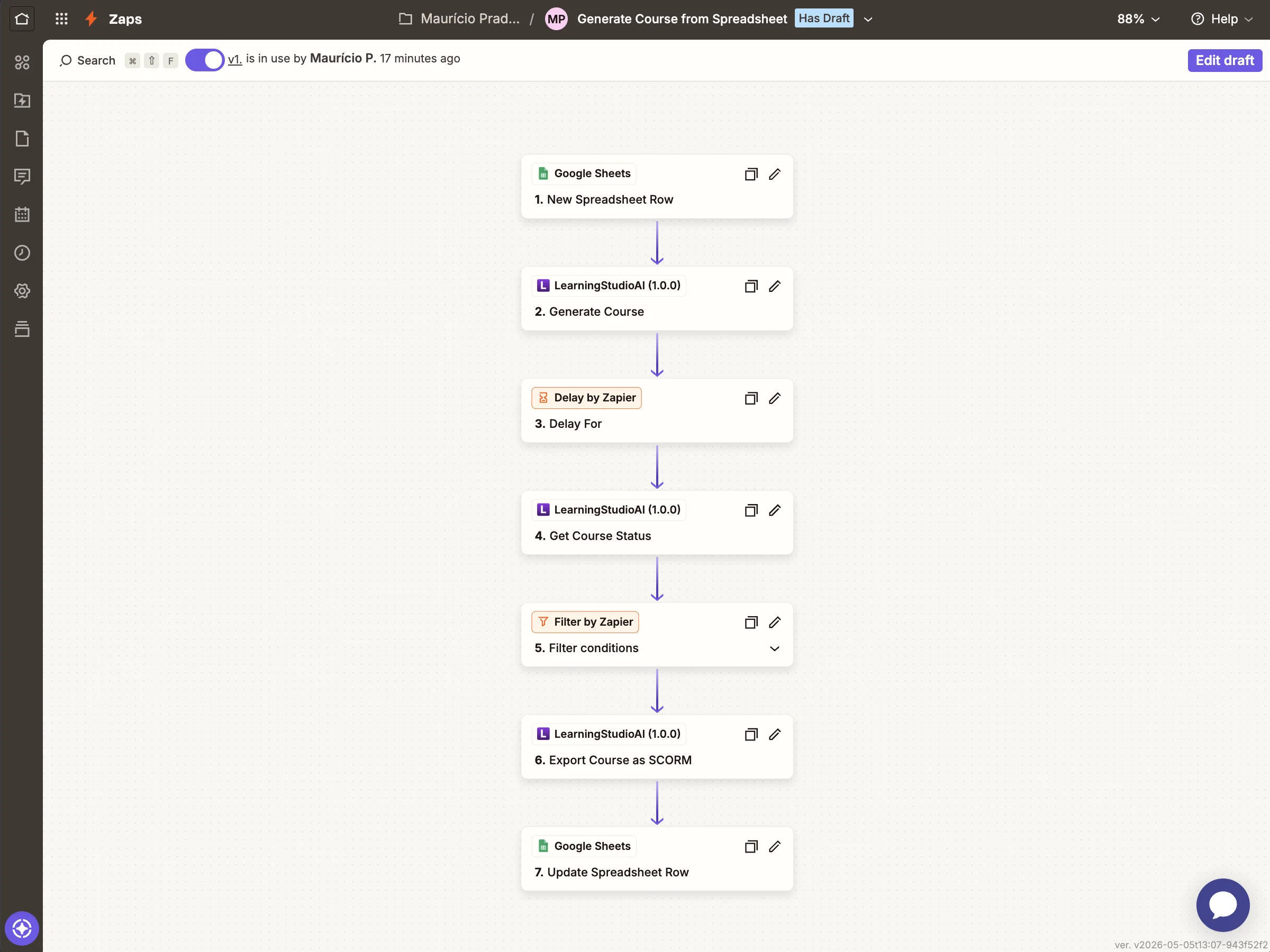
A 7-step Zap that:
- Watches a Google Sheet for new rows
- Creates an AI course from the row's
Subjectcolumn - Waits for generation to finish (~2 minutes) and confirms the
status is
completed - Creates a SCORM package from the finished course
- Writes the share URL and SCORM download URL back to the same row
The same pattern works with any other Zapier trigger — Typeform, Slack messages, Notion database items, webhooks. Google Sheets is the most universal and easiest to demo.
Before you start
You'll need:
- A Zapier account (free plan is fine)
- A LearningStudioAI account on a paid plan (see Pricing)
- An API key — see Authentication for how to generate one
- A Google Sheet with at least one column named
Subject
Step 1: Create a new Zap
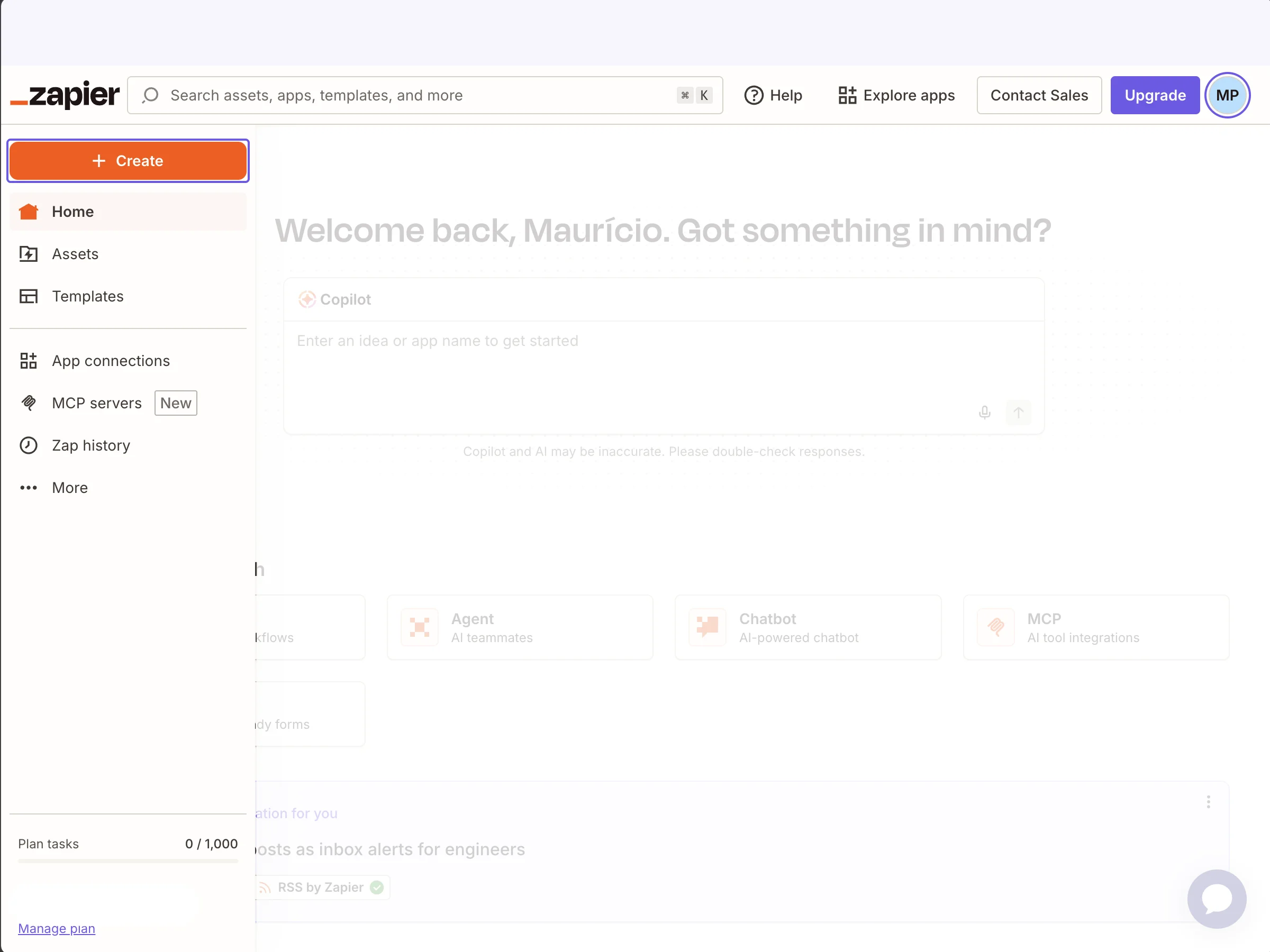
In Zapier, click + Create → Zap in the top-left navigation.
Step 2: Pick Google Sheets as the trigger
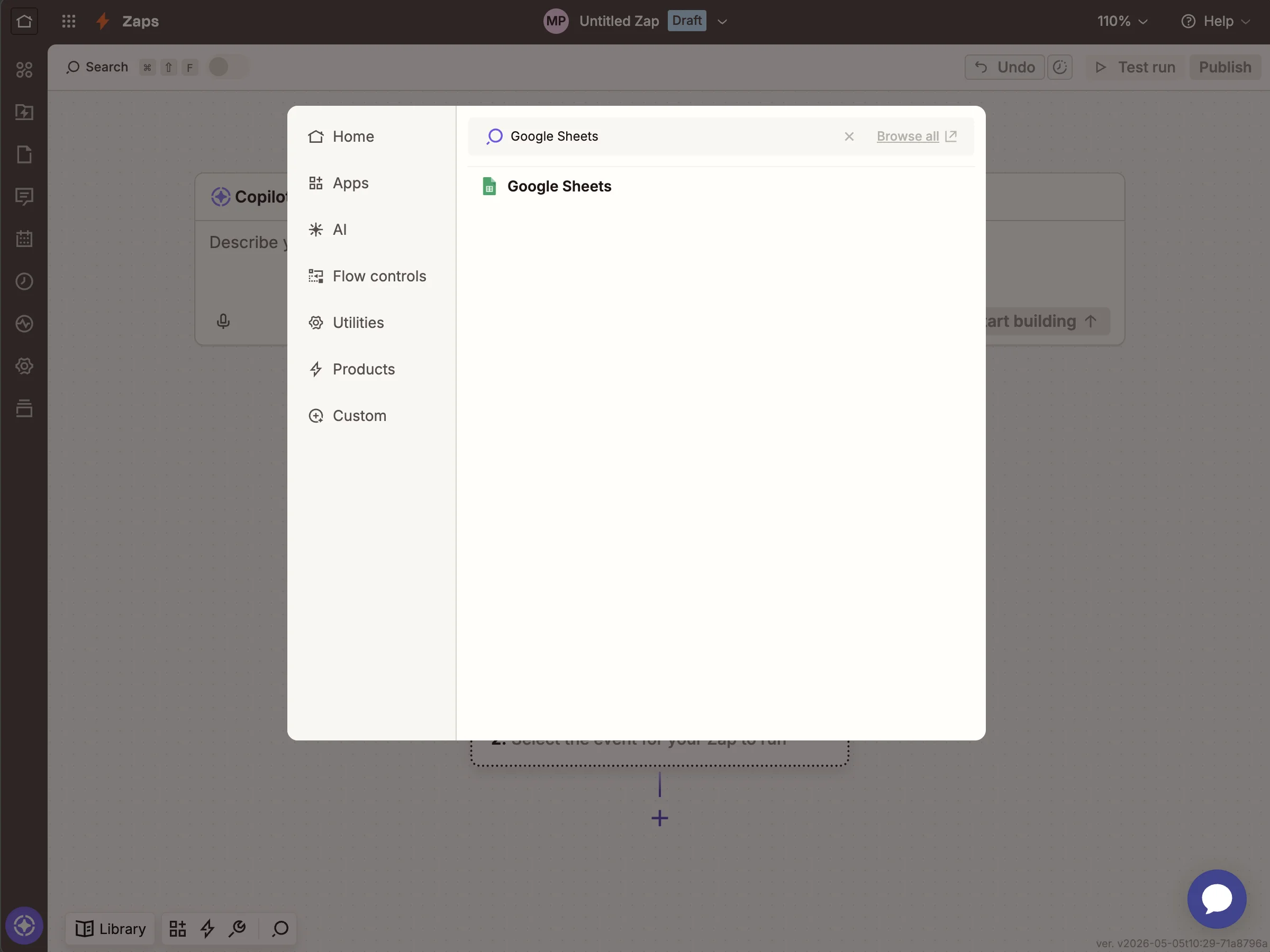
Search for Google Sheets and select it.
Step 3: Configure the trigger event
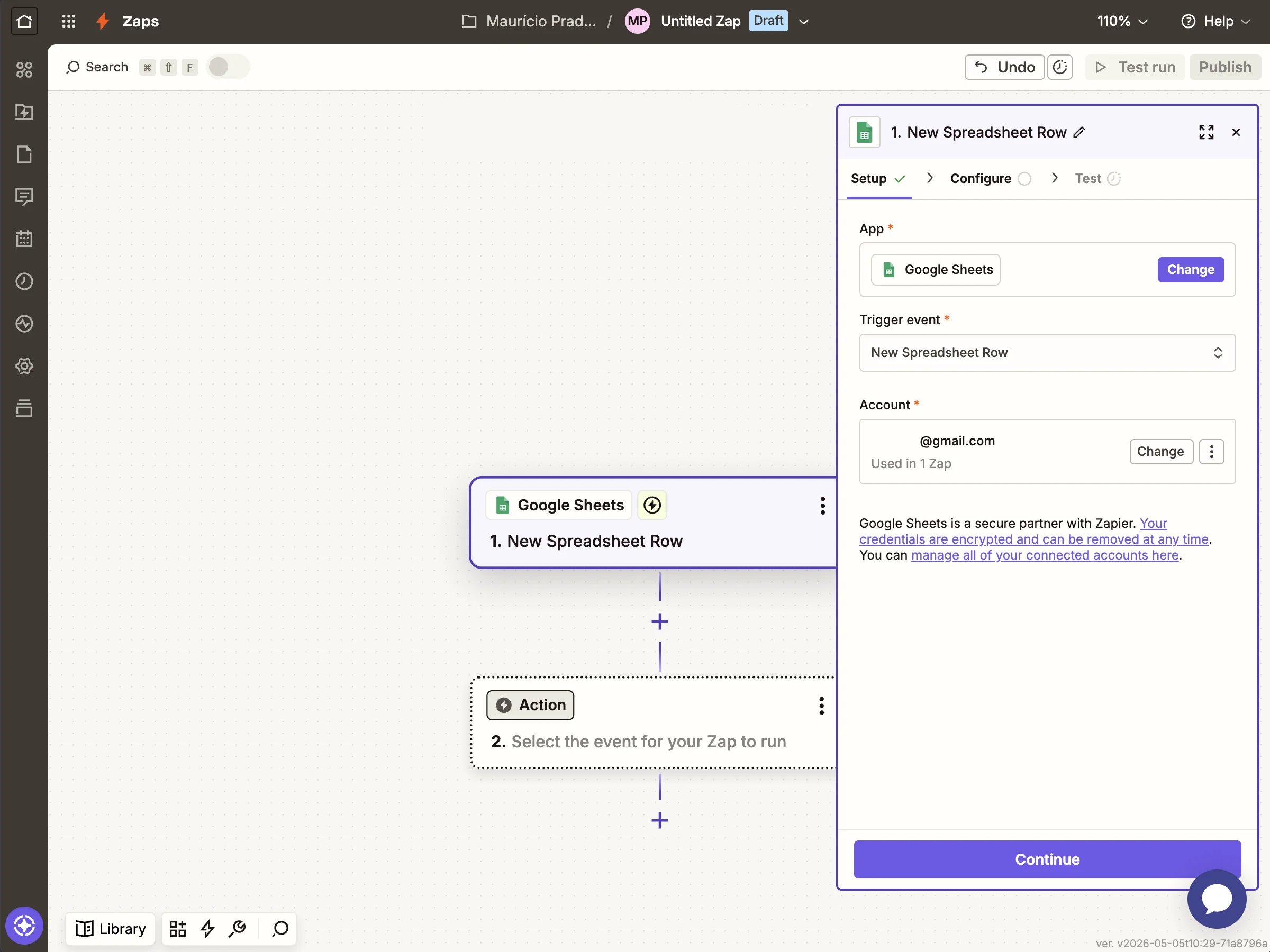
Choose New Spreadsheet Row as the event, connect your Google account, and pick the sheet you set up earlier.
Step 4: Add the Create Course action
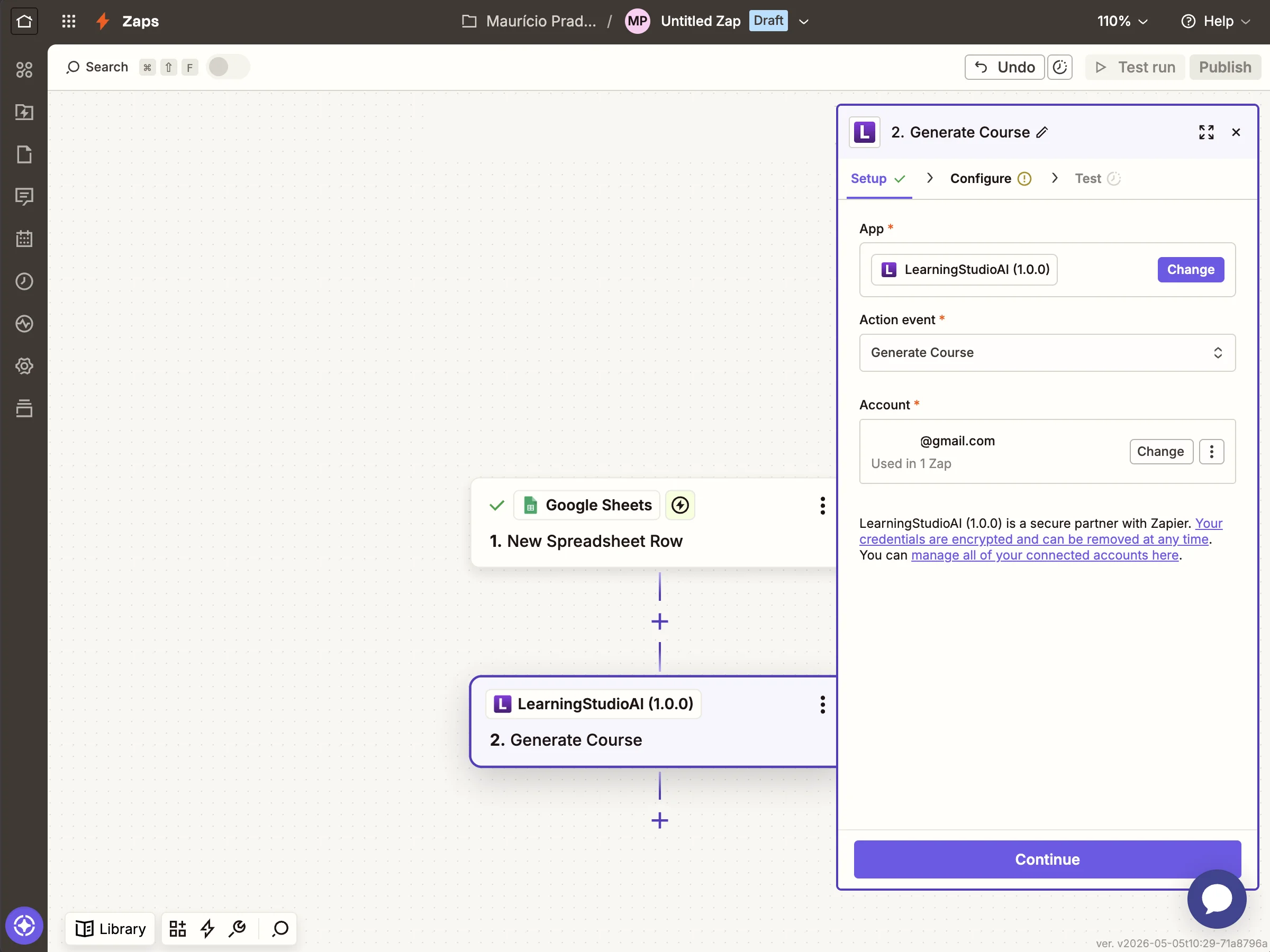
Click + to add the next step. Search LearningStudioAI and pick
Create Course. Connect your LearningStudioAI account using the
API key from your account settings.
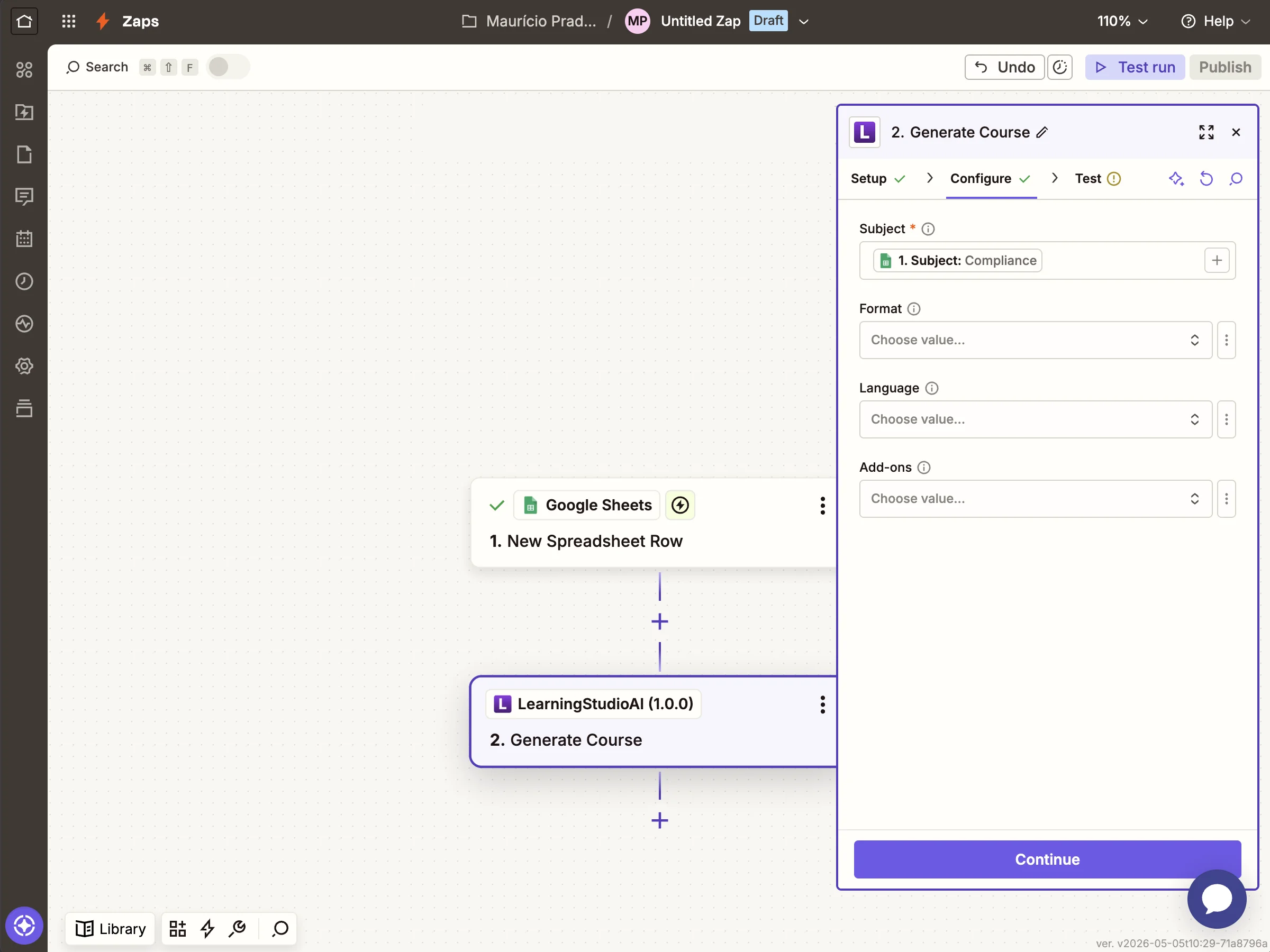
Step 5: Map the subject from your sheet
Click into the Subject field and pick the column from your Google Sheets trigger. Leave Format, Language, and Add-ons empty — the API applies sensible defaults (One Page format, English, no add-ons).
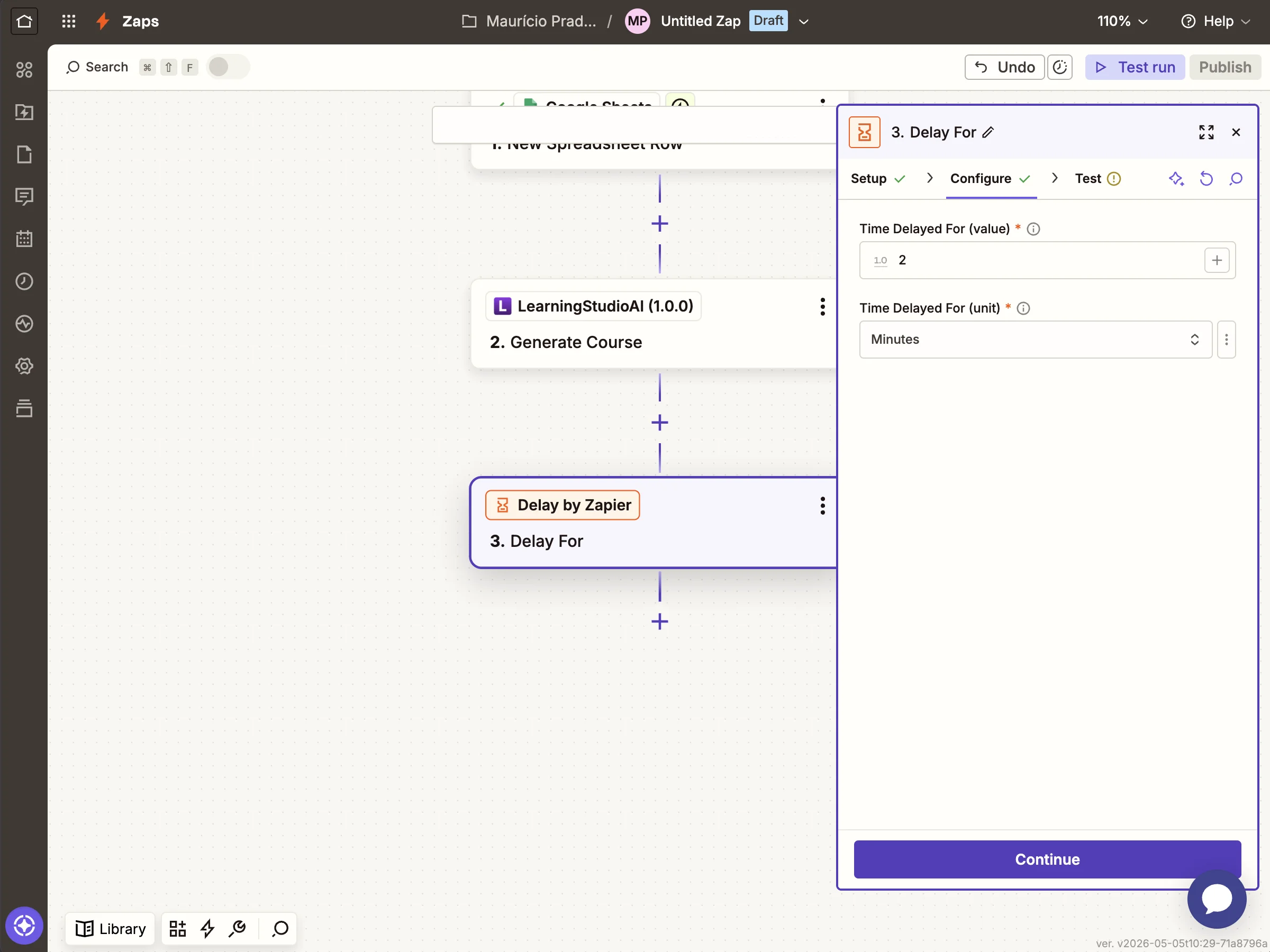
Step 6: Wait 2 minutes for generation
Course generation typically completes in 60–120 seconds. Add a Delay by Zapier → Delay For step set to 2 minutes.
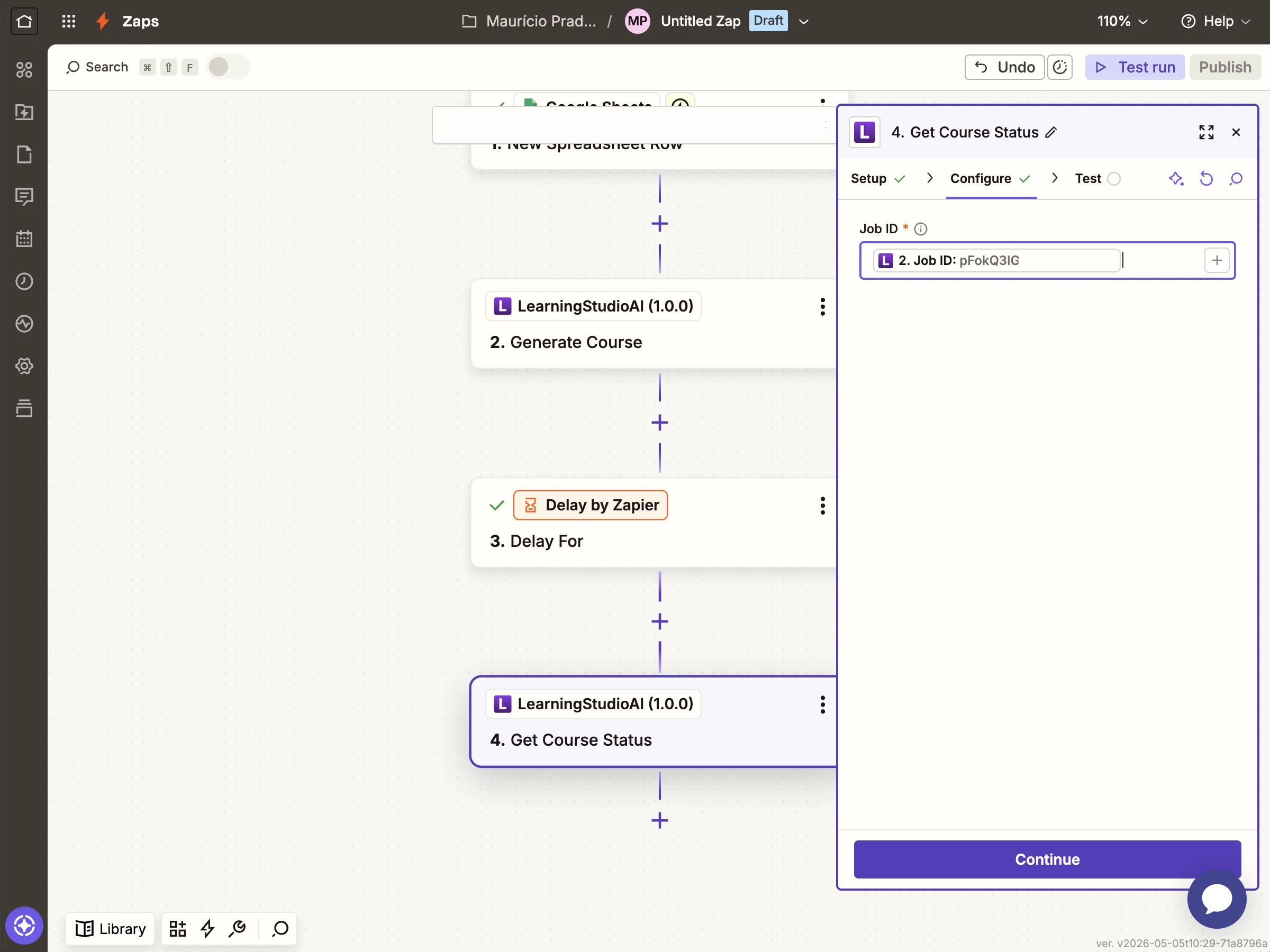
Step 7: Find the course
Add another LearningStudioAI step: Find Course (a Search-type action). Map the Job ID field from the previous Create Course step's output.
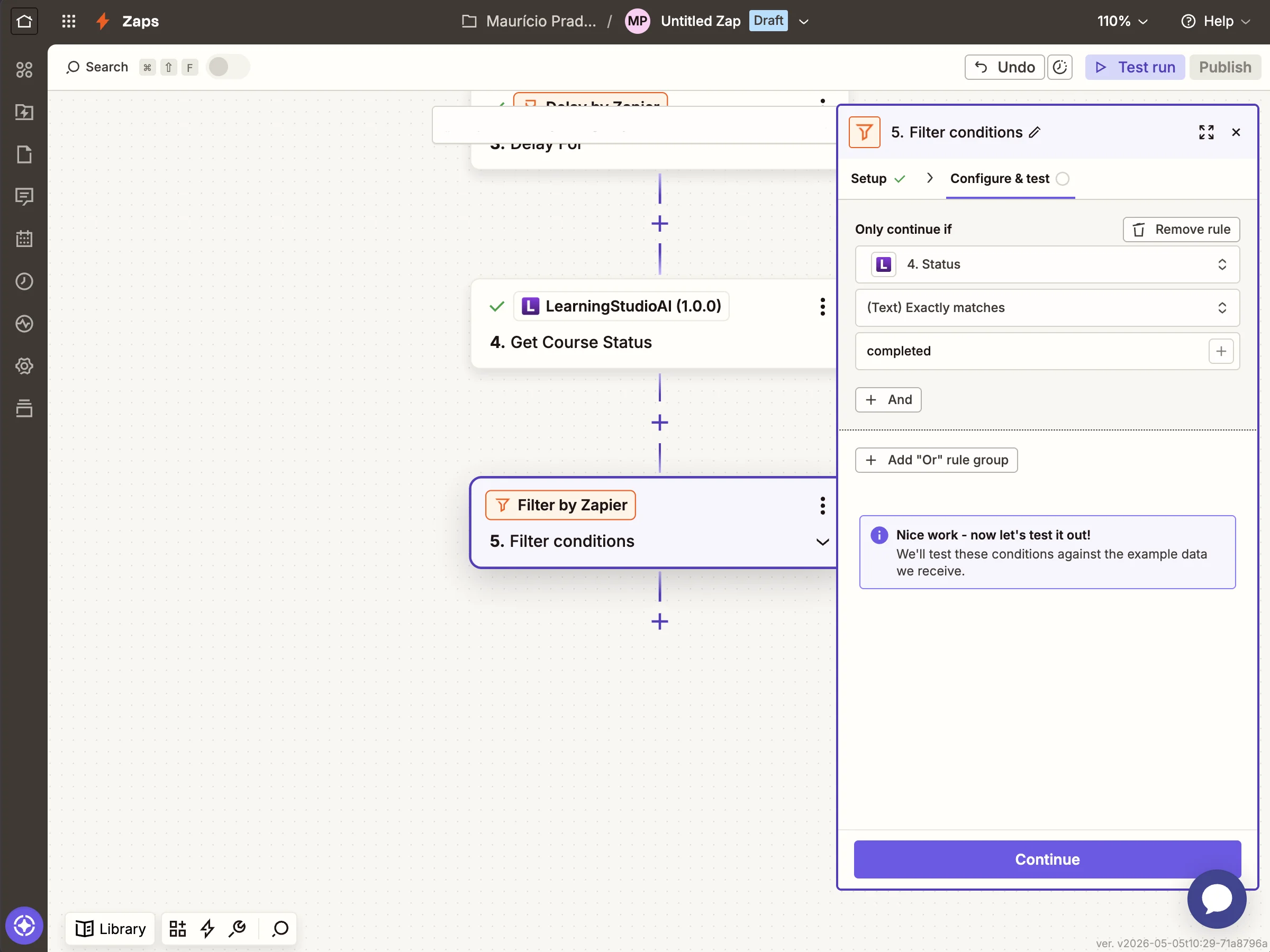
Step 8: Filter to only continue when complete
Add a Filter by Zapier step with the condition
Status (Text) Exactly matches completed. This stops the Zap when
the course is still pending or generation failed, so the next steps
never run with an unfinished course.
Step 9: Create the SCORM package
Add Create SCORM Package. Map Course ID from the Find Course step. Leave SCORM Version at the default (SCORM 1.2 — the most widely supported format across LMSs).
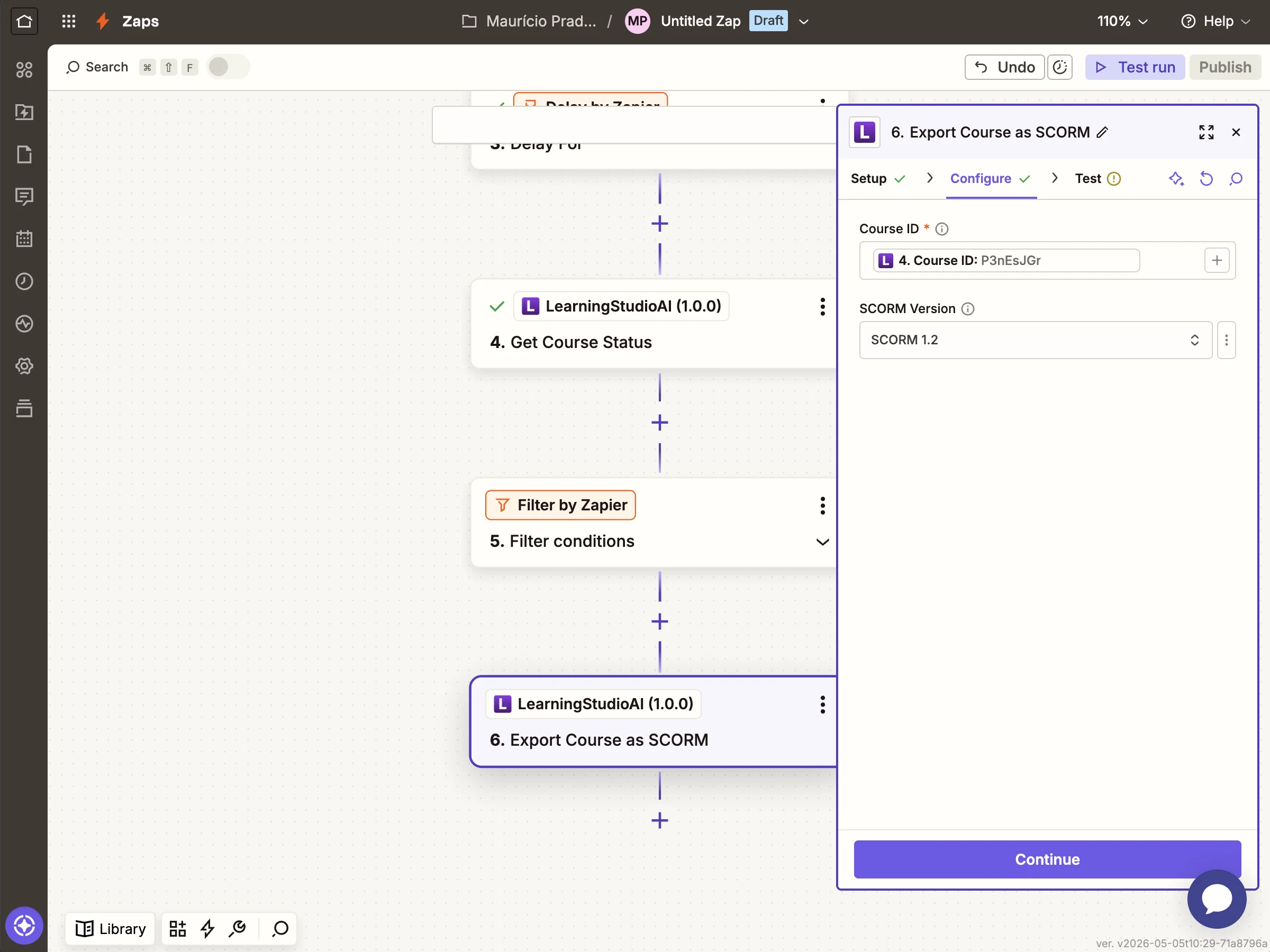
Step 10: Write the SCORM URL back to the sheet
Add a Google Sheets → Update Spreadsheet Row step. Pick the same spreadsheet, then map:
- Row →
Row Numberfrom the trigger (this targets the row that triggered the Zap, not a hardcoded row number) - Share URL column →
Share URLfrom the Create SCORM Package step - Download URL column →
Download URLfrom the Create SCORM Package step - Completed At column →
Exported Atfrom the Create SCORM Package step
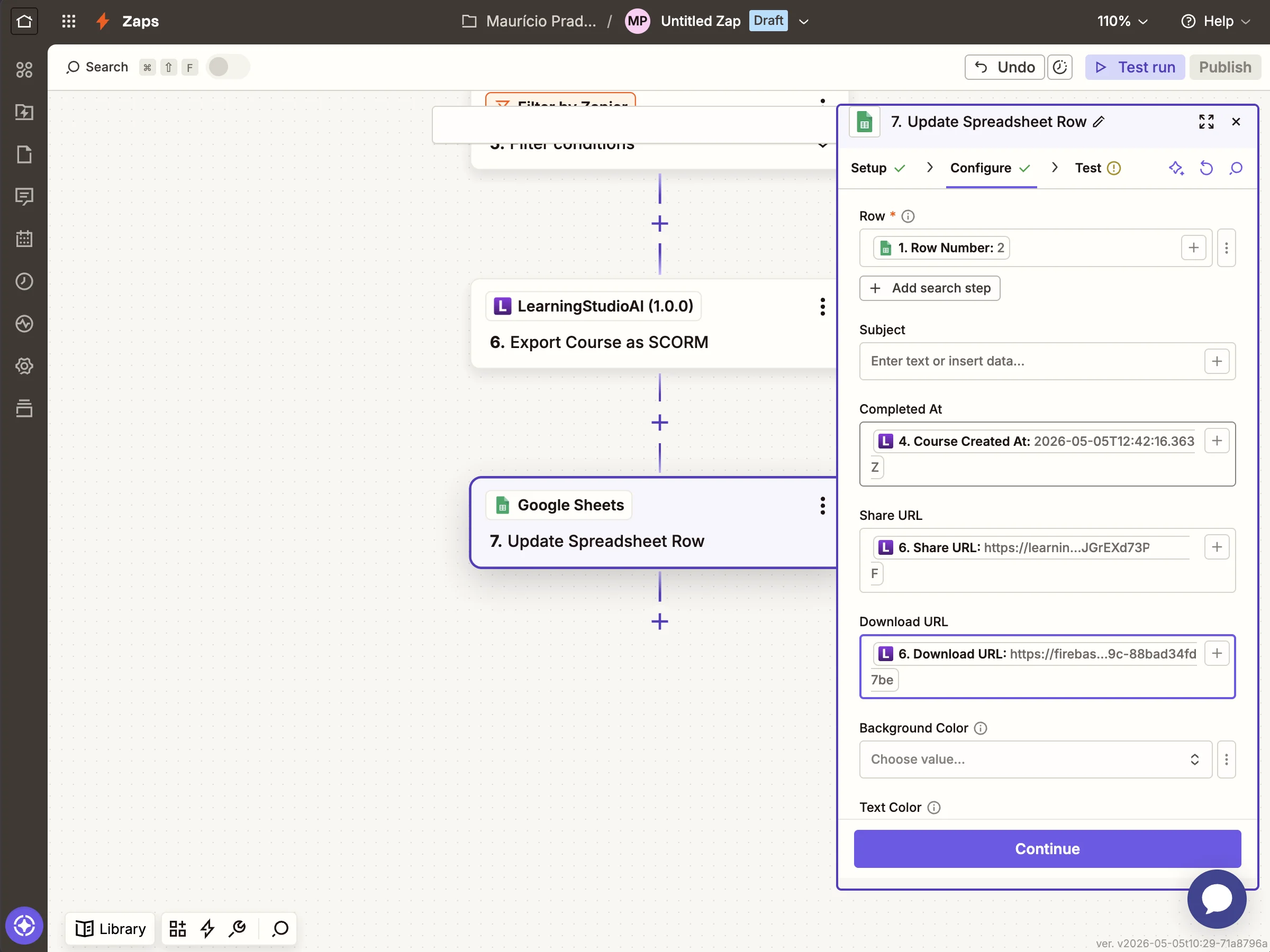
Zapier may flag a "Possible Zap loop detected" warning here. It's
safe to ignore: the trigger is New Spreadsheet Row (not New or Updated Row), so updating an existing row never re-fires the Zap.
Step 11: Review the complete workflow
Your Zap now has 7 steps from trigger to row update.
Test and publish
Click Test run to fire the Zap end-to-end against your sheet. Each step should return a green checkmark. Once the test passes, click Publish to turn the Zap on. New rows added to the sheet trigger course generation automatically.
Variations
Swap the trigger for any other Zapier app to fit your workflow:
- Typeform / Google Forms — generate a course when an employee submits a training request
- Slack — turn
@LearningStudioAI generate a course on Xmentions into SCORM packages - Notion — generate a course for each new database item in your L&D pipeline
- Webhooks by Zapier — receive a webhook from your HRIS or LMS and generate courses programmatically
Troubleshooting
401 INVALID_API_KEY— the API key is wrong or has been rotated. Generate a new one in your account settings and reconnect the LearningStudioAI account inside the Zapier action.403 PAID_PLAN_REQUIRED— the account behind the API key is on the free plan. See Pricing to upgrade.status: pendingafter the delay — generation took longer than 2 minutes. Increase the Delay step to 3 minutes, or build a poll-and-retry pattern with Zapier's Paths feature.
For full API-level error semantics, see Errors.